
How to Automate Repetitive Tasks Using AI (Zapier, Make & n8n Guide)
A step-by-step tutorial on how to automate repetitive tasks using AI with Zapier, Make, and n8n—including tool comparisons, JSON prompts, and error-handling tips.

- Read time
- 8 min read
- Sections
- 11
- FAQs answered
- 6
- Topic
- Automation
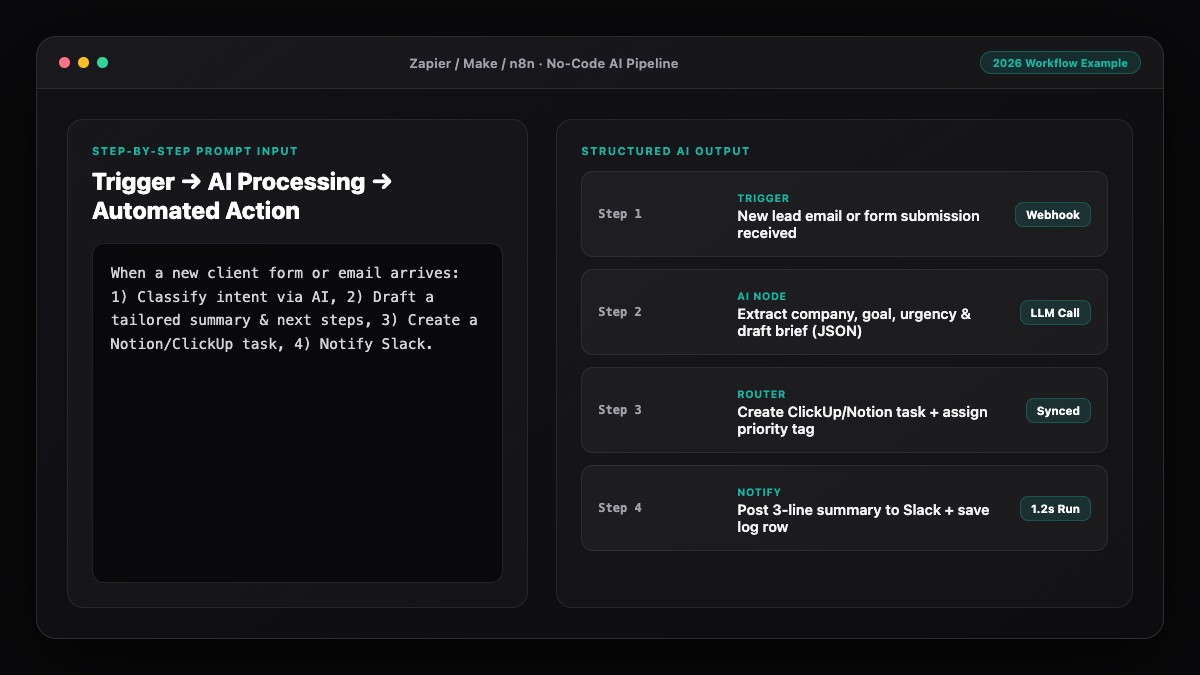
To automate repetitive tasks using AI, connect a trigger app (such as Gmail, Slack, or Google Sheets) to an AI model (such as OpenAI or Anthropic) through an orchestration platform like Zapier, Make, or n8n, then route the structured output to your destination app. Instead of manually copying data, summarizing emails, or tagging support tickets every day, the workflow runs automatically in seconds whenever new data arrives.
Most knowledge workers lose five to ten hours every week to predictable, low-judgment chores: triaging inbound emails, reformatting meeting notes into CRM fields, categorizing spreadsheets, and drafting routine status updates. Traditional rule-based automation could move data from Point A to Point B, but it broke whenever text was messy or unstructured. Adding an LLM step bridges that gap by reading, classifying, extracting, and drafting inside the same automated pipeline.
In this step-by-step guide, you will learn how to choose the right automation platform, design a reliable trigger-AI-action pipeline, test edge cases, and deploy production-ready workflows across Zapier, Make, and n8n. If you are brand new to building workflows, you can also pair this guide with our walkthrough on how to create your first AI automation workflow in 20 minutes.
What You'll Need
Before building, pick one orchestration tool and one AI model provider. You do not need to write code, though you will need an API key for pay-as-you-go AI calls (separate from consumer subscriptions like ChatGPT Plus or Claude Pro).
| Platform | Free Tier | Paid Tier | Best For |
|---|---|---|---|
| Zapier | 100 tasks/month, 2-step Zaps, 15-min polling | Starts around $19.99/mo for multi-step Zaps, webhooks, and filters | Fastest setup and largest library of native app integrations |
| Make | 1,000 ops/month, 2 active scenarios, visual router | Starts around $9/mo for 10,000 ops and 1-min intervals | Visual branching, JSON parsing, and high-volume cost efficiency |
| n8n | Free self-hosted Community Edition (unlimited executions) | Cloud plans start around $20/mo; self-hosting costs only server fees | Full data control, custom AI agents, and complex looping logic |
| ChatGPT API (OpenAI) | Pay-as-you-go (no permanent free tier; small starter credits vary) | Billed per 1M tokens (fractions of a cent per workflow run with mini models) | Structured JSON extraction, classification, and fast text generation |
You will also need active accounts for the two apps you want to connect (for example, Gmail and Notion, or Typeform and Slack). Once you master a single workflow here, see how to connect your apps using AI automation across your entire stack.
Step 1: Audit and Pick One Repetitive Task
Do not start by automating your hardest, most nuanced process. Pick a task that happens at least five times a week, follows a recognizable pattern, and takes 5 to 15 minutes of manual effort each time.
- Inbound email triage: Classify support or sales emails by urgency, extract key details, and log them in a project board.
- Meeting note formatting: Turn raw transcript text into action items, owners, and deadlines pushed to Slack or Asana.
- Lead enrichment and routing: Summarize a contact form submission, assign a category tag, and notify the right teammate.
- Content repurposing: Convert a published blog URL or newsletter draft into three social captions stored in a review sheet.
Write down the exact trigger (what starts the work), the input data available, the AI judgment required, and the final destination. A one-sentence specification prevents scope creep before you open the builder.
Step 2: Set Up Your Trigger and Clean Inputs
Open Zapier, Make, or n8n and create a new workflow. Add your trigger module first—such as New Email Matching Search in Gmail, New Row in Google Sheets, or New Form Submission in Typeform.
Run a live test on the trigger so you have real sample data in the editor. Look closely at the payload fields. Strip out unnecessary signatures, HTML tags, or empty columns before sending text to the AI step. Cleaner inputs dramatically improve accuracy and cut token costs.
- Authenticate your trigger app using OAuth or an API token.
- Select the specific folder, label, spreadsheet tab, or form ID to watch.
- Pull at least one recent test record so downstream modules can map fields dynamically.
Step 3: Add an AI Processing Step With Structured Output
Next, add an OpenAI or Anthropic module between your trigger and destination app. Choose a fast, cost-effective model for classification and extraction (such as GPT-4o mini or Claude Haiku) rather than a heavy reasoning model, unless the task demands deep analysis.
The biggest secret to reliable AI automation is forcing structured JSON output. If you ask an AI to "summarize this email," it might return a paragraph one time and bullet points the next—breaking downstream spreadsheet columns. Instead, instruct the model to return a strict JSON object with fixed keys like category, urgency, summary, and suggested_reply.
- Set Temperature to
0or0.2for classification and data extraction so outputs stay deterministic. - Enable JSON Mode (or Structured Outputs) in your Zapier, Make, or n8n AI module settings.
- Pass only the exact variables the AI needs, wrapped in clear XML or markdown delimiters like
<email_body>...</email_body>.
Step 4: Route and Map Outputs to Destination Apps
Once your AI step returns clean JSON fields, add a router or conditional filter. In Make, use a Router module; in Zapier, use Paths; in n8n, use an IF or Switch node.
For example, if urgency equals "high", send an immediate Slack alert with the summary and suggested_reply. If urgency equals "low", append a row to a Google Sheet or Notion database for batch review later. Always keep a human-in-the-loop review step when the workflow drafts external customer messages, especially while tuning your prompts.
Want to scale this pattern across departments? Read our guide on how to automate your business without coding using AI, or explore our personal AI automation system blueprint for solo productivity.
Step 5: Test Edge Cases and Add Error Handling
Before turning the workflow on permanently, feed it three messy test cases: an empty or one-word message, an unusually long thread, and an unexpected language or format.
- Verify what happens if the AI returns an unexpected category—add a fallback branch (such as
"needs_review"). - Configure error notifications in Zapier, Make, or n8n so failed runs ping your email or Slack channel immediately.
- Set monthly spending limits in your OpenAI or Anthropic billing dashboard so a runaway loop can never surprise you.
Best Prompts to Copy and Paste
Use these battle-tested system prompts inside your Zapier, Make, or n8n AI modules. Replace the bracketed categories with your own.
1. Inbound Email Triage & JSON Extractor
You are an operations triage assistant. Read the incoming message and return ONLY valid JSON with no markdown fences or extra commentary.

Required JSON keys:
- "category": one of ["sales", "support", "billing", "partnership", "spam"]
- "urgency": one of ["high", "medium", "low"]
- "sender_intent": a 1-sentence summary (max 20 words)
- "action_required": boolean (true or false)
- "draft_reply": a polite 2-sentence acknowledgment if action_required is true, otherwise empty string

Input message:
{{trigger_body}}
2. Meeting Transcript to Action Items
Extract clear action items from the meeting transcript below. Return ONLY valid JSON with a single key "tasks" containing an array of objects. Each object must have:
- "task": concise action description starting with a verb
- "owner": person name or "Unassigned"
- "due_date": ISO date if mentioned, otherwise "TBD"

Do not invent tasks that were not explicitly agreed upon.
Transcript:
{{transcript_text}}
3. Messy Form Data Normalizer
Clean and standardize the lead record below. Return ONLY valid JSON with keys:
- "company_name": properly capitalized company name
- "industry": closest match from ["SaaS", "Ecommerce", "Agency", "Healthcare", "Finance", "Other"]
- "company_size": one of ["1-10", "11-50", "51-200", "200+", "Unknown"]
- "one_line_pitch": 15-word summary of what the lead needs

Raw submission:
{{form_payload}}
Common Mistakes to Avoid
- Automating broken processes: If a workflow is unclear manually, automating it only produces confusion faster. Map the steps cleanly first.
- Skipping JSON validation: Letting the AI reply in freeform prose causes downstream app fields to break whenever formatting shifts.
- Using expensive models for simple sorting: Basic tagging and extraction work faster and up to 20x cheaper on lightweight models.
- Auto-sending unreviewed external emails: Keep drafts in Gmail, Slack, or your CRM for one-click approval until you have verified 50+ runs.
- Forgetting loop protection: Never trigger an automation on "New Email" if the same workflow sends an email back to the same inbox without a filter.
References & Official Sources
All workflows, pricing tiers, and feature capabilities in this guide were verified against the official platform documentation:
- Zapier Official Automation Platform (zapier.com)
- Make Official Visual Automation (www.make.com)
- n8n Official Workflow Automation (n8n.io)
- OpenAI ChatGPT Official Platform (chatgpt.com)
- Anthropic Claude Official Workspace (claude.ai)
- KwiqRank AI Workflow Integration Guide — Internal methodology for combining AI tools into repeatable business processes.
Final Thoughts
Learning how to automate repetitive tasks using AI gives you immediate leverage without needing a software engineering background. Start with one high-frequency bottleneck, enforce structured JSON outputs, and add a quick human check before external actions fire. Once that first workflow runs smoothly for a week, expand to the next bottleneck in your calendar.
If you want a deeper framework on governance, compliance, and marketing operations, explore our AI marketing workflow integration guide—or contact our team if you would like help designing reliable AI workflows for your organization.
Your questions, answered in plain English
Zapier is the easiest for beginners because of its plain-English setup and huge app library. Make offers better visual branching and lower cost at scale, while n8n is ideal if you want self-hosted control.
No. Zapier, Make, and n8n all provide visual drag-and-drop builders. Understanding basic JSON key-value pairs helps, and you can copy-paste prompt templates to generate clean JSON automatically.
You need an API key for automated workflows. Consumer subscriptions like ChatGPT Plus or Claude Pro cover web chat usage, whereas automation platforms connect through pay-as-you-go API billing.
Most small workflows cost pennies per day. On free or starter plans in Make or n8n plus a lightweight API model, 1,000 automated runs often cost under $2 total.
Start with tasks that happen daily, follow a clear pattern, and carry low risk if a draft needs tweaking—such as summarizing inbound leads, extracting meeting action items, or tagging support tickets.
Restrict the prompt to provided input data, require strict JSON output, set temperature to 0, and route drafts to Slack or Gmail Drafts for human approval instead of auto-sending.
Still curious? Send us your question and a strategist will get back to you.

Want this done for you?
We can put this guide to work on your website. Start with a free audit.
Get my free auditWritten by KwiqRank Team
KwiqRank is a digital marketing agency in Mumbai, India, working with UK and US businesses on SEO, GEO, AEO, paid media and websites. We check facts against official sources, and tell you when something is unconfirmed. Spotted a mistake? Tell us and we will correct it.
Found this useful?
Talk to us about your site
Tell us what you are working on and we will say plainly what we would do first.