
How to Build a Personal AI Automation System That Saves You Hours
Build a personal AI automation system with Zapier, Make, or n8n to automate morning briefings, inbox triage, voice-note summaries, and weekly reviews.

- Read time
- 6 min read
- Sections
- 11
- FAQs answered
- 6
- Topic
- Automation
To build a personal AI automation system that saves you hours every week, connect your daily capture tools (inbox, calendar, and quick notes) to an AI orchestrator like Zapier, Make, or n8n, then route structured summaries, tasks, and morning briefings into one personal hub like Notion or Todoist. Instead of juggling five apps every morning, your system triages, organizes, and prepares your day automatically.
Most people use AI reactively: they open a chat tab, paste a messy email, ask for a summary, copy the result back, and repeat that dance ten times a day. While that saves a few minutes per task, it still relies on your manual memory and attention. A personal AI automation system works proactively in the background—processing incoming noise before you even sit down at your desk.
In this guide, we will design a lightweight personal operating system across your inbox, calendar, and notes. If you have never built a workflow before, start with our 20-minute walkthrough to create your first AI automation workflow, or see how to automate repetitive tasks using AI at a tactical level.
What You'll Need
A personal system only needs three pieces: your existing calendar/email/notes apps, one automation hub, and a pay-as-you-go AI API key. Even if you already pay for ChatGPT or Claude on the web, background automations require an API key.
| Platform | Free Tier | Paid Tier | Personal System Fit |
|---|---|---|---|
| Zapier | 100 tasks/month, 2-step Zaps | Starts around $19.99/mo for multi-step Zaps and schedules | Easiest Gmail, Google Calendar, and Todoist/Notion setup |
| Make | 1,000 ops/month, 2 active scenarios | Starts around $9/mo for 10,000 ops | Generous free tier for daily digests and multi-step personal routing |
| n8n | Free self-hosted Community Edition | Cloud starts around $20/mo | Best if you want private, self-hosted control over personal notes and emails |
| ChatGPT API (OpenAI) | Pay-as-you-go billing | Billed per 1M tokens (typically under $1/mo for solo use) | Ideal for daily briefings, task extraction, and inbox triage |
Step 1: Centralize Into One Personal Hub
Personal automation fails when outputs scatter across five places. Pick one daily command center—such as Notion, Todoist, Apple Reminders (via email/webhook), or a dedicated Slack/Telegram personal channel.
Everything your automations produce—morning briefings, extracted action items, reading summaries, and draft replies—should land in that single hub or your email drafts folder. You can learn more about linking multiple tools cleanly in our guide on how to connect your apps using AI automation.
Step 2: Build an Automated Morning Briefing
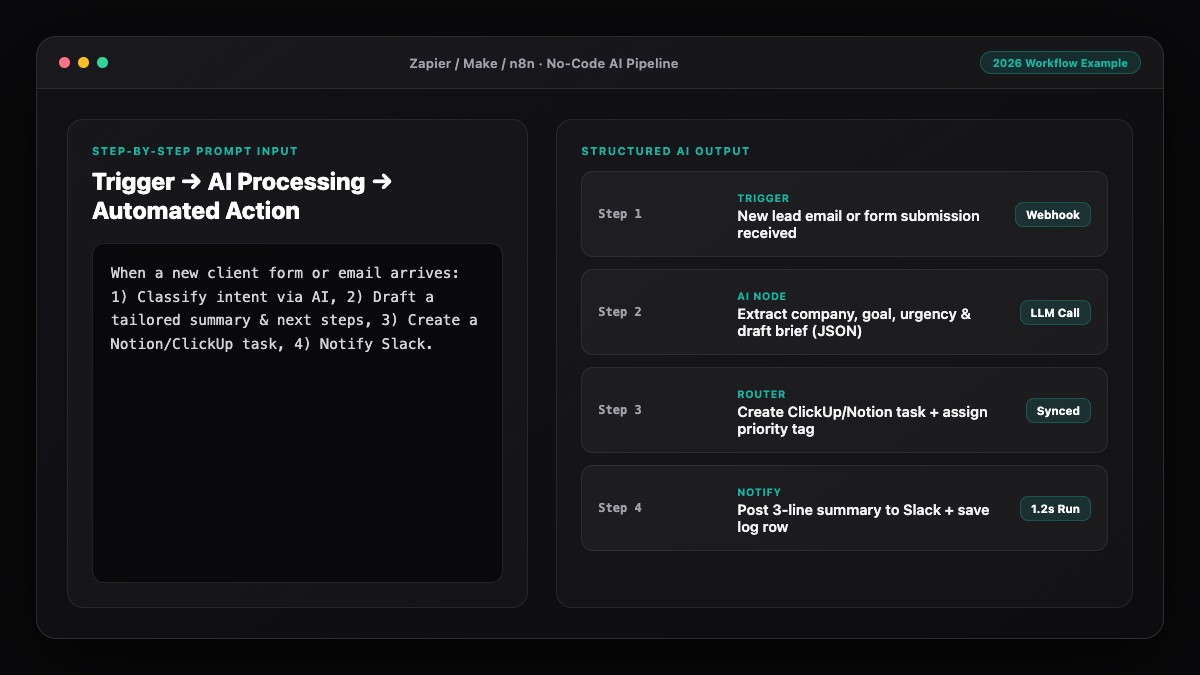
Instead of checking three calendars and scrolling unread emails first thing in the morning, schedule a 7:30 AM workflow in Zapier, Make, or n8n:
- Schedule Trigger: Runs every weekday at 7:30 AM.
- Fetch Context: Pulls today's Google Calendar events and any starred/unread priority emails from the last 24 hours.
- AI Synthesis: Summarizes your schedule, highlights prep needed for meetings, and lists top 3 priorities.
- Deliver: Sends a concise digest to your personal Slack DM, Telegram bot, or email inbox.
Step 3: Automate Inbox Triage and Draft Replies
Your inbox is where other people's priorities hijack your focus. Set up a workflow triggered by new incoming emails (filtered to exclude newsletters and automated receipts):
- AI classifies each email into
Action Needed,Waiting On, orFYI / Read Later. - If
Action Needed, the AI extracts the core question, creates a task in your hub with a suggested due date, and saves a polite 2-sentence reply inside Gmail Drafts. - You open your inbox twice a day only to review and hit send on pre-written drafts.
Step 4: Turn Voice Notes and Links Into Structured Notes
Capture ideas effortlessly while walking or reading without organizing them manually later:
- Set up a quick capture trigger—such as forwarding an article URL to a dedicated email label, dropping a link in a private Slack channel, or uploading a voice memo transcript.
- Pass the content to an AI step that extracts a 3-bullet summary, 2 topic tags, and any follow-up action items.
- Automatically save the cleaned note into your Notion Second Brain or Obsidian/Google Docs archive.
Step 5: Add a Friday Weekly Review Loop
A personal AI automation system gets smarter when it helps you close the week. Schedule a Friday 4:00 PM automation that pulls completed tasks from Notion or Todoist plus your week's calendar events.
Have the AI generate a 150-word reflection: what you shipped, which recurring meetings ate the most time, and three carry-over priorities for Monday morning. Looking to bring this same discipline to a full team? Read our guide on how to automate your business without coding using AI.
Best Prompts to Copy and Paste
Copy these personal-productivity prompts into your Make, Zapier, or n8n AI modules.
1. Weekday Morning Briefing
You are my executive assistant. Based ONLY on today's calendar events and recent priority emails below, write a crisp morning briefing under 180 words. Use this exact structure:
1. Today's Schedule (times + meeting focus)
2. Prep Needed (only if an event has notes/context)
3. Top 3 Priorities from Inbox

Calendar events:
{{calendar_events}}

Recent emails:
{{priority_emails}}
2. Personal Inbox Triage & Task Extractor
Classify this personal email and return ONLY valid JSON:
- "bucket": one of ["Action Needed", "Waiting On", "FYI"]
- "task_title": concise action item starting with a verb (empty string if FYI)
- "suggested_due": "Today", "This Week", or "Next Week"
- "draft_reply": concise 2-sentence reply matching a warm, professional tone (empty string if FYI)

Email:
From: {{sender}}
Subject: {{subject}}
Body: {{body_plain}}
3. Read-It-Later & Brain-Dump Summarizer
Convert this saved article or quick note into a clean knowledge-base entry. Return ONLY valid JSON:
- "title": clear 5-to-8-word title
- "tags": array of 2 lowercase topic tags
- "key_takeaways": array of 3 bullet strings (max 18 words each)
- "action_item": 1 concrete takeaway to apply, or "None"

Raw input:
{{captured_text}}
Common Mistakes to Avoid
- Building five automations in one weekend: Start with just the Morning Briefing or Inbox Triage. Live with it for seven days before adding the next piece.
- Including newsletters in your inbox triage trigger: Filter out bulk/unsubscribe emails first so you do not waste AI tokens summarizing marketing blasts.
- Creating a noisy notification firehose: Route low-priority summaries to a single daily digest rather than pinging your phone all day.
- Forgetting privacy on personal data: Avoid sending banking, medical, or sensitive personal credentials through third-party workflows.
References & Official Sources
All workflows, pricing tiers, and feature capabilities in this guide were verified against the official platform documentation:
- Zapier Official Automation Platform (zapier.com)
- Make Official Visual Automation (www.make.com)
- n8n Official Workflow Automation (n8n.io)
- OpenAI ChatGPT Official Platform (chatgpt.com)
- Anthropic Claude Official Workspace (claude.ai)
- KwiqRank AI Workflow Integration Guide — Internal methodology for combining AI tools into repeatable business processes.
Final Thoughts
Building a personal AI automation system gives you back hours of fragmented attention every single week. By connecting your inbox, calendar, and quick notes to one central hub through Zapier, Make, or n8n, you stop acting as your own administrative assistant and start each day with clarity.
Want to see how these same workflow principles scale to marketing and company operations? Explore our AI marketing workflow integration guide, or contact our team to discuss custom AI automation for your organization.
Your questions, answered in plain English
It is a set of lightweight background workflows that connect your email, calendar, and notes to an AI model—automatically triaging messages, generating morning briefings, and organizing tasks.
You can run a starter system on Make’s free tier (1,000 ops/month) or n8n self-hosted, plus roughly $0.50 to $2 per month in pay-as-you-go OpenAI API usage.
An automated Morning Briefing paired with Inbox Triage (saving suggested replies to Gmail Drafts) typically saves 30 to 45 minutes every workday.
No. Notion works great as a central hub, but you can route outputs to Todoist, Google Sheets, Apple Reminders, or a private Slack/Telegram channel instead.
Batch non-urgent summaries into one scheduled morning or evening digest instead of triggering instant alerts for every incoming email or saved link.
Filter out sensitive financial or medical emails before the AI step, use official OAuth connections, and consider self-hosting n8n if you want maximum data control.
Still curious? Send us your question and a strategist will get back to you.

Want this done for you?
We can put this guide to work on your website. Start with a free audit.
Get my free auditWritten by KwiqRank Team
KwiqRank is a digital marketing agency in Mumbai, India, working with UK and US businesses on SEO, GEO, AEO, paid media and websites. We check facts against official sources, and tell you when something is unconfirmed. Spotted a mistake? Tell us and we will correct it.
Found this useful?
Talk to us about your site
Tell us what you are working on and we will say plainly what we would do first.