
How to Connect Your Apps Using AI Automation Without Code
Learn how to connect apps using AI automation without code. Turn messy data into structured JSON across Zapier, Make, n8n, CRMs, Slack, and Notion.

- Read time
- 8 min read
- Sections
- 11
- FAQs answered
- 6
- Topic
- Automation
To connect apps using AI automation without code, use an integration hub like Zapier, Make, or n8n to link your apps via triggers, webhooks, and an AI translation step. Instead of rigid field-to-field mapping that fails when formats differ, AI acts as a universal translator—reading messy data from one tool and formatting it cleanly for the next.
Most teams run on a patchwork of specialized tools: forms in Typeform, emails in Gmail, deals in HubSpot, tasks in Notion, and alerts in Slack. Native integrations only cover basic one-to-one syncs, leaving people stuck copying, summarizing, and reformatting information across tabs. By placing an LLM inside your app connections, you can bridge tools that were never designed to speak the same language.
This guide walks you through connecting your software stack without writing a single line of backend code. If you are looking to start with a single quick win first, check out our 20-minute guide to create your first AI automation workflow, or see how to automate repetitive tasks using AI across Zapier, Make, and n8n.
What You'll Need
To connect multiple apps with AI in the middle, you need an automation orchestrator and an API key from an AI provider. Consumer chat apps like ChatGPT and Claude do not connect directly to background webhooks—you will use their developer APIs inside your chosen platform.
| Platform | Free Tier | Paid Tier | App Connection Strength |
|---|---|---|---|
| Zapier | 100 tasks/month, 2-step Zaps | Starts around $19.99/mo for multi-step Zaps and webhooks | 7,000+ native app connectors with zero-config OAuth |
| Make | 1,000 ops/month, 2 active scenarios | Starts around $9/mo for 10,000 ops and custom HTTP modules | Deep data mapping, visual routers, and built-in JSON tools |
| n8n | Free self-hosted Community Edition | Cloud plans start around $20/mo | Flexible webhooks, HTTP Request nodes, and multi-app AI chains |
| ChatGPT API (OpenAI) | Pay-as-you-go billing | Billed per 1M tokens (pennies per hundred runs) | Turns unstructured text from App A into clean fields for App B |
Step 1: Map Your Source and Destination Apps
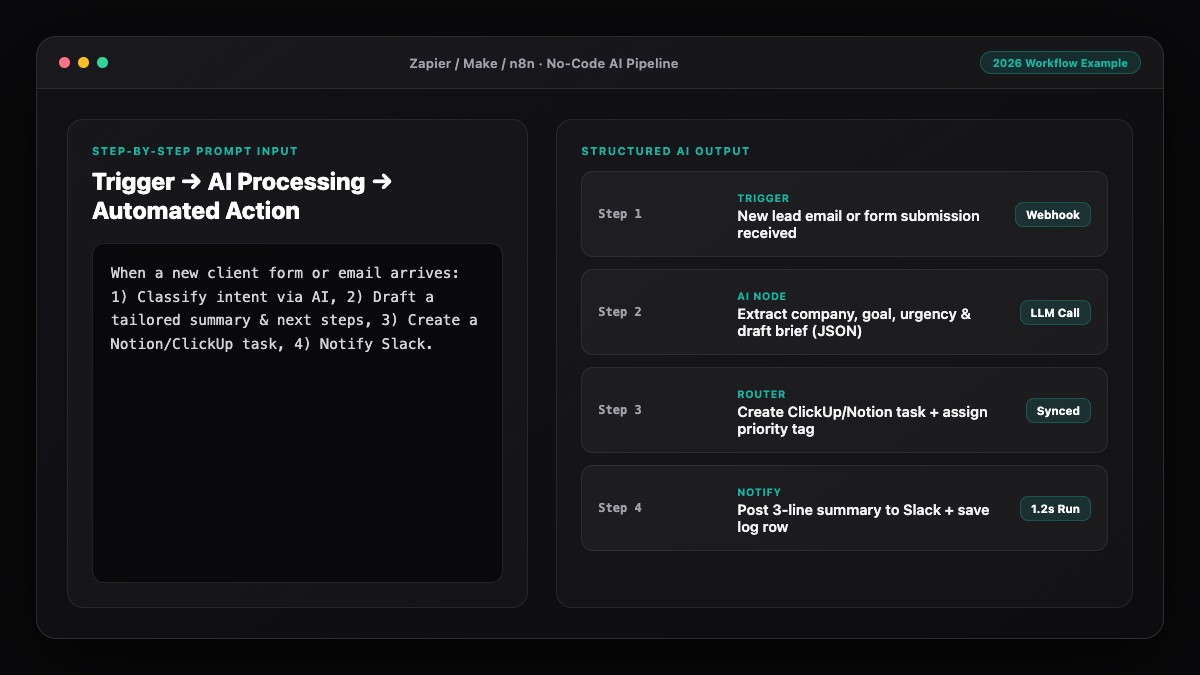
Every no-code app connection follows a simple three-part architecture: Source App (Trigger) → AI Translator → Destination App(s) (Actions). Before opening any tool, list the exact apps you want to link and what data each one expects.
- Source App: Where the event begins (e.g., Calendly booking, Shopify order, Gmail thread, or Stripe payment).
- AI Translator: What needs to happen to the data in transit (e.g., summarize notes, extract company domain, translate language, or score intent).
- Destination App: Where the structured result lands (e.g., HubSpot contact property, Notion database row, or Slack channel message).
Check whether your source app offers a native trigger in Zapier, Make, or n8n. If it does not, look for a "Webhooks" setting inside the app—almost every modern SaaS tool can send a webhook URL ping when an event occurs.
Step 2: Authenticate Apps and Capture a Sample Payload
Create a new workflow in your platform and add your source trigger. Connect your account via OAuth (the standard "Sign in with Google/Slack" popup) or paste an API key from your app's developer settings.
- Click Test Trigger to pull a real record from your source app.
- If you are using a Webhook trigger, copy the generated webhook URL, paste it into your source app's webhook settings, and trigger a dummy event (like submitting a test form).
- Inspect the captured payload so you know the exact field names—such as
customer_email,notes, orcreated_at—that you will pass to the AI step.
Step 3: Use AI as a Universal Data Translator
In traditional no-code integrations, connecting App A to App B breaks whenever App A gives you a single messy text block (like a "How can we help?" form box) while App B demands separate fields for Industry, Budget, and Priority.
Insert an OpenAI or Anthropic module right after your trigger. Feed it the messy source fields and instruct it to output a clean JSON object whose keys match your destination app's exact columns. Enable JSON mode and set temperature to 0 so the format never drifts.
In Make and n8n, you can parse that JSON string automatically into clickable pills you can drag straight into HubSpot, Airtable, or Notion. In Zapier, use the built-in structured output fields or a quick Formatter step.
Step 4: Branch Data Across Multiple Apps
Once your apps are speaking the same structured language, one trigger can update three or four tools simultaneously. For example, when a new lead books a discovery call:
- CRM (HubSpot/Pipedrive): Create or update the contact with the AI-extracted company summary and industry tag.
- Team Chat (Slack/Teams): Post a 3-bullet pre-call brief in
#sales-alertswith the prospect's stated pain points. - Project Tracker (Notion/Asana): Create a follow-up task assigned to the account owner due 24 hours after the call.
Use conditional filters or routers so irrelevant records (like spam submissions or internal test emails) stop early and never clutter your CRM. If you want to apply this across your entire company, read our guide on how to automate your business without coding using AI.
Step 5: Verify Syncs and Prevent Duplicate Records
The most common failure when connecting apps is creating duplicate contacts or overwriting good data. Before activating your workflow, add a Search / Find Record step right before any Create Record step.
- Search your CRM or spreadsheet by email address or unique ID first.
- If a match exists, route to an Update Record module instead of creating a duplicate.
- Map only non-empty AI fields so blank values never overwrite existing notes.
- Run two end-to-end live tests and inspect the destination apps directly to confirm every field landed in the right column.
For solo workflows that link your personal calendar, notes, and inbox, see our blueprint for building a personal AI automation system.
Best Prompts to Copy and Paste
Drop these prompts into the AI step between your connected apps to standardize data cleanly.
1. Cross-App Field Mapper (Form to CRM)
Convert the unstructured form submission below into clean CRM fields. Return ONLY valid JSON with these exact keys:
- "full_name": string
- "company": string or "Unknown"
- "service_interest": one of ["SEO", "Paid Ads", "Automation", "Consulting", "Other"]
- "budget_tier": one of ["Under 2k", "2k-5k", "5k+", "Unspecified"]
- "crm_note": concise 2-sentence summary for the sales rep

Form data:
Name: {{name}}
Message: {{message}}
2. Support Ticket to Slack & Notion Router
Analyze this customer message and prepare routing metadata. Return ONLY valid JSON:
- "product_area": one of ["Billing", "Login", "API", "Feature Request", "Bug"]
- "severity": one of ["P1-Urgent", "P2-Normal", "P3-Low"]
- "slack_headline": max 12 words summarizing the issue
- "repro_steps": bulleted summary if bug details exist, else "None provided"

Customer message:
{{ticket_text}}
3. Calendar Booking to Pre-Call Brief
Summarize this Calendly booking for a Slack channel notification. Keep it factual and under 80 words. Return ONLY valid JSON:
- "attendee_summary": who they are and their role if stated
- "key_goal": what they want to achieve on the call
- "prep_question": one smart discovery question to ask first

Booking details:
{{booking_answers}}
Common Mistakes to Avoid
- Skipping the "Find or Create" check: Directly using "Create Contact" on every trigger floods your CRM with duplicates.
- Exposing sensitive customer data unnecessarily: Strip out passwords, payment tokens, or private health/financial details before sending payloads to an external LLM API.
- Hardcoding static IDs that expire: Always map record IDs dynamically from the previous step rather than typing fixed row numbers.
- Ignoring rate limits on destination apps: If you process 500 spreadsheet rows at once, add a small delay or batching step so your CRM API does not throttle requests.
- Leaving test webhooks pointing at staging URLs: Double-check that your live workflow uses the production webhook URL before you turn it on.
References & Official Sources
All workflows, pricing tiers, and feature capabilities in this guide were verified against the official platform documentation:
- Zapier Official Automation Platform (zapier.com)
- Make Official Visual Automation (www.make.com)
- n8n Official Workflow Automation (n8n.io)
- OpenAI ChatGPT Official Platform (chatgpt.com)
- Anthropic Claude Official Workspace (claude.ai)
- KwiqRank AI Workflow Integration Guide — Internal methodology for combining AI tools into repeatable business processes.
Final Thoughts
When you connect apps using AI automation, your software stack stops acting like isolated silos and starts operating as one cohesive system. You do not need custom engineering to pass clean, intelligent data from your inbox to your CRM, project board, and team chat—just a clear trigger, a structured JSON AI step, and duplicate-safe destination mapping.
Ready to align your connected workflows with broader marketing and operations standards? Explore our AI marketing workflow integration guide, or reach out to our team to plan a custom automation architecture.
Your questions, answered in plain English
Use a Webhook trigger in Zapier, Make, or n8n. Almost any modern app can send an HTTP webhook when an event happens, which your workflow can catch and process with AI.
Standard mapping only copies exact fields. AI can read a messy paragraph, extract multiple structured fields like industry, urgency, and summary, and format them cleanly for your destination app.
Make and n8n excel at branching one trigger into several destination apps visually. Zapier is fastest for straightforward 2-to-4-step connections across its 7,000+ app directory.
Insert a "Search" or "Find Record" module (searching by email or unique ID) before your "Create" step, and update the existing record whenever a match is found.
Major API providers like OpenAI and Anthropic do not train on API data by default, but you should still strip sensitive personal, financial, or health data and follow your company privacy policy.
Zapier, Make, and n8n include built-in error handlers and auto-replay queues. You can also configure instant Slack or email alerts whenever a step fails.
Still curious? Send us your question and a strategist will get back to you.

Want this done for you?
We can put this guide to work on your website. Start with a free audit.
Get my free auditWritten by KwiqRank Team
KwiqRank is a digital marketing agency in Mumbai, India, working with UK and US businesses on SEO, GEO, AEO, paid media and websites. We check facts against official sources, and tell you when something is unconfirmed. Spotted a mistake? Tell us and we will correct it.
Found this useful?
Talk to us about your site
Tell us what you are working on and we will say plainly what we would do first.