
How to Stop Wasting Time on Repetitive Tasks Using AI
Identify your biggest weekly time leaks and automate repetitive tasks with AI using reusable prompt templates and lightweight workspace tools.

- Read time
- 6 min read
- Sections
- 11
- FAQs answered
- 6
- Topic
- Everyday Productivity
To automate repetitive tasks with AI, track every recurring chore you do more than twice a week—such as summarizing meeting notes, formatting spreadsheets, drafting routine replies, or writing weekly status updates—and replace the first 80% of each workflow with a reusable AI prompt template or lightweight integration. Most knowledge workers lose 5 to 8 hours every week on predictable "glue work" that requires formatting and summarizing rather than original judgment. AI eliminates that drag immediately without requiring you to write code.
You do not need complex developer scripts to stop doing robot work. By identifying your highest-frequency friction points and turning them into one-click prompt templates, you free up hours every week for creative strategy and client work.
What You'll Need
Start with one conversational AI where you can save reusable instructions, paired with your everyday workspace tools.
| Tool | Free Tier Capabilities | Paid Tier Capabilities | Best Role for Repetitive Tasks |
|---|---|---|---|
| ChatGPT | Data formatting, email templates, text cleanup, quick summaries | Custom GPTs and Projects for one-click repeatable workflows | Turning raw text, CSVs, and notes into polished outputs |
| Claude | Clean document rewrites, structured tables, accurate extraction | Projects with permanent SOPs and style templates | Standardizing recurring reports and client communications |
| Gemini | Fast summaries, table generation, Google Workspace drafting | Native automation inside Gmail, Docs, and Google Sheets | Eliminating repetitive Google Docs and Gmail busywork |
| Notion | Database templates, recurring task buttons | Notion AI autofill properties for instant summaries and tags | Auto-summarizing project pages and meeting logs |
| Todoist | Recurring due dates, saved task templates | AI Filter Assistant and automated calendar sync | Automating repeating checklists and reminders |
| Motion | 7-day trial only | Auto-schedules recurring routines and tasks onto your calendar | Removing manual calendar drag-and-drop every day |
| ClickUp | Task templates and basic rule automations | ClickUp Brain for automated standups, summaries, and subtasks | Automating team status updates and sprint handoffs |
Step 1: Run a 3-Day "Time Leak" Audit
For the next three workdays, keep a sticky note or blank doc open and jot down every task that makes you sigh because you have done it 50 times before. Common culprits include:
- Rewriting rough bullet points into a polished status email
- Cleaning up messy copy-pasted tables or contact lists
- Summarizing long PDFs, Slack threads, or call transcripts
- Drafting repetitive customer FAQ replies or onboarding instructions
Pick the top two tasks that eat at least 20 minutes each time you do them. Solving just two recurring bottlenecks will immediately save you hours every month.
Step 2: Build an Input-to-Output Prompt Template
Instead of typing a fresh prompt every time, create a rigid template with clear placeholders. Specify the exact input format (for example, raw meeting bullets), the rules (no jargon, bulleted action items), and the exact output format (a 3-section Markdown table or ready-to-send email).
Test your template on three past examples inside Claude or ChatGPT until the output needs less than 30 seconds of editing.
Step 3: Save Your Templates Where You Actually Work
A prompt buried in a random Google Doc will never get used. Save your top five workflows as a Custom GPT in ChatGPT, a Project in Claude, or a pinned database in Notion. That way, automating a task takes two clicks: open the saved workflow and paste your raw input.
Step 4: Automate the Trigger, Not Just the Writing
Once your prompts are reliable, remove the copy-paste step for your most frequent workflows. Use built-in AI features—like Notion AI database autofill properties that summarize new meeting pages automatically, or Motion to auto-schedule recurring weekly blocks. If you want to connect separate apps together end-to-end, read our guide on how to build a personal AI automation system.
Step 5: Keep a Human in the Loop for the Final 20 Percent
Automation fails when people try to automate 100% of sensitive work and publish errors. Let AI do the heavy lifting—formatting, summarizing, first-drafting—and reserve 30 seconds of human review to verify numbers, names, and tone before hitting send. Combine this habit with using AI as your personal assistant every day to compound your time savings.
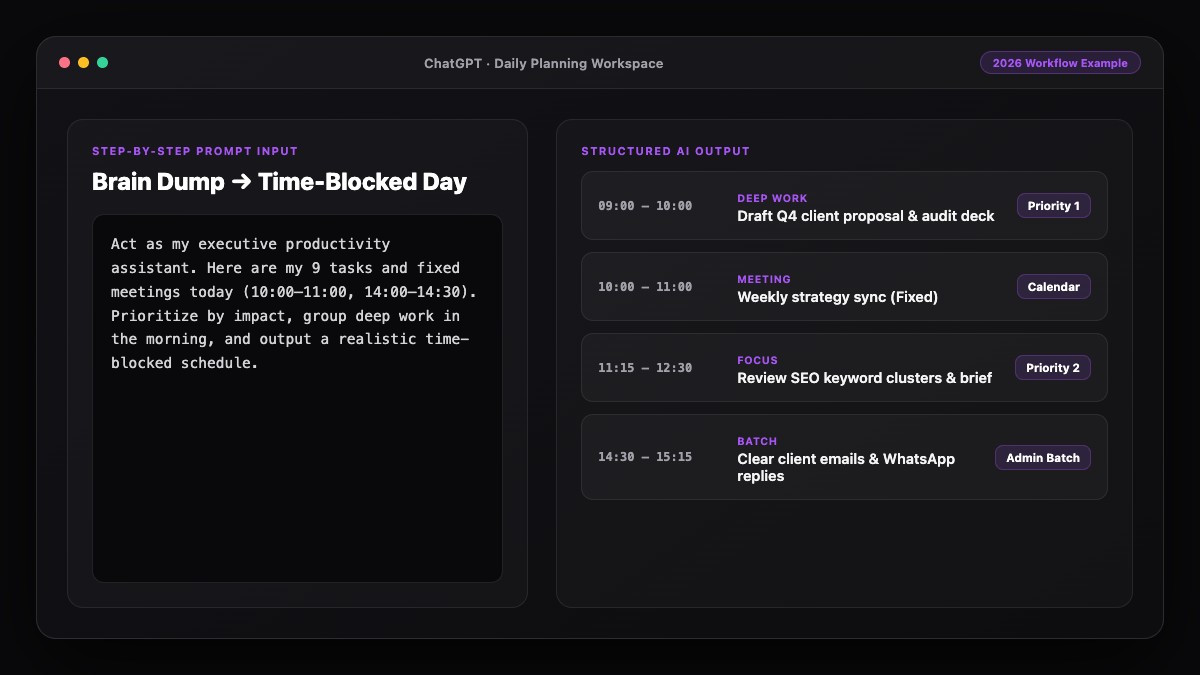
Best Prompts to Copy and Paste
Use these reusable templates to wipe out the most common daily time-wasters.
1. Weekly Status Update Generator
Turn my rough notes below into a crisp weekly status update for my manager/client.
Structure:
- Completed This Week (3-5 outcome-focused bullets)
- In Progress & Next Week's Focus
- Blockers or Decisions Needed (if any)

Keep it under 180 words, plain English, no fluff.
Raw notes:
[PASTE BULLETS OR COMMIT LOGS]
2. Messy Text / Data Cleaner
Clean and standardize the messy text below into a structured table with columns: [Column 1 | Column 2 | Column 3].
Fix capitalization, remove duplicates, standardize dates to YYYY-MM-DD, and flag any rows with missing info at the bottom.

Raw data:
[PASTE MESSY TEXT]
3. Long Thread / PDF to 60-Second Action Brief
Summarize this [email thread / transcript / document] in under 150 words using three sections:
1. Core Context (2 sentences max)
2. Key Decisions Made
3. Action Items (Who | What | By When)

Content:
[PASTE CONTENT]
Common Mistakes to Avoid
- Automating a broken process: If a weekly report nobody reads takes two hours, delete the report instead of using AI to write it faster.
- Spending 5 hours building an automation for a 2-minute task: Focus only on high-frequency tasks you repeat every day or week.
- Skipping output format rules: Always tell AI the exact word count, tone, and structure (table, bullets, or email) so you do not waste time reformatting its reply.
- Not double-checking facts and figures: Always verify dates, pricing, and client names before sending automated drafts externally.
References & Official Sources
All workflows, pricing tiers, and feature capabilities in this guide were verified against the official platform documentation:
- OpenAI ChatGPT Official Platform (chatgpt.com)
- Anthropic Claude Official Workspace (claude.ai)
- Google Gemini Official Assistant (gemini.google.com)
- Notion AI Official Documentation (www.notion.so)
- Todoist Official Task Manager (todoist.com)
- KwiqRank AI Workflow Integration Guide — Internal methodology for combining AI tools into repeatable business processes.
Final Thoughts
When you automate repetitive tasks with AI, you reclaim hours of focus without working longer days. Start with just two annoying chores from your 3-day audit, turn them into saved prompt templates, and build from there. To scale these time savings across your daily schedule or business operations, check out our daily AI planning guide or our AI marketing workflow integration guide.
Your questions, answered in plain English
Meeting note summaries, weekly status updates, routine email replies, messy spreadsheet or text cleanup, and turning rough notes into structured checklists are the fastest wins.
No. Saving reusable prompt templates in ChatGPT, Claude, or Notion AI eliminates most repetitive work without writing a single line of code.
Targeting just two or three daily admin habits typically saves 4 to 7 hours per week for most office workers and solo business owners.
Use ChatGPT or Claude for fast text transformation and saved Project templates, and Notion AI if your notes and task databases already live inside Notion.
Avoid automating sensitive HR conversations, legal or medical advice, financial sign-offs, or any task where a subtle factual error carries high risk without human review.
Include 1 or 2 examples of your ideal output inside a saved Project or Custom GPT and specify strict formatting rules like word limits and bullet structure.
Still curious? Send us your question and a strategist will get back to you.

Want this done for you?
We can put this guide to work on your website. Start with a free audit.
Get my free auditWritten by KwiqRank Team
KwiqRank is a digital marketing agency in Mumbai, India, working with UK and US businesses on SEO, GEO, AEO, paid media and websites. We check facts against official sources, and tell you when something is unconfirmed. Spotted a mistake? Tell us and we will correct it.
Found this useful?
Talk to us about your site
Tell us what you are working on and we will say plainly what we would do first.