
How to Use AI to Plan Your Entire Day and Save Hours Every Week
A practical 5-step workflow to turn messy tasks and fixed meetings into a realistic, energy-aligned daily schedule using AI in under five minutes.

- Read time
- 8 min read
- Sections
- 11
- FAQs answered
- 6
- Topic
- Everyday Productivity
To use AI to plan your day effectively, feed an AI assistant your calendar commitments, unscheduled tasks, and energy windows each morning or evening, then ask it to output a realistic time-blocked schedule with built-in buffers. Most professionals lose 45 to 90 minutes daily to decision fatigue, context switching, and underestimating how long tasks take. AI solves this in under five minutes by acting as an objective scheduler that matches task difficulty to your focus peaks and protects deep-work blocks.
Manual daily planning fails because we plan optimistically when we are rested and abandon the plan the moment an urgent email arrives. By pairing a conversational model with your task manager and calendar, you get a flexible blueprint that adapts in seconds when meetings shift. Below is the exact workflow to plan your entire day with AI and reclaim hours every week.
What You'll Need
You do not need an expensive software stack to start. A single conversational AI paired with one task list or calendar is enough, though dedicated AI schedulers automate the drag-and-drop work if you manage dozens of meetings.
| Tool | Free Tier Capabilities | Paid Tier Capabilities | Best Role in Daily Planning |
|---|---|---|---|
| ChatGPT | Fast daily schedule generation, custom instructions, basic file uploads | Projects, persistent memory, voice mode for hands-free morning planning | Rapid morning brain-dump to time-blocked schedule |
| Claude | Strong structured reasoning, clean Markdown schedules, artifact previews | Higher usage limits, Projects for storing your weekly goals and constraints | Nuanced prioritization and realistic time estimation |
| Gemini | Conversational planning, quick web lookups, clean checklists | Workspace integration with Gmail and Google Calendar for live context | Pulling meetings and action items directly from Google |
| Todoist | Up to 5 personal projects, natural-language due dates, daily Today view | Calendar layout, reminders, AI Filter Assistant, unlimited projects | Lightweight task capture before AI scheduling |
| Notion | Unlimited personal pages, databases, templates | Notion AI for auto-summarizing notes and extracting action items | All-in-one daily dashboard and journal |
| Motion | No permanent free tier (7-day trial available) | Automatic AI calendar time-blocking and dynamic rescheduling | Hands-free auto-scheduling around meetings |
| ClickUp | Unlimited tasks, basic views, time tracking | ClickUp Brain AI for task summaries, standups, and priority sorting | Team-heavy workflows with shared dependencies |
Step 1: Capture Your Raw Inputs in Two Minutes
AI cannot build a realistic schedule from vague wishes. Before opening your prompt, gather three concrete inputs: your fixed calendar events, your open tasks, and your hard stop time. If you use Google Calendar or Outlook, copy the list of meetings for today along with their exact start and end times.
Next, pull your open tasks from Todoist, Notion, or a plain notepad. Do not organize them yet. Include small administrative chores like replying to a vendor or paying an invoice alongside major deliverables. If you struggle with turning messy thoughts into an actionable list first, follow our guide on how to create a daily to-do list using AI.
Step 2: Define Your Energy Windows and Constraints
The biggest difference between a generic schedule and one you actually follow is energy alignment. Most people do their sharpest analytical thinking during a specific two-to-three-hour window—often mid-morning—and experience a predictable slump after lunch.
Write down three personal rules once and save them in a reusable note or Custom Instruction:
- Peak focus window: For example, 8:30 AM to 11:30 AM is reserved for deep, creative, or analytical work with zero routine meetings if possible.
- Low-energy window: For example, 1:30 PM to 3:00 PM is strictly for email triage, status updates, and low-friction admin.
- Buffer rule: Every 90-minute block gets a 15-minute transition buffer, and 20% of the day stays unscheduled for surprises.
Step 3: Generate a Time-Blocked Blueprint With AI
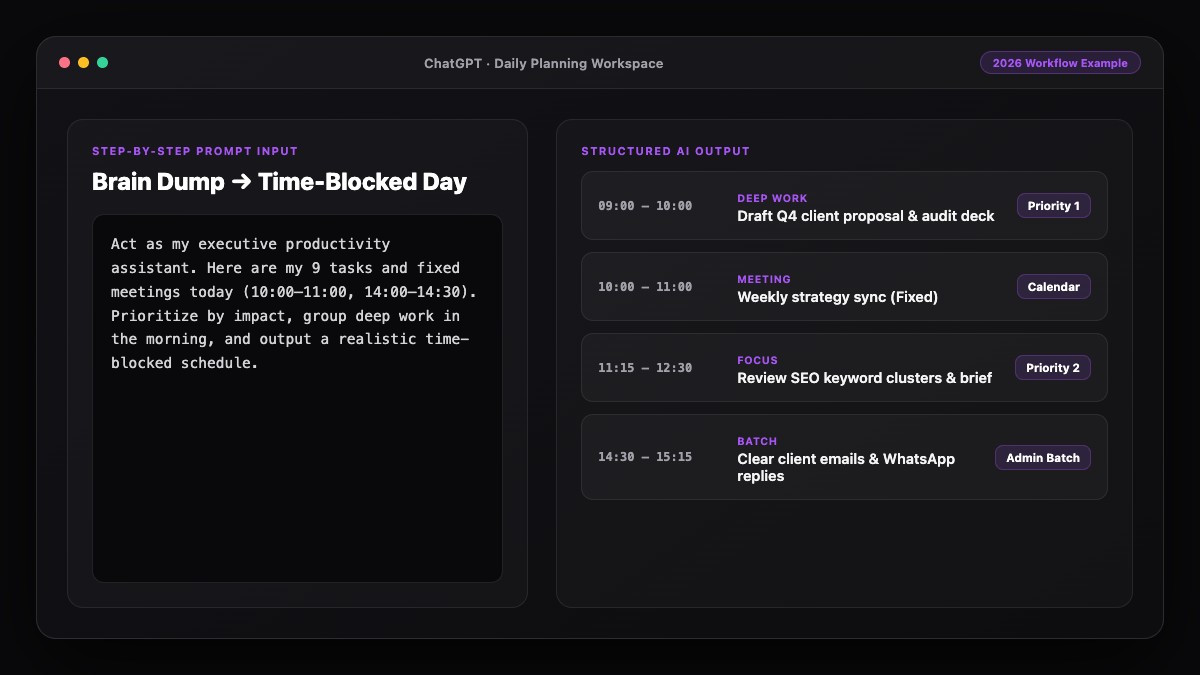
Paste your meetings, task list, and energy rules into ChatGPT or Claude. Ask the model to assign realistic durations to each task, group similar small tasks into a single batch block, and place your single most important deliverable inside your peak focus window.
Always instruct the AI to flag overcommitment. If you list 11 hours of work for an 8-hour day, a good prompt forces the AI to move lower-priority items to a "Defer to Tomorrow" section rather than cramming everything into 15-minute slivers. For deeper sorting logic, see our walkthrough on using AI to prioritize tasks automatically.
Step 4: Lock the Schedule Into Your Calendar
A plan sitting inside a chat window is easy to ignore. Transfer the AI's output into your actual calendar so your day has visible boundaries. You can do this manually in three minutes by dragging blocks onto Google Calendar, or automate it with Motion if you want tasks to shift automatically whenever a call runs late.
If you want to connect your calendar, task app, and AI without manual copy-pasting, check our tutorial on how to use AI to plan your calendar automatically. Locking blocks onto your calendar also prevents colleagues from booking over your deep-work time.
Step 5: Run a 60-Second Midday and Evening Reset
No day survives untouched. When an unexpected fire drills through your morning, return to the same chat thread at 1:00 PM and type: "Meetings ran 45 minutes over and I skipped Task B. Rebuild the rest of my afternoon ending at 5:30 PM." The AI recalculates the remaining hours without guilt or friction.
At the end of the workday, spend two minutes telling the AI what finished and what slipped. It will carry unfinished items into tomorrow's draft plan so you close your laptop with a clear head. Pairing this habit with an AI-designed morning routine creates a seamless daily loop.
Best Prompts to Copy and Paste
Save these three prompts in your notes app and swap in your daily details.
1. The Master Daily Time-Blocking Prompt
Act as my executive productivity planner. Build a realistic time-blocked schedule for today from [START TIME] to [END TIME].

My fixed calendar commitments:
- [Time - Event]

My unscheduled tasks (with rough importance):
- [Task 1]
- [Task 2]

My constraints:
- Peak focus window: [e.g., 9:00 AM - 12:00 PM] (assign my hardest high-impact task here)
- Low-energy window: [e.g., 1:30 PM - 3:00 PM] (batch emails, Slack, and admin here)
- Leave a 15-minute buffer after every 90 minutes of work and keep 20% of total capacity open for unexpected requests.
- Group small 5-15 minute tasks into one batch block.

Output format:
1. A clean hour-by-hour table (Time | Block | Category | Goal).
2. A "Deferred to Tomorrow" list if my tasks exceed available capacity.
3. Top 3 non-negotiable outcomes for today.
2. The Midday Recovery Prompt
It is now [CURRENT TIME]. My morning plan got disrupted: [briefly explain what changed and which tasks are still pending].
Rebuild my schedule from [CURRENT TIME] to [HARD STOP TIME]. Protect my top priority ([TASK NAME]) and tell me which lower-priority tasks I should drop or defer to tomorrow.
3. The Evening 2-Minute Shutdown Prompt
Here is what I completed today: [list]. Here is what rolled over: [list].
Summarize my wins in two sentences, identify any bottleneck pattern you notice, and draft a prioritized starting list for tomorrow morning.
Common Mistakes to Avoid
- Scheduling 100% of your available hours: Back-to-back blocks collapse the moment one call runs five minutes long. Always enforce a 15–20% buffer.
- Mixing deep work and shallow admin in the same block: Checking email inside a strategy block destroys momentum. Ask AI to batch communications into two dedicated 30-minute windows.
- Giving AI vague task names: "Work on Q4 report" leads to procrastination. Write "Draft Q4 revenue summary slide and pull 3 charts" so AI estimates time accurately.
- Never updating your time estimates: If a report always takes you 90 minutes instead of 45, tell your AI assistant so it calibrates future schedules.
References & Official Sources
All workflows, pricing tiers, and feature capabilities in this guide were verified against the official platform documentation:
- OpenAI ChatGPT Official Platform (chatgpt.com)
- Anthropic Claude Official Workspace (claude.ai)
- Google Gemini Official Assistant (gemini.google.com)
- Notion AI Official Documentation (www.notion.so)
- Todoist Official Task Manager (todoist.com)
- KwiqRank AI Workflow Integration Guide — Internal methodology for combining AI tools into repeatable business processes.
Final Thoughts
Learning how to use AI to plan your day is less about complex automation and more about removing daily friction. Five minutes of structured prompting replaces an hour of staring at an overwhelming list, letting you spend your best energy on actual execution. Once your daily rhythm feels effortless, expand into a complete weekly plan using AI or explore our AI marketing workflow integration guide to scale AI across your team.
Your questions, answered in plain English
ChatGPT and Claude are best for fast, flexible daily time-blocking from a brain dump, Gemini works well if you rely heavily on Google Calendar and Gmail, and Motion is ideal if you want fully automated calendar rescheduling.
Once you save a reusable prompt template, gathering your meetings and tasks takes about two minutes and generating your schedule takes under 30 seconds.
Drafting the plan at the end of the workday works best because your context is fresh and you wake up knowing your top priority. A quick 60-second morning check handles any overnight emails.
Yes. Gemini integrates natively with Google Workspace on paid plans, while Motion, ClickUp, and Todoist sync two-way with Google Calendar and Outlook.
Explicitly state your hard stop time, include a rule to keep 20% of your day unscheduled as buffer, and tell the AI to move excess items into a "Deferred to Tomorrow" section.
Return to the same chat thread, state the current time and what shifted, and ask the AI to rebuild the remaining hours while protecting your top priority.
Still curious? Send us your question and a strategist will get back to you.

Want this done for you?
We can put this guide to work on your website. Start with a free audit.
Get my free auditWritten by KwiqRank Team
KwiqRank is a digital marketing agency in Mumbai, India, working with UK and US businesses on SEO, GEO, AEO, paid media and websites. We check facts against official sources, and tell you when something is unconfirmed. Spotted a mistake? Tell us and we will correct it.
Found this useful?
Get recommended by AI search
We check whether Google, ChatGPT and Perplexity can reach your pages, then fix what blocks them. No guarantees, just a clear plan.