
How to Use AI to Summarize Long Email Conversations in Seconds
Turn 30-reply email chains into crisp 4-part briefs with decisions, owners, and deadlines in seconds using ChatGPT, Claude, Gemini, or Copilot.

- Read time
- 6 min read
- Sections
- 11
- FAQs answered
- 6
- Topic
- Email & Communication
To summarize email threads with AI in seconds, paste the conversation into ChatGPT or Claude—or click the built-in Summarize button in Gmail or Outlook—and ask for three outputs: decisions made, open questions, and action items with owners and deadlines. This turns a 30-message thread into a 5-bullet brief in under 15 seconds.
Long email chains are one of the biggest productivity leaks at work. You return from a meeting or a weekend off to find a 24-reply thread where four people debated a budget, changed a deadline twice, and buried a crucial question in reply #17. Reading every quoted reply from bottom to top takes 10 to 15 minutes—and you still risk missing who owns the next step.
AI excels at parsing messy, chronological text. Instead of skimming dozens of signatures and "Thanks, see below!" messages, you can extract the exact state of any conversation in seconds and jump straight to action.
What You'll Need
You can summarize threads either inside your email app (zero copy-pasting) or by pasting the thread into a standalone AI chat window.
| Tool | Free Tier | Paid Tier | Best For |
|---|---|---|---|
| ChatGPT | Free tier handles long pasted threads (up to context limits) | ChatGPT Plus ($20/mo) with larger context and Projects | Custom structured briefs (decisions, risks, action tables) |
| Gemini in Gmail | Not available as one-click thread summary on free Gmail | Google Workspace AI add-on / Google One AI Premium ($19.99/mo) | Instant one-click "Summarize this email" card above long Gmail threads |
| Microsoft Copilot | Free web chat for pasted conversations | Copilot Pro ($20/mo) or Microsoft 365 Copilot ($30/user/mo) | One-click "Summary by Copilot" inside Outlook with citations |
Claude is also ideal for massive threads—such as legal, procurement, or multi-week client chains—because of its large context window and accurate tracking of who said what.
Step 1: Copy or Open the Thread (And Scrub Sensitive Data)
If you use Gmail or Outlook with built-in AI, simply open the thread and click the Summarize button at the top. If you are pasting into ChatGPT, Claude, or Gemini, select the thread text and copy it.
Privacy check: Before pasting into any consumer free AI tool, remove passwords, API keys, bank details, or sensitive client PII. You do not need to strip out email signatures manually—AI ignores them automatically—but removing sensitive numbers takes five seconds and keeps you compliant.
Step 2: Ask for Structured Extraction, Not a Generic Paragraph
Never just type "Summarize this." A generic summary blurs old proposals with final decisions. Instead, tell the AI to separate the thread into four clear buckets:
- Current Status: Two sentences explaining where things stand right now.
- Decisions Made: What everyone actually agreed to (ignoring rejected ideas).
- Action Items: Who is doing what, and by what date.
- Unresolved Questions: Anything still waiting on an answer—especially anything directed at you.
Step 3: Check for Contradictions and Silent Changes
In long threads, a stakeholder often changes a date or scope requirement halfway down without updating the subject line. Add one instruction to your prompt: "Flag any contradictions, changed deadlines, or unresolved disagreements between participants."
This single line prevents embarrassing mistakes like working off Tuesday's approved budget when Friday's reply quietly cut it by 20%.
Step 4: Spot-Check the Latest Two Replies
AI summarization is highly accurate, but in threads with nested forwards or unclear reply-all quotes, it can occasionally attribute a comment to the wrong person. Spend 15 seconds glancing at the two most recent messages in your inbox to confirm the latest owner and deadline match the AI's brief.
Step 5: Turn the Summary Into a Reply or Task List
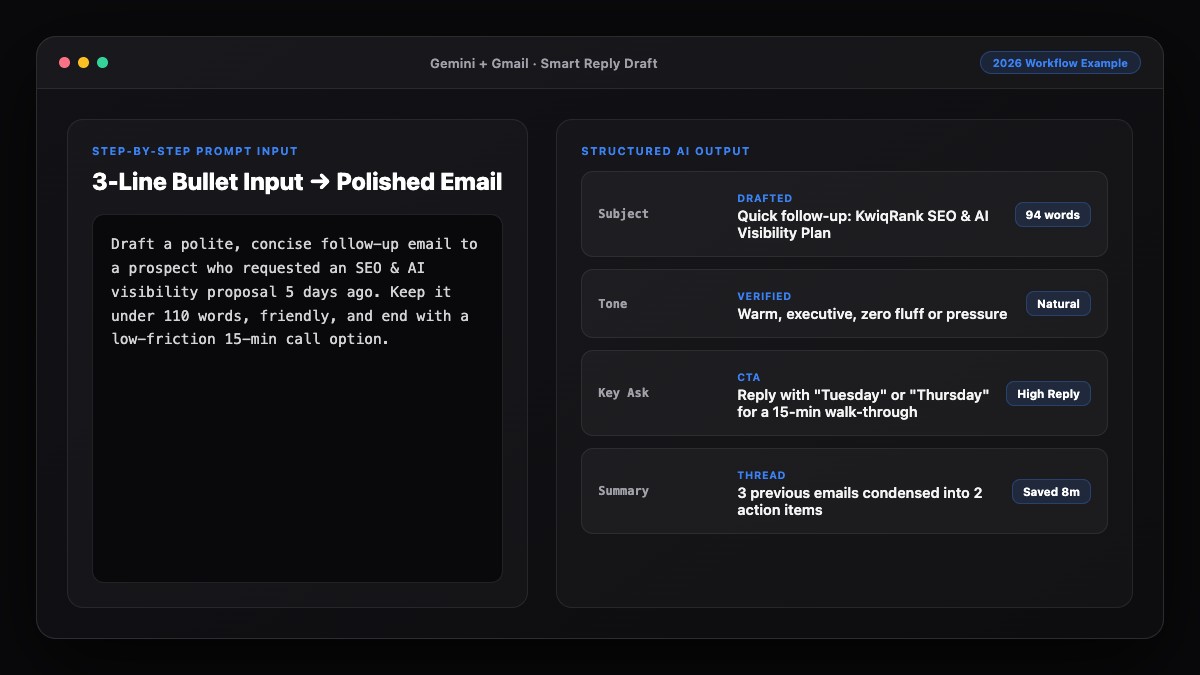
Once you have the summary, do not leave the chat window yet. Ask the AI to draft your reply based on the unresolved questions it just found, or convert the action items into a quick checklist for your team. To speed up that next step, see our guide on how to reply to emails faster using AI without sounding robotic, or learn how to manage your inbox using AI and reach Inbox Zero.
Best Prompts to Copy and Paste
Use these prompts whenever you face a long, messy email chain.
1. The Executive 4-Bucket Thread Summary
Summarize the email thread below using these exact 4 sections:
1. **Current Status** (2 sentences max)
2. **Decisions Confirmed** (bullet list of what was actually agreed)
3. **Action Items** (table or bullets: Owner | Task | Deadline)
4. **Open Questions / Waiting On** (highlight anything needing MY input as [Your Name])

Ignore email signatures, legal disclaimers, and pleasantries. Flag any changed deadlines.

Thread:
[Paste email thread here]
2. Catch-Up Brief After Vacation or Time Off
I just returned from time off and need to catch up on this thread fast.
Tell me:
- What changed from the original plan?
- What is blocked right now?
- Do I ([Your Name]) need to reply or approve anything today? Yes/No and why.

Keep the entire brief under 150 words.
Thread:
[Paste email thread here]
3. Client Escalation or Scope-Creep Check
Analyze this client email thread and extract:
1. Original scope or timeline agreed upon.
2. New requests or changes the client added later in the thread.
3. Any tone shifts or signs of frustration.
4. Recommended 3-bullet talking points for my reply.

Thread:
[Paste email thread here]
Common Mistakes to Avoid
- Asking for a plain paragraph summary: Long paragraphs are almost as hard to scan as the original thread. Always request bullets or a table.
- Not identifying yourself in the prompt: If you tell the AI your name (e.g., "Highlight action items for Maya"), it will filter the brief specifically for your responsibilities.
- Forgetting attachments or linked docs: AI only sees the text you paste or what is in the thread—it cannot read a PDF or Google Doc unless you also share or reference it.
- Treating a summary as legal truth: For contracts, pricing approvals, or compliance sign-offs, always verify the exact wording in the original message.
References & Official Sources
All workflows, pricing tiers, and feature capabilities in this guide were verified against the official platform documentation:
- Google Gemini Official Assistant (gemini.google.com)
- Google Workspace AI Features (workspace.google.com)
- Microsoft Copilot Official Portal (copilot.microsoft.com)
- OpenAI ChatGPT Official Platform (chatgpt.com)
- Anthropic Claude Official Workspace (claude.ai)
- KwiqRank AI Workflow Integration Guide — Internal methodology for combining AI tools into repeatable business processes.
Final Thoughts
Learning how to summarize email threads with AI saves hours every week and eliminates the stress of returning to a crowded inbox. By asking for structured buckets—status, decisions, action items, and open questions—you get clarity in seconds and can respond with confidence.
Pair thread summaries with our guide to write professional emails using AI, or get in touch with our team if you are looking to streamline communication workflows across your company.
Your questions, answered in plain English
Yes. Modern models like ChatGPT, Claude, and Gemini can process tens of thousands of words at once, easily handling 30 to 100+ emails in a single thread while extracting decisions and owners.
With a paid Google Workspace AI or Google One AI Premium plan, click "Summarize this email" at the top of a Gmail thread. In Microsoft 365 Outlook with Copilot, click "Summary by Copilot" above the message chain.
No. Simply tell the AI to ignore signatures, legal disclaimers, and greetings, and it will strip them out automatically during summarization.
Ask for four sections: Current Status (2 sentences), Decisions Confirmed, Action Items (Owner, Task, Deadline), and Open Questions—plus a note to flag any changed dates.
Pasting email text only summarizes the messages themselves. To include an attachment, upload the PDF or document separately to ChatGPT or Claude, or use Workspace/Copilot integrations that have file access.
Use an enterprise AI plan with data-privacy protections, or quickly redact sensitive numbers, passwords, and personal client details before pasting into a free consumer AI chat.
Still curious? Send us your question and a strategist will get back to you.

Want this done for you?
We can put this guide to work on your website. Start with a free audit.
Get my free auditWritten by KwiqRank Team
KwiqRank is a digital marketing agency in Mumbai, India, working with UK and US businesses on SEO, GEO, AEO, paid media and websites. We check facts against official sources, and tell you when something is unconfirmed. Spotted a mistake? Tell us and we will correct it.
Found this useful?
Get recommended by AI search
We check whether Google, ChatGPT and Perplexity can reach your pages, then fix what blocks them. No guarantees, just a clear plan.