
How to Reply to Emails Faster Using AI Without Sounding Robotic
Cut email reply time by 70% using a decision-first AI workflow that keeps your natural voice, matches the sender’s tone, and avoids robotic clichés.

- Read time
- 6 min read
- Sections
- 11
- FAQs answered
- 6
- Topic
- Email & Communication
To reply to emails faster using AI without sounding robotic, paste the incoming email into an AI assistant along with your one-line decision (yes, no, or counter-offer), set a 100-word cap, and ask it to mirror the sender's formality level. This cuts reply time from 10 minutes to under 45 seconds while preserving human warmth.
An overflowing inbox rarely happens because you cannot read fast enough—it happens because crafting thoughtful replies drains mental energy. When you have 25 messages waiting for answers, even simple responses get delayed until the end of the day. Worse, rushing through replies manually often leads to terse, accidental "K, thanks" messages, while letting default AI auto-replies take over produces stiff, generic paragraphs that alienate clients.
The solution is a structured "decision-first" AI workflow. You make the human judgment call in one sentence, and AI handles the phrasing, structure, and politeness in seconds.
What You'll Need
You can run this workflow in any browser-based AI chat tool or directly inside your email client's built-in sidebar.
| Tool | Free Tier | Paid Tier | Reply Speed Advantage |
|---|---|---|---|
| ChatGPT | Free GPT-4o mini and limited flagship model access | ChatGPT Plus ($20/mo) with Custom Instructions for your voice | Great for complex, multi-question replies and custom tone rules |
| Gemini in Gmail | Smart Reply short chips on web and mobile | Google Workspace AI add-on / Google One AI Premium ($19.99/mo) | Reads the active Gmail thread automatically with zero copy-pasting |
| Microsoft Copilot | Free web chat for pasted threads | Copilot Pro ($20/mo) or Microsoft 365 Copilot ($30/user/mo) | "Draft with Copilot" inside Outlook matches your thread context |
Claude is also a standout choice when replying to delicate client negotiations or upset stakeholders because its default phrasing tends to be less formulaic.
Step 1: Read for the Core Ask and Make Your Decision
Before prompting AI, scan the incoming email for every explicit or implied question. Decide your answer in plain shorthand—no full sentences required. For example:
- "Yes to Thursday 2pm, no to discount, send updated contract tomorrow."
- "Cannot make deadline, propose Monday, ask if they need partial delivery first."
If the incoming email is a 20-message chain and you do not want to read all of it first, follow our guide on how to use AI to summarize long email conversations in seconds before drafting your reply.
Step 2: Instruct AI to Mirror the Sender's Formality
The #1 reason AI replies sound robotic is tone mismatch. If a colleague sends a casual two-line note and your AI replies with a formal four-paragraph letter starting with "Dear Jordan, Thank you kindly for reaching out," it feels jarring.
Tell the AI: "Match the sender's level of formality and brevity. If they are casual, be warm and concise. If they are formal, be crisp and respectful."
Step 3: Combine Incoming Context + Your Shorthand Answer
Paste the incoming email and your shorthand decision together. Ask the AI to address every question the sender asked—using short bullet points if there are three or more items—so nothing gets missed and you avoid unnecessary back-and-forth.
If you also write emails from scratch frequently, pair this habit with our full guide on how to write professional emails using AI.
Step 4: Strip AI Filler and Add One Human Anchor
Before sending, delete any robotic openers or closers ("I hope this finds you well," "Please feel free to reach out if you have any further questions"). Then add one quick human anchor—a five-word detail only you would know, such as "Good luck with the board deck tomorrow" or "See you on Thursday's standup." That single line proves a real person wrote the reply.
Step 5: Save a Personal Voice Prompt for One-Click Reuse
Do not retype your style preferences every morning. In ChatGPT Custom Instructions, Claude Projects, or a pinned note, save a 4-line "My Email Voice" profile listing your greeting style, sign-off, average length, and banned words. Every future reply will sound like you on the first pass.
For common replies you send every week—like declining pitches or confirming bookings—turn them into permanent templates using our guide to create reusable email templates using AI.
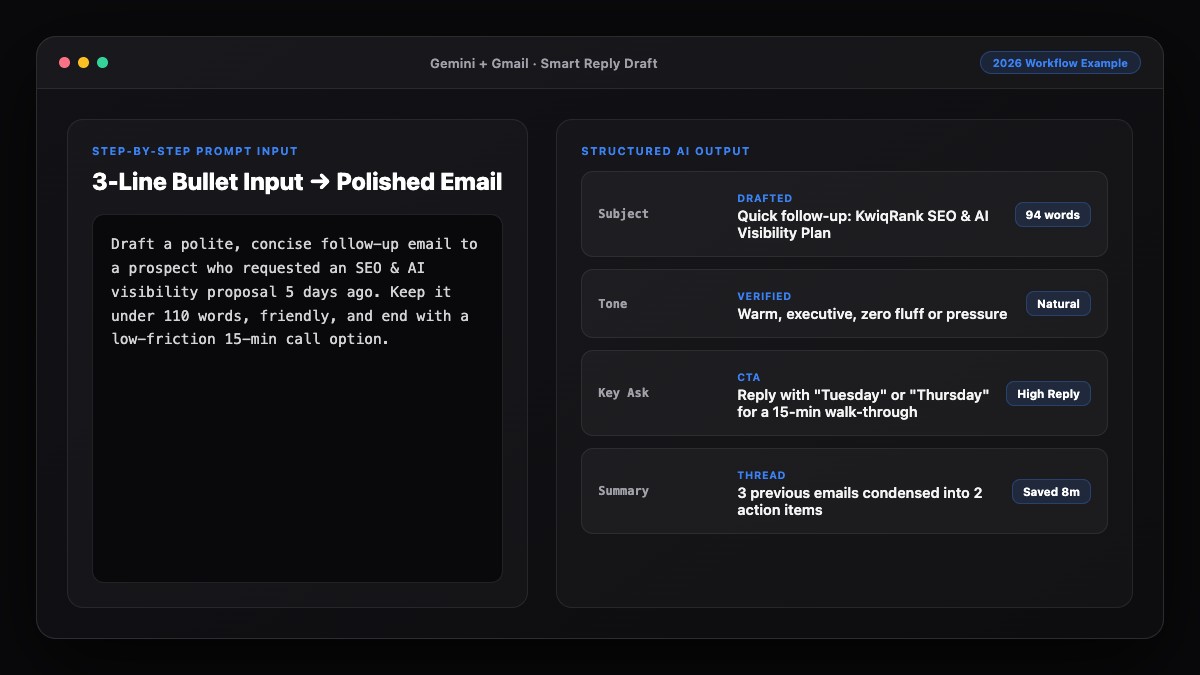
Best Prompts to Copy and Paste
Copy these prompts into ChatGPT, Claude, or Gemini to clear your inbox in minutes.
1. Fast, Natural Reply from Shorthand
Draft a reply to the email below using my shorthand notes.
Rules:
- Match the sender's formality level.
- Keep it under 95 words.
- Answer every question clearly (use bullets only if there are 3+ points).
- No clichés ("I hope this finds you well", "delve", "do not hesitate to").
- Sound like a helpful, busy human—not a customer support script.

My shorthand decision:
[Type your 1-2 line answer here]

Incoming email:
[Paste the email here]
2. Polite "No" or Pushback Without Burning Bridges
Write a polite, firm reply declining the request in this email.
- Acknowledge their goal briefly (1 sentence max).
- State the "no" clearly without over-apologizing.
- Offer this alternative instead: [Insert alternative or "none"].
- Keep it under 80 words and warm in tone.

Incoming email:
[Paste the email here]
3. Answering a Multi-Part Client Email
Read the client email below and draft a clear, organized reply.
- Address each of their questions in the exact order asked.
- Use bold short labels for each answer so it is easy to scan.
- End with one clear next step and timeline.

My answers:
1. [Answer 1]
2. [Answer 2]
3. [Answer 3]

Client email:
[Paste email here]
Common Mistakes to Avoid
- Letting AI guess your answer: Never ask AI to "write a reply to this email" without telling it your decision. It may agree to a deadline or discount you never intended to offer.
- Over-lengthy replies to short messages: If someone sends you two sentences, replying with three paragraphs looks unnatural and wastes their time.
- Using the same tone for everyone: A Slack-style teammate, a first-time enterprise prospect, and an angry customer each need a different level of warmth and structure.
- Skipping the final read-through: Always check names, dates, and promised attachments before clicking send.
References & Official Sources
All workflows, pricing tiers, and feature capabilities in this guide were verified against the official platform documentation:
- Google Gemini Official Assistant (gemini.google.com)
- Google Workspace AI Features (workspace.google.com)
- Microsoft Copilot Official Portal (copilot.microsoft.com)
- OpenAI ChatGPT Official Platform (chatgpt.com)
- Anthropic Claude Official Workspace (claude.ai)
- KwiqRank AI Workflow Integration Guide — Internal methodology for combining AI tools into repeatable business processes.
Final Thoughts
You can reply to emails faster using AI without sacrificing authenticity by keeping control of the decision and letting AI handle the wording. Give the model your shorthand answer, cap the word count, mirror the sender's tone, and add a brief human detail before sending.
If you want to extend these habits to your whole inbox, read our guide on how to manage your inbox using AI and reach Inbox Zero, or contact our team to discuss AI workflow automation for your organization.
Your questions, answered in plain English
Give the AI your exact decision in shorthand, cap the reply at 80–100 words, ban clichés like "I hope this email finds you well," and add one short personal detail before hitting send.
No. Use AI to generate the draft, then spend 10–15 seconds reviewing commitments, dates, and tone. Auto-sending without review risks agreeing to wrong terms or misreading context.
Yes. Gemini in Gmail (with a Google Workspace AI or Google One AI Premium plan) and Microsoft Copilot in Outlook can read the open thread and generate draft replies directly inside your inbox.
Include three things: the incoming email text, your shorthand answer or decision, and your tone/length constraints (for example, "warm, direct, under 90 words").
Ask AI to draft a calm, empathetic response that acknowledges the frustration without taking unnecessary legal blame, then carefully edit the draft yourself before sending.
Yes. List your brief answers numbered 1, 2, 3 alongside the client email and ask AI to format a scannable response with bold labels for each question.
Still curious? Send us your question and a strategist will get back to you.

Want this done for you?
We can put this guide to work on your website. Start with a free audit.
Get my free auditWritten by KwiqRank Team
KwiqRank is a digital marketing agency in Mumbai, India, working with UK and US businesses on SEO, GEO, AEO, paid media and websites. We check facts against official sources, and tell you when something is unconfirmed. Spotted a mistake? Tell us and we will correct it.
Found this useful?
Get recommended by AI search
We check whether Google, ChatGPT and Perplexity can reach your pages, then fix what blocks them. No guarantees, just a clear plan.