
How to Write Professional Emails Using AI (Step-by-Step Guide)
Learn a repeatable 5-step workflow to write professional emails using AI in under 30 seconds, complete with tool comparisons and copy-paste prompts.

- Read time
- 8 min read
- Sections
- 11
- FAQs answered
- 6
- Topic
- Email & Communication
To write professional emails using AI, give a tool like ChatGPT, Claude, or Gemini four inputs: your recipient's role, the core message in bullet points, the desired tone, and a length limit. AI turns rough notes into a clear, structured email in under 30 seconds, eliminating blank-page paralysis while keeping your voice intact.
Most professionals spend over two hours a day writing and checking email. The hardest part is rarely knowing what to say—it is finding the right phrasing that sounds confident without being pushy, concise without being abrupt, and polite without wasting the reader's time. Artificial intelligence solves this by acting as a first-draft editor. Instead of staring at a blinking cursor for 15 minutes over a sensitive client update or a stakeholder request, you feed AI your raw thoughts and refine the output in seconds.
In this step-by-step guide, you will learn a repeatable five-step workflow to draft high-impact business emails, compare the best free and paid tools, copy proven prompts, and avoid the common traps that make AI-generated messages obvious.
What You'll Need
You do not need specialized software to start writing better emails with AI. Any modern large language model works well, though built-in workspace integrations save extra copy-pasting if you live inside Gmail or Outlook.
| Tool | Free Tier | Paid Tier | Best For |
|---|---|---|---|
| ChatGPT | Free access to GPT-4o mini and limited flagship usage | ChatGPT Plus ($20/mo) with Custom GPTs and Projects | Drafting from scratch, tone shifting, and reusable prompt workflows |
| Gemini in Gmail | Basic smart compose and reply suggestions in Gmail | Google Workspace AI add-on / Google One AI Premium ($19.99/mo) | Writing and refining drafts directly inside the Gmail compose window |
| Microsoft Copilot | Free web chat at copilot.microsoft.com | Copilot Pro ($20/mo) or Microsoft 365 Copilot ($30/user/mo) | Drafting inside Outlook with Word/Teams context |
You can also use Claude for nuanced, natural-sounding prose, especially for executive communications and sensitive client updates. For quick, everyday messages, Gemini on the web works just as reliably.
Step 1: Define the Goal, Recipient, and Desired Action
Before opening any AI tool, clarify three things in your head or in a scratchpad: who is reading the email, what context they already have, and what single action you want them to take after reading. AI writes vague, padded emails only when given vague instructions.
Compare these two starting points:
- Weak input: "Write an email to a client about a project delay."
- Strong input: "Recipient: Sarah, VP of Marketing at a SaaS client. Context: Our API integration hit a vendor snag. Impact: Launch moves from Tuesday to Friday. Ask: Confirm Friday works for her team's QA."
Taking 20 seconds to jot down the recipient, context, impact, and ask ensures the AI produces a focused draft on the first try.
Step 2: Feed AI Your Rough Bullet Points and Context
Open ChatGPT, Claude, or your built-in email assistant and paste your raw notes. Do not worry about grammar, transitions, or politeness at this stage—think of it as talking to a colleague who will clean up your thoughts.
Always include three guardrails in your prompt:
- Tone: Specify exact adjectives such as "warm, direct, and accountable" rather than just "professional."
- Length: Give a strict word cap (for example, "under 130 words") so the model does not generate a five-paragraph essay.
- Forbidden clichés: Tell it to avoid filler phrases like "I hope this email finds you well," "Please do not hesitate to reach out," or "Per my last email."
If you are working from an existing thread and need to respond quickly, see our dedicated guide on how to reply to emails faster using AI without sounding robotic.
Step 3: Generate Scannable Formatting and Subject Lines
Busy recipients skim emails on mobile screens. Ask the AI to structure the body using the BLUF (Bottom Line Up Front) method: state the purpose in the first two sentences, use short bullet points for details or dates, and end with one clear call to action.
At the same time, ask the AI for three subject line options ranked by clarity. Good subject lines tell the reader both the topic and the urgency—for example, Action Needed: Friday QA Window for API Launch instead of Project Update.
Step 4: Edit for Your Natural Voice and Accuracy
Never hit send on an unedited AI draft. Read the draft out loud once. If a sentence feels stiffer than how you would speak on a Zoom call, simplify it. Swap out overly formal verbs like "utilize," "facilitate," or "endeavor" for everyday words like "use," "help," and "try."
Verify every factual detail—dates, dollar figures, names, attachments, and commitments—because AI models can occasionally invent or misread a date from earlier notes. If you already wrote a rough draft and just want to polish it, check out our tutorial on how to use AI to rewrite messages professionally.
Step 5: Turn Repeating Emails into Reusable Templates
Once you dial in an AI-assisted email that gets fast, positive replies—such as a proposal delivery, onboarding welcome, or scope-change notice—save the structure. You can ask AI to convert that winning email into a fill-in-the-blank template with bracketed placeholders. Learn how to systematize this in our guide on how to create reusable email templates using AI.
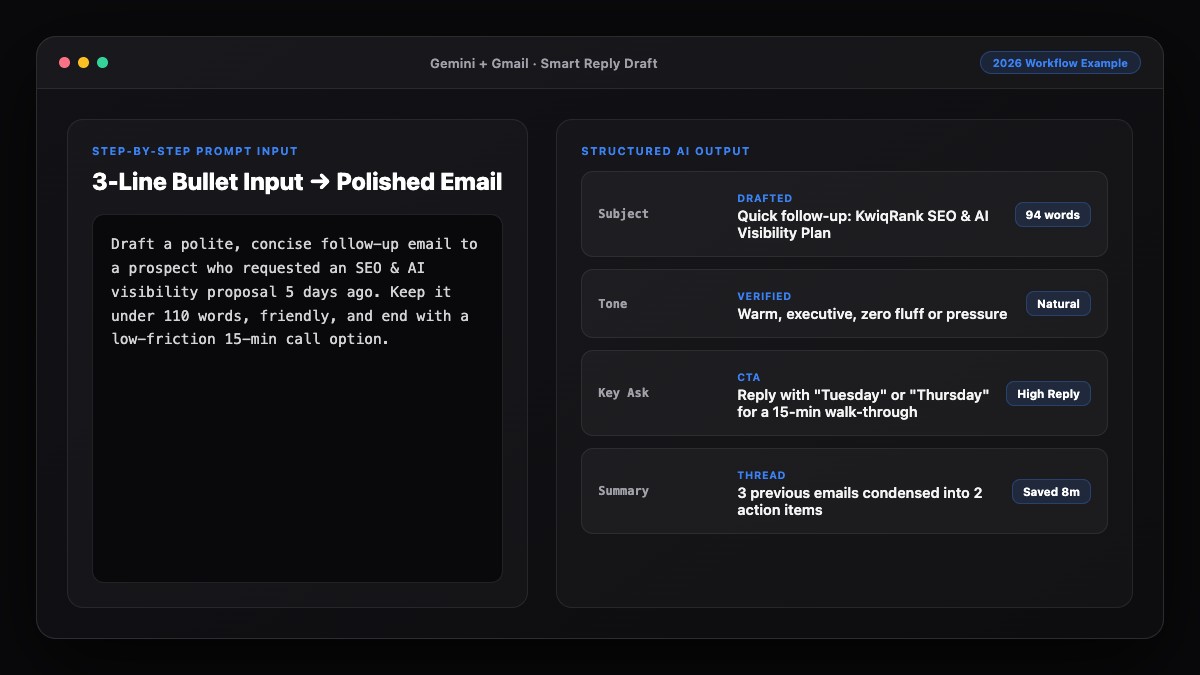
Best Prompts to Copy and Paste
Use these tested prompts directly in ChatGPT, Claude, Gemini, or Copilot. Replace the bracketed text with your own details.
1. General Professional Email from Bullet Points
Write a clear, professional email based on the notes below.
- Recipient: [Name and role, e.g., VP of Operations]
- Relationship: [New client / long-term partner / internal teammate]
- Tone: Warm, direct, and confident (no corporate jargon)
- Length: Under 130 words
- Avoid: "I hope this email finds you well", "delve", "synergy", and "please do not hesitate to reach out"
- Structure: Put the main point in the first sentence, use bullets for details, and end with one clear next step.

Notes:
[Paste your 3-5 rough bullet points here]

Also suggest 3 clear, specific subject lines.
2. Delivering Bad News or a Delay Professionally
Draft a transparent, accountable email explaining a delay without sounding defensive or overly apologetic.
- What happened: [Brief factual reason]
- New timeline: [Exact date/time]
- What we are doing to prevent further delay: [1-2 concrete steps]
- Ask: [What you need from the recipient]

Keep it under 140 words. Lead with the new timeline in sentence one so the recipient does not have to hunt for it.
3. Executive Request for Approval or Decision
Turn these notes into an executive-ready email for [Executive Name/Title].
Use the BLUF (Bottom Line Up Front) format:
1. One-sentence summary of the decision needed and deadline.
2. Three short bullets covering options, cost/impact, and my recommendation.
3. A simple closing line asking for a "yes/no" or quick reply by [Day/Time].

Maximum 110 words. Notes: [Paste notes]
Common Mistakes to Avoid
- Sending unedited "AI voice" copy: Phrases like "I trust this message finds you in good health" or "Thank you for your continued partnership and collaboration" immediately signal automated writing and lower trust.
- Pasting confidential data into unapproved free tools: Avoid pasting sensitive financial records, passwords, or private client PII into consumer AI accounts unless your organization uses an enterprise plan with data-training opt-outs enabled.
- Letting AI over-explain simple requests: Default AI responses often pad a two-sentence ask into four paragraphs. Always set a strict word limit.
- Forgetting to verify attachments and dates: AI may write "Please find the updated deck attached" even when you have not attached anything yet, or shift a weekday relative to today's date.
References & Official Sources
All workflows, pricing tiers, and feature capabilities in this guide were verified against the official platform documentation:
- Google Gemini Official Assistant (gemini.google.com)
- Google Workspace AI Features (workspace.google.com)
- Microsoft Copilot Official Portal (copilot.microsoft.com)
- OpenAI ChatGPT Official Platform (chatgpt.com)
- Anthropic Claude Official Workspace (claude.ai)
- KwiqRank AI Workflow Integration Guide — Internal methodology for combining AI tools into repeatable business processes.
Final Thoughts
Learning how to write professional emails using AI is not about handing over your relationships to a robot—it is about eliminating friction between your ideas and a clear, respectful message. Start with rough bullet points, enforce a strict word cap, ban generic filler phrases, and spend 15 seconds adding your personal sign-off.
Once your one-to-one emails are flowing smoothly, you can apply the same clarity to larger campaigns—explore our email marketing strategy guide or reach out to our team if you want help building AI-assisted communication workflows for your business.
Your questions, answered in plain English
ChatGPT and Claude are best for drafting complex or sensitive emails from scratch because they follow nuanced tone instructions well. Gemini in Gmail and Microsoft Copilot in Outlook are best if you want one-click drafting inside your existing inbox.
Set a strict word limit (under 130 words), specify a conversational tone like "warm and direct," explicitly ban clichés such as "delve" or "I hope this email finds you well," and read the draft aloud once to swap stiff words for how you actually talk.
Yes. Free tiers of ChatGPT, Claude, Gemini, and Microsoft Copilot all handle email drafting well. Paid plans ($20–$30/month) mainly add deeper integration inside Gmail or Outlook and saved custom instructions.
Do not paste confidential client data, passwords, or proprietary financials into consumer free tiers where conversations may be reviewed or used for training. Use enterprise workspace plans (Google Workspace, Microsoft 365 Copilot, or ChatGPT Team/Enterprise) or anonymize names and numbers first.
Most effective business emails are between 75 and 150 words. That is long enough to provide context and a clear call to action, while short enough to read on a phone screen without scrolling.
Ask the AI to generate three subject line options after drafting the body, specifying that each should include the topic and required action or deadline in under 8 words.
Still curious? Send us your question and a strategist will get back to you.

Want this done for you?
We can put this guide to work on your website. Start with a free audit.
Get my free auditWritten by KwiqRank Team
KwiqRank is a digital marketing agency in Mumbai, India, working with UK and US businesses on SEO, GEO, AEO, paid media and websites. We check facts against official sources, and tell you when something is unconfirmed. Spotted a mistake? Tell us and we will correct it.
Found this useful?
Get recommended by AI search
We check whether Google, ChatGPT and Perplexity can reach your pages, then fix what blocks them. No guarantees, just a clear plan.