
How to Use AI to Rewrite Messages Professionally
Turn blunt, rushed, or rambling drafts into calm, clear, and professional messages in 10 seconds without losing your boundary or natural voice.

- Read time
- 6 min read
- Sections
- 11
- FAQs answered
- 6
- Topic
- Email & Communication
To rewrite messages professionally with AI, paste your rough, blunt, or emotional draft into ChatGPT, Claude, or Gemini and specify two things: the target tone (such as diplomatic, executive, or warm) and what must stay unchanged (your core decision, dates, and numbers). In 10 seconds, AI removes friction while keeping your exact intent intact.
Everyone has moments where they type out what they really think—a frustrated Slack reply, a rushed email written between meetings, or a blunt message that sounds harsher on screen than it did in your head. Hitting send on an unpolished draft can damage trust with a client, escalate a minor misunderstanding, or make an important request get ignored.
Rewriting with AI acts as an instant emotional buffer and clarity editor. You get to vent or brain-dump your honest draft first, then let AI reshape it into calm, constructive, and persuasive business communication.
What You'll Need
You can rewrite drafts in any AI chat interface or use the built-in "Polish" and "Rewrite" buttons inside Gmail and Outlook.
| Tool | Free Tier | Paid Tier | Best For |
|---|---|---|---|
| ChatGPT | Free GPT-4o mini and limited flagship access | ChatGPT Plus ($20/mo) with Canvas side-by-side editing | Rewriting rough drafts into 2–3 tone variations at once |
| Gemini in Gmail | Not available as full-draft rewrite on free Gmail | Google Workspace AI add-on / Google One AI Premium ($19.99/mo) | Highlighting a draft in Gmail and clicking Formalize, Elaborate, or Shorten |
| Microsoft Copilot | Free web chat for pasting drafts | Copilot Pro ($20/mo) or Microsoft 365 Copilot ($30/user/mo) | "Coaching by Copilot" in Outlook to check tone and clarity before sending |
Claude is especially strong at subtle tone shifts—turning passive-aggressive or overly stiff drafts into natural, diplomatic prose without adding corporate fluff.
Step 1: Write Your Unfiltered Draft Without Censoring Yourself
Do not waste time trying to sound polite on your first pass. Type out the raw truth of what you need to say—even if it is messy, blunt, or overly long. Getting the facts out first guarantees you do not soften your message so much that the actual point disappears.
For example: "Alex, this is the third time the assets are late. If we don't get them by 3pm today we are pushing launch to next week because my team can't work the weekend."
Step 2: Identify What Is Wrong With the Raw Draft
Before pasting into AI, decide what transformation you need. Most rewrites fall into one of four categories:
- De-escalation: Removing frustration or blame while keeping a firm boundary.
- Executive compression: Cutting a rambling 300-word explanation down to 80 crisp words.
- Formality upgrade: Turning casual Slack or WhatsApp-style notes into client-ready prose.
- Clarity & ESL polish: Fixing grammar, word order, and idioms so non-native or hurried drafts read smoothly.
Step 3: Lock In Dates, Numbers, and Your Core Boundary
When you ask AI to "make this nicer," it sometimes weakens your boundary—turning a firm deadline into a vague "whenever you get a chance." Always tell the AI what cannot be softened: "Keep the 3:00 PM deadline and the consequence (moving launch to next week) crystal clear, but frame it constructively."
Step 4: Ask for Two Versions Side by Side
Ask the AI for two options: Option A (Warm & Collaborative) and Option B (Direct & Firm). Seeing two calibrated versions side by side takes five seconds and makes it obvious which one fits the recipient and stakes. If you are replying to an active email chain, pair this with our guide on how to reply to emails faster using AI without sounding robotic.
Step 5: Check That It Still Sounds Like You
Read the chosen version once. If AI swapped your simple words for inflated vocabulary ("utilize," "herein," "synergize"), swap them back. Your goal is a calmer, clearer version of your voice—not a corporate press release. For messages you write from scratch, see our complete guide on how to write professional emails using AI.
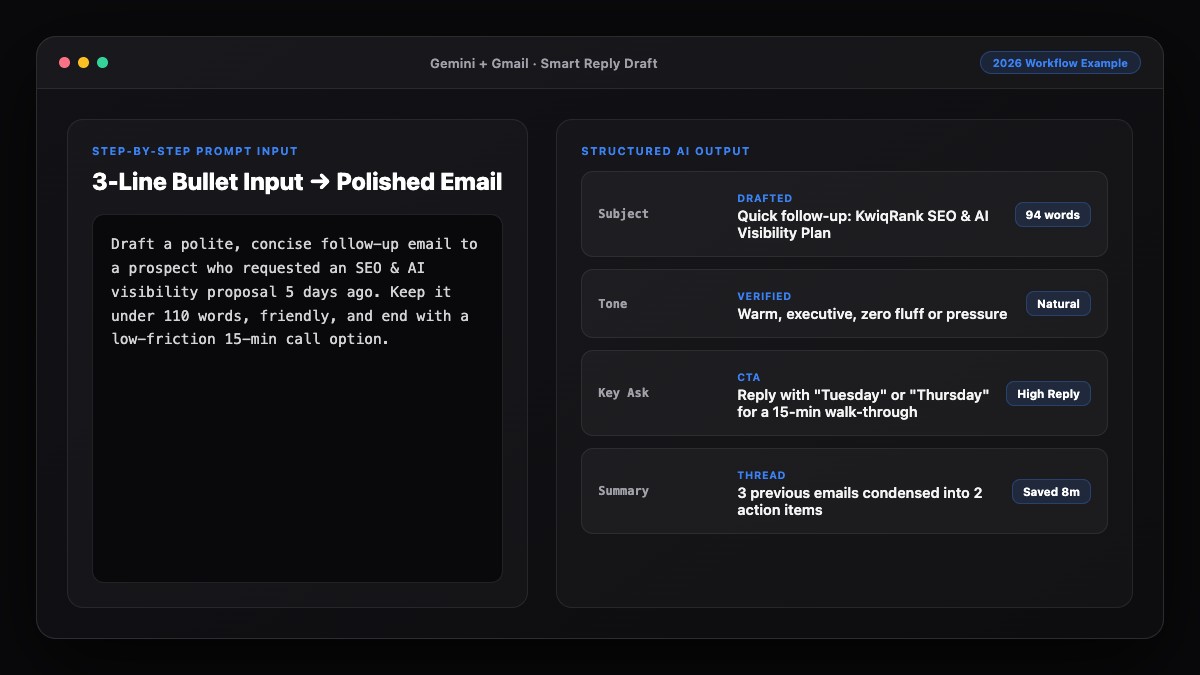
Best Prompts to Copy and Paste
Paste these prompts into ChatGPT, Claude, or Gemini whenever a draft needs a professional upgrade.
1. Turn a Frustrated Draft Into a Calm, Firm Message
Rewrite the draft below so it sounds calm, professional, and constructive—not frustrated or passive-aggressive.
Rules:
- Keep these non-negotiable facts/deadlines intact: [List deadline or boundary]
- Focus on the path forward rather than blame.
- Give me 2 versions: (A) Warm & diplomatic, (B) Short & firm.
- Under 100 words each.

Raw draft:
[Paste your unfiltered draft here]
2. Shorten a Rambling Message for Busy Stakeholders
Rewrite this message to be half the length without losing any key facts, dates, or asks.
- Put the main takeaway or ask in sentence one.
- Use bullet points if there are 3+ details.
- Plain, confident English (no corporate buzzwords).

Draft:
[Paste long draft here]
3. Polish Grammar and Natural Phrasing (Without Changing Meaning)
Lightly edit this message for grammar, clarity, and natural business English.
- Preserve my original voice and meaning—do not make it overly formal.
- Fix awkward phrasing and tighten wordy sentences.
- Return the cleaned message plus a brief 2-bullet note on what you changed.

Draft:
[Paste draft here]
Common Mistakes to Avoid
- Letting AI over-apologize: Asking AI to "make this polite" often adds "I sincerely apologize for any inconvenience" when you did nothing wrong. Specify "polite and confident, no unnecessary apologies."
- Losing the call to action: Over-polishing can bury your actual request in soft language. Ensure the final sentence still states clearly what you need and by when.
- Over-formalizing internal chats: Rewriting a quick Slack message to a teammate into a formal memo slows down team culture. Tell AI the channel (Slack, Teams, email, or WhatsApp).
- Pasting sensitive HR or legal disputes into unapproved tools: Keep confidential personnel or legal drafts inside enterprise-approved AI workspaces only.
References & Official Sources
All workflows, pricing tiers, and feature capabilities in this guide were verified against the official platform documentation:
- Google Gemini Official Assistant (gemini.google.com)
- Google Workspace AI Features (workspace.google.com)
- Microsoft Copilot Official Portal (copilot.microsoft.com)
- OpenAI ChatGPT Official Platform (chatgpt.com)
- Anthropic Claude Official Workspace (claude.ai)
- KwiqRank AI Workflow Integration Guide — Internal methodology for combining AI tools into repeatable business processes.
Final Thoughts
Knowing how to rewrite messages professionally with AI is one of the highest-leverage communication habits you can build. It lets you write fast, protect key relationships during tense moments, and ensure every message you send is clear and respectful.
If you frequently rewrite the same kinds of messages, turn your best versions into a library using our guide to create reusable email templates using AI, or reach out to our team for help streamlining your business communication.
Your questions, answered in plain English
Claude and ChatGPT are great for nuanced tone rewrites and side-by-side options, while Gemini in Gmail and Microsoft Copilot let you rewrite drafts directly inside your inbox.
Tell the AI which facts, deadlines, or boundaries are non-negotiable, and instruct it to stay "polite and firm, with no unnecessary apologies."
Yes. Include the channel in your prompt—for example, "Rewrite this for Slack: keep it under 50 words, conversational, and skip formal greetings."
Yes. Ask AI to "lightly edit for natural business English and grammar without making it overly formal," which preserves your voice while fixing idioms and flow.
Yes. Using AI as a cooling-off filter removes personal blame and passive-aggressive phrasing while keeping your factual concern intact.
Explicitly instruct it to preserve all dates, figures, and names verbatim, and always do a 10-second verification scan before sending.
Still curious? Send us your question and a strategist will get back to you.

Want this done for you?
We can put this guide to work on your website. Start with a free audit.
Get my free auditWritten by KwiqRank Team
KwiqRank is a digital marketing agency in Mumbai, India, working with UK and US businesses on SEO, GEO, AEO, paid media and websites. We check facts against official sources, and tell you when something is unconfirmed. Spotted a mistake? Tell us and we will correct it.
Found this useful?
Get recommended by AI search
We check whether Google, ChatGPT and Perplexity can reach your pages, then fix what blocks them. No guarantees, just a clear plan.