
How to Create Reusable Email Templates Using AI
Turn your best past emails into a reusable, on-brand template library in 20 minutes using AI, complete with placeholders and copy-paste prompts.

- Read time
- 6 min read
- Sections
- 11
- FAQs answered
- 6
- Topic
- Email & Communication
To create email templates using AI, feed ChatGPT, Claude, or Gemini three examples of your best past emails—or describe a repeating scenario—and ask it to extract a reusable skeleton with bracketed placeholders like [Client Name] and [Deadline]. You can build a complete, on-brand template library in under 20 minutes.
If you look at your Sent folder from the past two weeks, you will probably notice that 60% to 70% of your emails fall into the same repeating buckets: onboarding new clients, sending proposals, answering pricing questions, declining pitches, or following up after meetings. Rewriting those messages from scratch every week wastes hours and creates inconsistent messaging across your team.
AI solves both problems. Instead of grabbing stiff, generic templates off the internet that sound like everyone else, you can use AI to turn your own best communication habits into flexible, plug-and-play templates.
What You'll Need
Any major AI assistant can generate structured templates, and you can store the finished templates inside Gmail, Outlook, or a shared team doc.
| Tool | Free Tier | Paid Tier | Template Workflow Advantage |
|---|---|---|---|
| ChatGPT | Free tier generates and refines templates | ChatGPT Plus ($20/mo) with Custom GPTs to auto-fill templates | Build a dedicated "Template Generator" GPT trained on your brand voice |
| Gemini in Gmail | Gmail Templates (Settings > Advanced) are free to save | Google Workspace AI add-on ($19.99/mo) for AI drafting | Generate templates in Gemini, then save them as native Gmail Templates |
| Microsoft Copilot | Free web chat for creating template text | Copilot Pro ($20/mo) or Microsoft 365 Copilot ($30/user/mo) | Draft templates and store them in Outlook Quick Parts or My Templates |
Claude is also excellent for building an entire 10-template playbook in a single session using Claude Projects, where you can upload your brand guidelines once.
Step 1: Audit Your Sent Folder for Your Top 5 Repeating Emails
Open your Sent folder and list the five messages you type most often. Common winners include:
- Post-discovery call recap and next steps
- New client onboarding welcome
- Proposal or quote delivery
- Polite decline (bad fit, no budget, or full capacity)
- Invoice or document reminder
Pick two or three real emails you already sent that got great responses—those become the voice blueprint for your AI.
Step 2: Feed AI Your Best Examples to Capture Your Voice
Paste your two or three past emails into ChatGPT or Claude and ask it to analyze your style (sentence length, greeting, warmth, sign-off) before generating any new templates. When AI learns from your real writing instead of starting blank, your templates will sound authentically like you.
Step 3: Design Clean Placeholders and Optional Swaps
Ask the AI to replace all specific details with unmistakable placeholders such as [First Name], [Company], [Specific Pain Point], and [Date/Time]. Even better, include one [1-Sentence Personal Note] placeholder near the top of every template so you never send a message that feels mass-produced.
If you need inspiration for individual messages before templating them, check out our guides to write professional emails using AI and write polite follow-up emails that get replies.
Step 4: Generate Short, Standard, and Follow-Up Variants
One template rarely fits every situation. For each core scenario, have AI generate:
- Standard version (100–130 words): Full context and bullets.
- Short version (50–70 words): For warm contacts or busy executives.
- Subject line bank: Three tested subject line options per template.
Step 5: Save Templates Inside Your Inbox for 2-Click Access
A template buried in a random Google Doc will not get used when you are rushing. Paste your final AI templates directly into:
- Gmail: Enable Templates under Settings > See all settings > Advanced, then save each draft via the three-dot menu.
- Outlook: Use My Templates or Quick Parts inside the compose ribbon.
- Text expanders: Tools like Raycast, Alfred, or TextExpander let you type
;onboardto drop a template anywhere.
Once your templates are live, you can also speed up one-off responses using our guide to reply to emails faster using AI without sounding robotic.
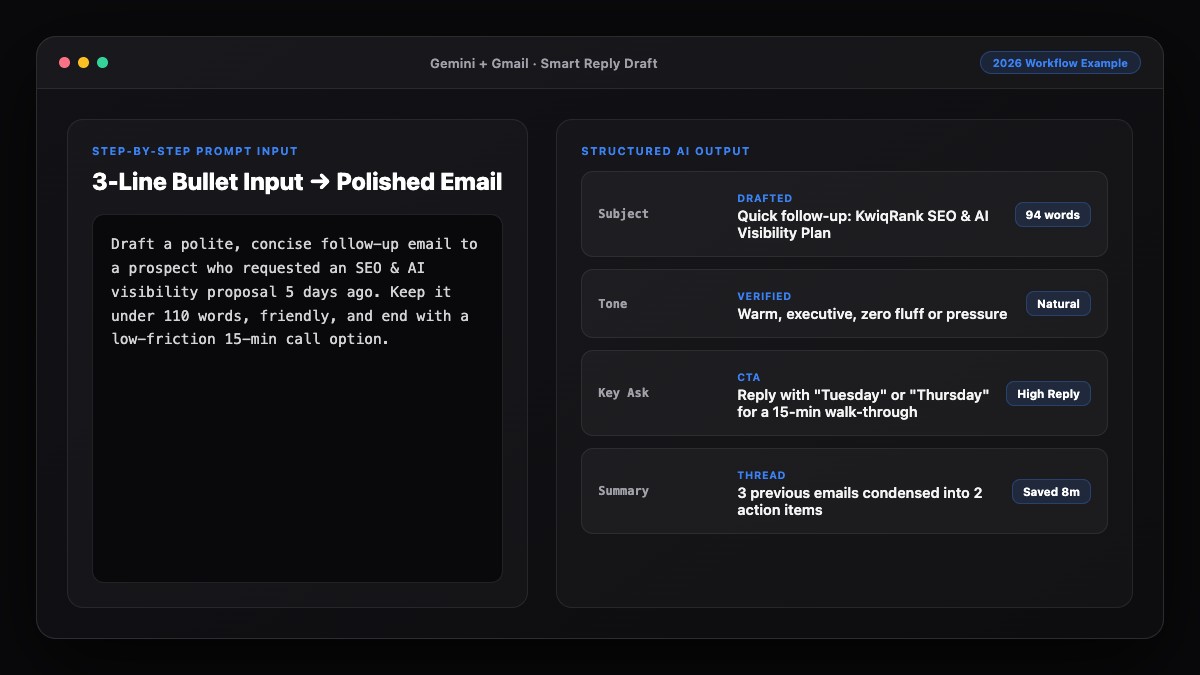
Best Prompts to Copy and Paste
Use these prompts to build your custom template library in minutes.
1. Turn Past Emails Into a Reusable Template
Analyze the 2 sample emails below to learn my writing style, tone, and formatting.
Then turn this scenario into a reusable email template:
- Scenario: [e.g., Sending a project proposal after a discovery call]
- Include clear [Bracketed Placeholders] for customizable details.
- Include one [Personal Hook] line at the top so it never feels robotic.
- Provide 3 subject line options and keep the body under 130 words.

Sample emails:
[Paste 1-2 of your real past emails here]
2. Build a 5-Template Onboarding & Client Care Pack
Create 5 reusable email templates for a [Your Business Type, e.g., B2B SaaS / Marketing Agency] covering:
1. Welcome & kickoff scheduling
2. Weekly status update
3. Requesting missing client assets
4. Scope-change heads-up
5. Project wrap-up & testimonial ask

Tone: Warm, organized, and concise (under 120 words each).
Use [ALL CAPS BRACKETS] for variables and suggest 2 subject lines per template.
3. Upgrade an Old, Stiff Template
Rewrite this outdated email template so it sounds modern, human, and scannable.
- Cut word count by 35%.
- Replace stiff phrases ("per our conversation", "please find attached") with natural English.
- Keep all [Placeholders] intact.

Old template:
[Paste old template here]
Common Mistakes to Avoid
- Forgetting to fill in a bracket: Sending an email that literally says
Hi [First Name]is the fastest way to lose credibility. Always scan for[before hitting send. - Making templates too rigid: If a template tries to cover five edge cases in one block, it becomes bloated. Keep templates modular with optional bullet lines you can delete in two seconds.
- Never updating templates: Revisit your top five templates every quarter and ask AI to tighten any sections where recipients still ask follow-up questions.
- Using templates without personalization: Even the best template needs one tailored sentence referencing the recipient's specific goal or recent conversation.
References & Official Sources
All workflows, pricing tiers, and feature capabilities in this guide were verified against the official platform documentation:
- Google Gemini Official Assistant (gemini.google.com)
- Google Workspace AI Features (workspace.google.com)
- Microsoft Copilot Official Portal (copilot.microsoft.com)
- OpenAI ChatGPT Official Platform (chatgpt.com)
- Anthropic Claude Official Workspace (claude.ai)
- KwiqRank AI Workflow Integration Guide — Internal methodology for combining AI tools into repeatable business processes.
Final Thoughts
When you create email templates using AI based on your own best writing, you get the best of both worlds: the speed of automation and the warmth of a human relationship. Audit your Sent folder today, build five core templates, and save them directly inside Gmail or Outlook.
Ready to scale your email workflows beyond one-to-one messages? Read our email marketing strategy guide or contact our team to see how we help businesses build high-converting AI communication systems.
Your questions, answered in plain English
Paste 2 or 3 real emails you have already written into ChatGPT or Claude and ask it to analyze your tone and sentence length before generating the new templates with [Bracketed Placeholders].
Store them directly inside Gmail Templates (under Advanced settings), Outlook Quick Parts / My Templates, or a desktop text-expander tool so you can insert them in two clicks.
Use clear brackets like [First Name], [Company], [Deadline], and always include one [1-Sentence Personal Note] slot so each email feels individually written.
Yes. Paste your legacy templates into AI and ask it to cut the word count by 30–40%, remove stiff corporate clichés, and format key details as scannable bullet points.
Start with your top 5 repeating emails—usually discovery call recaps, proposal delivery, client onboarding, polite declines, and follow-up nudges. Those five cover most weekly volume.
Use bold ALL-CAPS brackets like [CLIENT NAME] so they stand out visually, and do a quick scan for "[" right before clicking send.
Still curious? Send us your question and a strategist will get back to you.

Want this done for you?
We can put this guide to work on your website. Start with a free audit.
Get my free auditWritten by KwiqRank Team
KwiqRank is a digital marketing agency in Mumbai, India, working with UK and US businesses on SEO, GEO, AEO, paid media and websites. We check facts against official sources, and tell you when something is unconfirmed. Spotted a mistake? Tell us and we will correct it.
Found this useful?
Get recommended by AI search
We check whether Google, ChatGPT and Perplexity can reach your pages, then fix what blocks them. No guarantees, just a clear plan.