
How to Manage Your Inbox Using AI and Reach Inbox Zero
Reach Inbox Zero in 20 minutes a day using AI smart filters, 4-bucket triage, instant thread summaries, and batch reply drafting.

- Read time
- 6 min read
- Sections
- 11
- FAQs answered
- 6
- Topic
- Email & Communication
To manage your inbox using AI and reach Inbox Zero, combine three habits: use AI-powered priority tabs and smart filters to auto-archive noise, summarize long threads in seconds instead of reading every reply, and batch-draft responses in one 20-minute daily sprint. Most professionals cut daily inbox time in half within the first week.
An unread count of 1,400 emails is rarely a willpower problem—it is a triage problem. When newsletters, automated receipts, CC-only updates, and urgent client requests all land in the same pile, your brain burns energy deciding what matters before you even answer a single message. By midday, you are reactive, stressed, and buried in half-read threads.
AI turns your inbox from a chaotic to-do list into a sorted workflow. Instead of reading and replying to every message one by one in real time, you let AI filter, summarize, categorize, and draft while you make the final decisions.
What You'll Need
You can run an AI Inbox Zero system using native features in Gmail or Outlook paired with an AI chat assistant for batch drafting and rule creation.
| Tool | Free Tier | Paid Tier | Inbox Management Strength |
|---|---|---|---|
| Gemini in Gmail | Free Gmail Priority Inbox, Promotions/Updates tabs, and basic filters | Google Workspace AI add-on / Google One AI Premium ($19.99/mo) | Built-in thread summaries, inbox Q&A ("Find unread emails from Sarah"), and fast draft replies |
| Microsoft Copilot | Free Outlook Focused Inbox and rules | Copilot Pro ($20/mo) or Microsoft 365 Copilot ($30/user/mo) | Thread summarization, Outlook coaching, and action-item extraction |
| ChatGPT / Claude | Free web & mobile chat | Plus / Pro ($20/mo) | Writing Gmail/Outlook filter syntax, batch-drafting replies, and summarizing pasted digests |
Step 1: Declare "Filter Bankruptcy" and Clear the Backlog
You cannot reach Inbox Zero by manually deleting 2,000 old emails one by one. Start by archiving everything older than 14 days into a Review Later folder or Archive (you can still search it anytime).
Next, ask ChatGPT or Claude to write exact Gmail or Outlook search queries and filter rules for recurring noise—such as unsubscribe newsletters, automated Jira/Asana notifications, and receipts—so they skip your primary inbox automatically going forward.
Step 2: Use the 4-Bucket Triage Rule Twice a Day
Check email in two dedicated blocks (for example, 10:00 AM and 4:00 PM) instead of every five minutes. Process every new email top-to-bottom into one of four buckets:
- Archive / Delete: FYI emails, newsletters, and CC updates you do not need to act on.
- Quick Reply (<2 min): Use AI to reply to emails faster without sounding robotic and archive immediately.
- Summarize & Task: For long chains, summarize the email thread with AI, move the action item to your task manager, and archive the email.
- Waiting On: Apply a
Waitinglabel to emails where you are awaiting someone else's response, then schedule a reminder to write a polite follow-up email if they go silent.
Step 3: Ask AI to Find Urgent Emails You Might Have Missed
If you use Gemini in Gmail or Microsoft 365 Copilot, use natural-language inbox Q&A instead of scrolling. Ask questions like: "Show me all unread emails from clients this week that ask a question" or "List any emails mentioning an invoice or deadline due before Friday."
Step 4: Batch-Draft Your Replies in One 15-Minute Sprint
Rather than switching context 30 times a day, open a single AI chat window during your afternoon email block. Paste five incoming emails in a row with your one-line decisions, generate all five drafts in two minutes, review and personalize each one, and hit send. For recurring requests, pull directly from your AI-created email templates.
Step 5: Run a 5-Minute Friday Inbox Audit
Every Friday afternoon, look at the emails that annoyed you or cluttered your week. Unsubscribe from three newsletters you never opened, and ask AI to tighten one filter rule so Monday morning starts clean.
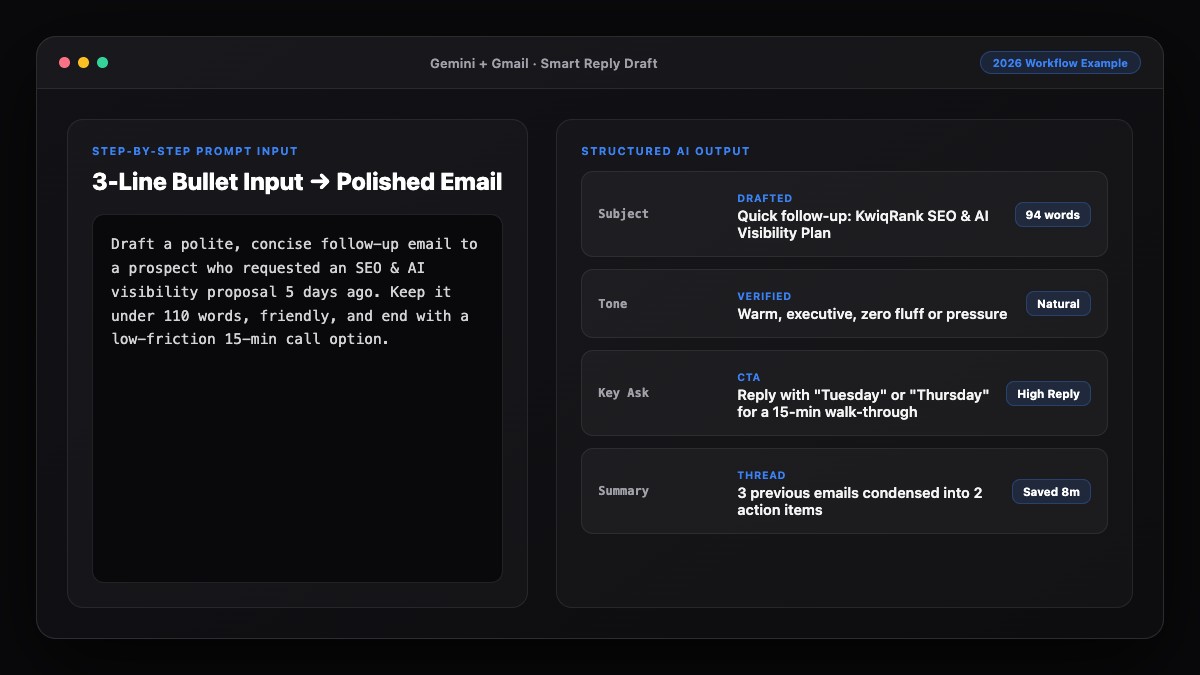
Best Prompts to Copy and Paste
Use these prompts to build filters, triage a messy batch of emails, and draft replies in bulk.
1. Generate Exact Gmail or Outlook Filter Rules
Write exact [Gmail search syntax / Outlook rule instructions] to automatically label and skip the inbox for:
1. All newsletters containing "unsubscribe" (EXCEPT emails from these domains: [list key domains])
2. Automated receipts and invoices (label as "Finance/Receipts")
3. Notifications from [Jira / Slack / Asana / GitHub] where I am not directly mentioned.

Explain step-by-step where to paste each filter.
2. Batch-Triage 5 Unread Emails at Once
I am pasting 5 unread emails below. For each email, give me:
- Priority: High / Medium / Low (FYI only)
- Core ask in 1 sentence
- Whether I need to reply today (Yes/No)
- A 2-sentence suggested reply if Yes

Emails:
[Paste 5 emails separated by ---]
3. Weekly "Waiting On" Follow-Up Check
Here are 4 emails I am waiting on replies for. Draft a short, polite follow-up for each one (under 55 words each, no "just checking in"):
1. [Recipient + Topic + Days waiting]
2. [Recipient + Topic + Days waiting]
3. [Recipient + Topic + Days waiting]
4. [Recipient + Topic + Days waiting]
Common Mistakes to Avoid
- Using your inbox as a to-do list: Leaving 40 read emails sitting in your inbox "so you don't forget them" guarantees clutter. Move tasks to a task app or calendar block and archive the email.
- Over-filtering important clients: When creating auto-archive rules for newsletters or receipts, always add an exception for key client domains or VIP senders.
- Checking email constantly just because AI makes replies fast: Faster drafting only saves time if you batch your email checks into 2–3 focused windows per day.
- Letting AI auto-delete emails: Always auto-archive or apply labels instead of auto-deleting, so nothing important is ever permanently lost.
References & Official Sources
All workflows, pricing tiers, and feature capabilities in this guide were verified against the official platform documentation:
- Google Gemini Official Assistant (gemini.google.com)
- Google Workspace AI Features (workspace.google.com)
- Microsoft Copilot Official Portal (copilot.microsoft.com)
- OpenAI ChatGPT Official Platform (chatgpt.com)
- Anthropic Claude Official Workspace (claude.ai)
- KwiqRank AI Workflow Integration Guide — Internal methodology for combining AI tools into repeatable business processes.
Final Thoughts
You can manage your inbox using AI and reach Inbox Zero consistently without working extra hours. Combine smart auto-archiving filters, twice-daily 4-bucket triage, instant thread summaries, and batch AI drafting—and your inbox will stay under control every single day.
If you want to apply the same efficiency to your team's outbound communication, check out our email marketing strategy guide or contact our team to discuss custom AI productivity workflows.
Your questions, answered in plain English
Yes. By combining AI-written inbox filters to remove noise, instant thread summaries for long chains, and batch-drafted replies, most professionals clear their daily inbox in 15 to 25 minutes.
Archive everything older than 14 days into a Review or All Mail archive—nothing is deleted and everything remains searchable—then apply AI-assisted filters to stop new noise from piling up.
Both tools let you ask natural-language questions about your inbox (such as finding unread client emails or upcoming deadlines) and summarize long threads in one click.
No. Always configure filters to "Skip the Inbox (Archive)" and apply a label rather than deleting, so you never lose a receipt or misclassified message permanently.
Check and process your inbox in two or three scheduled blocks per day (for example, morning, midday, and late afternoon) rather than reacting to every notification.
Every email goes into one of four actions: Archive/Delete, Quick Reply (under 2 minutes with AI), Summarize & Move to Task Manager, or Label as "Waiting On" for future follow-up.
Still curious? Send us your question and a strategist will get back to you.

Want this done for you?
We can put this guide to work on your website. Start with a free audit.
Get my free auditWritten by KwiqRank Team
KwiqRank is a digital marketing agency in Mumbai, India, working with UK and US businesses on SEO, GEO, AEO, paid media and websites. We check facts against official sources, and tell you when something is unconfirmed. Spotted a mistake? Tell us and we will correct it.
Found this useful?
Turn this into a plan
We help teams pick the channels worth doing and measure them against enquiries and sales.