
How to Use AI to Automatically Plan Your Calendar
Step-by-step tutorial on using AI calendar planning tools like Motion, Reclaim.ai, ChatGPT, and Gemini to automate your daily schedule.

- Read time
- 8 min read
- Sections
- 11
- FAQs answered
- 6
- Topic
- Time Management
To use AI to automatically plan your calendar, connect your primary calendar to an AI scheduling engine like Motion or Reclaim.ai, define your working hours and priority rules, and let the algorithm auto-place tasks, buffers, and focus blocks around fixed meetings. Most professionals lose 4 to 6 hours every week manually dragging calendar blocks around; AI calendar planning eliminates that friction by dynamically recalculating your day whenever a new meeting or urgent deadline arrives.
Manual time-blocking works great until 9:15 AM, when a client requests an emergency call or a project takes twice as long as estimated. The moment one block shifts, your entire afternoon collapses into manual "calendar Tetris." Modern AI calendar planning solves this by treating your schedule like a live GPS route: when traffic (a surprise meeting or overrun task) appears, the system automatically reroutes your remaining tasks into open slots based on deadlines, energy levels, and priority.
What You'll Need
You do not need a complex tech stack to automate your calendar. Depending on whether you want fully autonomous calendar syncing or conversational daily planning, choose from the four leading tools below.
| Tool | Free Tier | Paid Tier | Best For |
|---|---|---|---|
| Motion | 7-day free trial (no permanent free tier) | Starts around $19–$34/month (billed annually/monthly) | Full autonomous task-to-calendar scheduling with strict deadline enforcement |
| Reclaim.ai | Free Lite plan (limited habits, tasks, and smart 1:1s) | Starter from ~$8–$10/user/month | Defending focus time, recurring habits, and syncing Google Calendar with task apps |
| ChatGPT | Free tier with GPT-4o mini / limited flagship access | ChatGPT Plus at $20/month | Brain-dumping messy to-do lists and generating structured time-blocked schedules |
| Google Calendar + Gemini | Free Google Calendar; basic Gemini web access | Google Workspace Business / Google One AI Premium (~$20/month) | Native Gmail-to-Calendar event extraction and side-panel schedule summaries |
For a completely hands-off workflow, pair Google Calendar with either Motion or Reclaim.ai. If you prefer keeping your calendar manual while letting AI design the blueprint, ChatGPT or Gemini works well alongside your existing calendar.
Step 1: Audit and Connect Your Calendars
AI scheduling fails when it only sees half of your commitments. Before turning on any automation, consolidate every calendar that holds your time—work Google Workspace, personal Gmail, and any client-facing booking links.
- Clean up ghost events: Delete old recurring meetings you no longer attend and mark "tentative" holds accurately so the AI knows what is truly immovable.
- Connect your primary calendar: Sign into Reclaim.ai or Motion using Google or Microsoft OAuth.
- Sync personal commitments: Add your personal calendar as a "busy-only" sync so the AI never books a client call over a dentist appointment or school pickup, without exposing private event details to coworkers.
If you also struggle with incoming invites crowding out your mornings, see our dedicated guide on how to protect focus time using AI.
Step 2: Configure Working Hours and Energy Zones
An AI planner is only as smart as the boundaries you set. Without explicit rules, an algorithm will happily schedule a 90-minute strategy task at 5:30 PM on a Friday.
- Set hard working hours: Define your start and end times (for example, 8:30 AM to 5:30 PM, Monday through Friday).
- Create separate schedules for different work types: In Motion and Reclaim.ai, you can assign "Deep Work" hours (e.g., 8:30 AM–12:00 PM) and "Meetings / Admin" hours (e.g., 1:00 PM–4:30 PM).
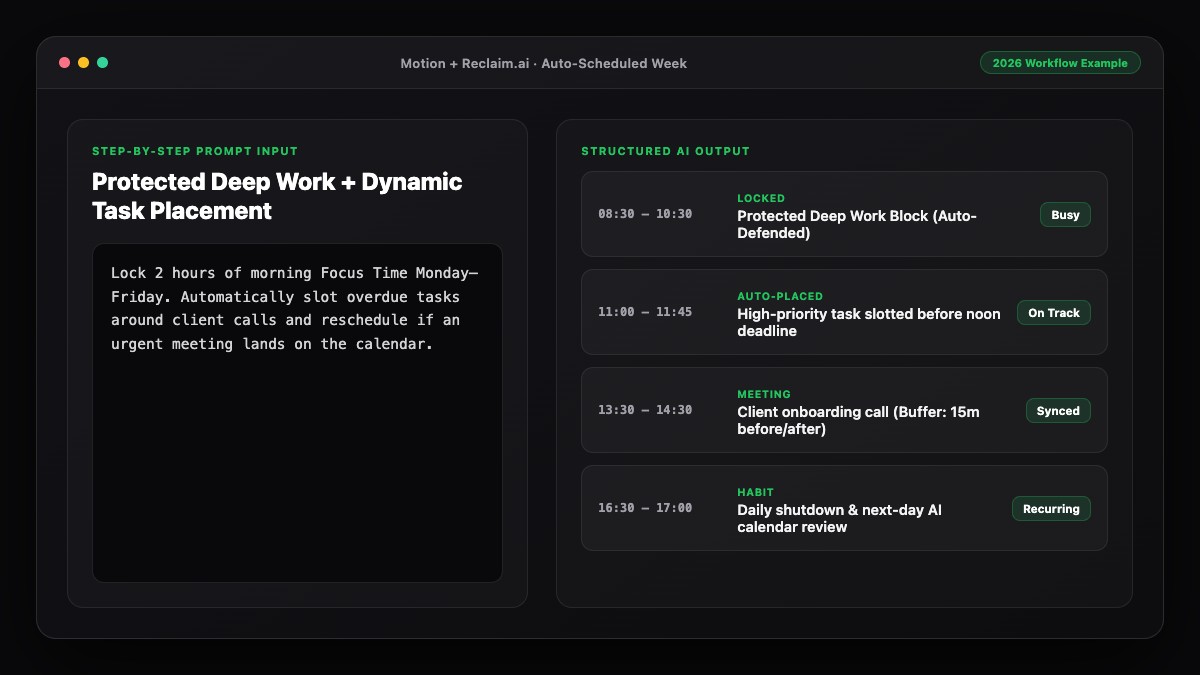
- Add automatic buffers: Configure a 10- to 15-minute decompression buffer before and after external video calls so you are never trapped in back-to-back Zoom fatigue.
Matching task difficulty to your biological peak hours is the secret to building a smart productivity schedule with AI rather than just a full calendar.
Step 3: Import Tasks with Durations and Deadlines
AI cannot schedule vague items like "Work on Q4 report." Every task needs three metadata fields so the scheduling engine can place it accurately:
- Estimated duration: Break large projects into 30-, 60-, or 90-minute chunks. If a task takes 4 hours, allow the AI to split it into two 2-hour sessions across multiple days.
- Due date (hard vs. soft): Give client deliverables a hard deadline so the AI treats them as non-negotiable, while internal backlog items get flexible deadlines.
- Priority level: Tag items as Critical, High, Medium, or Low. When an unexpected meeting lands on your calendar, the AI automatically bumps Low-priority tasks to tomorrow while keeping Critical work locked in today.
Want to go deeper on automated task placement? Read our walkthrough on how to use AI to schedule tasks automatically around meetings.
Step 4: Set Recurring Habits and AI Planning Prompts
Not everything on your calendar is a one-off task. Habits like inbox triage, weekly reporting, exercise, and learning need consistent space without becoming rigid blocks that break when a VIP meeting appears.
In Reclaim.ai, create Smart Habits with a flexible time window (e.g., "Lunch: 45 minutes anytime between 12:00 PM and 2:00 PM"). The block stays "Free" to teammates until your day fills up, then flips to "Busy" right before it would become impossible to fit in.
If you use ChatGPT or Gemini alongside Google Calendar, run a 5-minute morning check-in where you paste your fixed meetings and open tasks to generate an optimized day plan.
Step 5: Review and Rebalance Weekly
Automation still requires human judgment. Spend 15 minutes every Friday afternoon or Sunday evening reviewing what the AI scheduled for the upcoming week. Check for overloaded days, unrealistic task durations, and meetings that can be turned into async updates. You can follow our exact 15-minute routine in how to plan your week using AI in 15 minutes.
Best Prompts to Copy and Paste
Use these prompts in ChatGPT or Gemini when you want AI to build or reorganize your daily calendar from a messy list of commitments.
Prompt 1: Daily Auto-Schedule from Fixed Meetings + Task List
Act as an executive time-management assistant. Build my schedule for today from 8:30 AM to 5:30 PM.

Fixed meetings (cannot move):
- 10:00 AM–10:45 AM: Client Sync
- 2:00 PM–3:00 PM: Product Roadmap Review

Tasks to fit in (include 10-minute buffers around meetings and a 45-minute lunch between 12:00 PM and 1:30 PM):
1. Write Q3 campaign brief (90 mins, High priority, requires deep focus)
2. Review 3 team PRs / drafts (45 mins, Medium priority)
3. Clear inbox & Slack messages (30 mins, Low priority)
4. Prepare slides for tomorrow's pitch (60 mins, High priority)

Place high-focus work in the morning when possible. Output a clean time-blocked table with exact start/end times and a brief rationale for any task deferred to tomorrow.
Prompt 2: Mid-Day Calendar Recovery After a Surprise Meeting
My afternoon just got disrupted by an urgent 1-hour meeting from 1:30 PM to 2:30 PM. It is now 1:15 PM, and my workday ends at 5:30 PM.

Here are the remaining tasks I had planned:
- Finish financial model (90 mins, Hard deadline today)
- Call vendor about invoice (20 mins, Medium)
- Draft weekly newsletter (60 mins, Flexible until tomorrow)
- Respond to client emails (30 mins, High)

Re-optimize my remaining afternoon, tell me which task should move to tomorrow morning, and give me a realistic revised timeline.
Common Mistakes to Avoid
- Packing 100% of your day with zero whitespace: If you schedule every 15-minute gap, one 5-minute overrun triggers a cascade of rescheduling. Leave 20% of your day unscheduled as buffer capacity.
- Underestimating task durations: Always multiply your gut estimate by 1.3x. A task you think takes 30 minutes usually takes 40 minutes once you factor in context switching.
- Giving every task "High" priority: When everything is urgent, the AI cannot make smart trade-offs. Limit yourself to 1–2 Critical tasks per day.
- Ignoring personal energy rhythms: Never let an AI place creative writing or analytical coding right after lunch or at 4:30 PM if you know your brain peaks at 9:00 AM.
References & Official Sources
All workflows, pricing tiers, and feature capabilities in this guide were verified against the official platform documentation:
- Motion AI Calendar & Task Scheduler (www.usemotion.com)
- Reclaim.ai Smart Calendar Defense (reclaim.ai)
- Google Workspace Calendar & AI (workspace.google.com)
- OpenAI ChatGPT Official Platform (chatgpt.com)
- Google Gemini Official Assistant (gemini.google.com)
- KwiqRank AI Workflow Integration Guide — Internal methodology for combining AI tools into repeatable business processes.
Final Thoughts
Learning how to use AI to automatically plan your calendar turns time management from a daily willpower battle into a repeatable system. Start with one calendar connection, realistic task durations, and clear deep-work boundaries, then let the software handle the constant reshuffling. For a complete end-to-end daily workflow, check out our guide on how to use AI to plan your entire day, or contact our team if you want help building AI productivity workflows for your business.
Your questions, answered in plain English
Motion is best if you want an all-in-one task manager that aggressively auto-schedules your entire day. Reclaim.ai is best if you want to keep Google Calendar and defend focus time, habits, and smart 1:1s.
Yes. Reclaim.ai offers a free Lite plan for basic habits and task syncing, and you can use the free tiers of ChatGPT or Gemini to turn a daily task list into a time-blocked schedule.
No, if configured properly. Both Reclaim.ai and Motion let you sync personal calendars with "Busy" visibility only, hiding event titles and descriptions from colleagues.
When a new meeting is accepted, AI calendar planners automatically detect the conflict, bump lower-priority tasks to the next available slot, and keep hard-deadline items protected.
Initial setup takes about 20 to 30 minutes: 10 minutes to connect calendars and set working hours, and 15 minutes to import your current tasks with durations and deadlines.
Use a dedicated app like Motion or Reclaim.ai if your calendar changes frequently throughout the day. Use ChatGPT or Gemini if you prefer a manual calendar and just want fast morning or weekly planning.
Still curious? Send us your question and a strategist will get back to you.

Want this done for you?
We can put this guide to work on your website. Start with a free audit.
Get my free auditWritten by KwiqRank Team
KwiqRank is a digital marketing agency in Mumbai, India, working with UK and US businesses on SEO, GEO, AEO, paid media and websites. We check facts against official sources, and tell you when something is unconfirmed. Spotted a mistake? Tell us and we will correct it.
Found this useful?
Get recommended by AI search
We check whether Google, ChatGPT and Perplexity can reach your pages, then fix what blocks them. No guarantees, just a clear plan.