
How to Use AI to Schedule Tasks Automatically Around Meetings
Step-by-step guide to AI auto-scheduling tasks around fixed meetings using Motion, Reclaim.ai, ChatGPT, and Google Calendar.

- Read time
- 7 min read
- Sections
- 11
- FAQs answered
- 6
- Topic
- Time Management
To use AI to schedule tasks automatically around meetings, connect your task list to an AI calendar engine like Motion or Reclaim.ai, assign each task a duration, priority, and deadline, and let the algorithm slot work into open calendar gaps. Whenever a new meeting lands on your schedule, the AI instantly reshuffles your remaining tasks so high-priority deadlines are still met without manual calendar Tetris.
Most people keep their meetings in Google Calendar and their tasks in a separate to-do app like Todoist, Asana, Notion, or Apple Reminders. That split creates a dangerous blind spot: your calendar looks open, so you accept more meetings, while your to-do list quietly grows to 14 hours of work for a 4-hour gap. Setting up an AI auto schedule tasks workflow unifies both worlds so every task claims real time on your calendar.
What You'll Need
Depending on whether you want an all-in-one task-and-calendar app or an AI layer over your existing tools, choose from the four options below.
| Tool | Free Tier | Paid Tier | Task Auto-Scheduling Strength |
|---|---|---|---|
| Motion | 7-day free trial | Starts around $19–$34/month | Fastest real-time task auto-scheduling with automatic deadline-at-risk alerts |
| Reclaim.ai | Free Lite plan (limited tasks & integrations) | Starter from ~$8–$10/user/month | Syncs tasks directly from Asana, Todoist, Linear, Jira, and Google Tasks |
| ChatGPT | Free tier with daily limits | ChatGPT Plus at $20/month | Breaks vague projects into sized subtasks and builds manual time-block schedules |
| Google Calendar + Gemini | Free Google Tasks & Calendar; basic Gemini | Google Workspace Business / AI Premium (~$20/month) | Turns Gmail action items into Google Tasks and summarizes open calendar gaps |
Step 1: Centralize Your Tasks into One Source
AI cannot auto-schedule tasks scattered across sticky notes, Slack saves, and three different apps. Pick a single source of truth:
- All-in-one approach: Move your active tasks directly into Motion's built-in task manager.
- Integration approach: Keep using Asana, Todoist, ClickUp, Linear, Jira, or Google Tasks, and connect it to Reclaim.ai so any task assigned to you automatically appears on your calendar.
If you are still deciding how to structure your broader calendar first, start with our guide on how to use AI to automatically plan your calendar.
Step 2: Size Every Task and Allow Chunking
An AI scheduler will struggle to place a 4-hour task into a day full of 45- and 90-minute gaps between meetings unless you allow it to split the work.
- Estimate realistic durations: Assign 15, 30, 45, 60, or 90 minutes to every task. Avoid 10-minute micro-tasks—batch small admin items into one 30-minute "Quick Wins" block instead.
- Enable auto-splitting (chunking): In both Motion and Reclaim.ai, toggle on chunking for tasks longer than 90 minutes and set a minimum chunk size (e.g., 45 or 60 minutes). That way, a 3-hour proposal can be scheduled as two 90-minute blocks around your afternoon meetings.
Step 3: Assign Priority Tiers and Hard vs. Soft Deadlines
When a surprise meeting lands on your calendar, the AI needs to know which tasks can safely slide to tomorrow and which ones must stay locked in today.
- ASAP / Critical: Client deliverables or deadlines due today. The AI places these first and alerts you immediately if your remaining meeting gaps are too small to finish on time.
- High / Medium: Important project work due this week. The AI fits these into morning or early afternoon gaps.
- Low / Backlog: Someday/maybe tasks with no hard deadline. These act as "filler" for awkward 30-minute gaps between meetings.
Step 4: Tag Tasks by Schedule Type (Deep Work vs. Admin)
Not all gaps between meetings are equal. A 30-minute gap before a client call is terrible for writing code or strategy docs, but perfect for clearing emails or approving expenses.
Create two schedule profiles in your AI tool: Deep Work (for creative, analytical, or high-focus tasks) and Admin / Light Work (for calls, reviews, and inbox triage). This ensures your AI never drops a heavy strategic task into a fragmented afternoon sliver while keeping your protected focus time reserved for meaningful output.
Step 5: Let the AI Recalculate When Meetings Shift
Once your tasks are synced and tagged, stop manually dragging them around. When a meeting gets added, moved, or runs long:
- Mark completed tasks as Done right away so the AI frees up any remaining scheduled buffer.
- If a task runs over, click Add 30 mins or Snooze rather than abandoning it—the AI will automatically push lower-priority work forward.
- Check your "At Risk" warning list each afternoon; if Motion or Reclaim flags a deadline you cannot hit, either delegate the task or decline a low-value meeting.
For a complete system that handles both sides of your workload, read how to use AI to manage meetings and tasks together.
Best Prompts to Copy and Paste
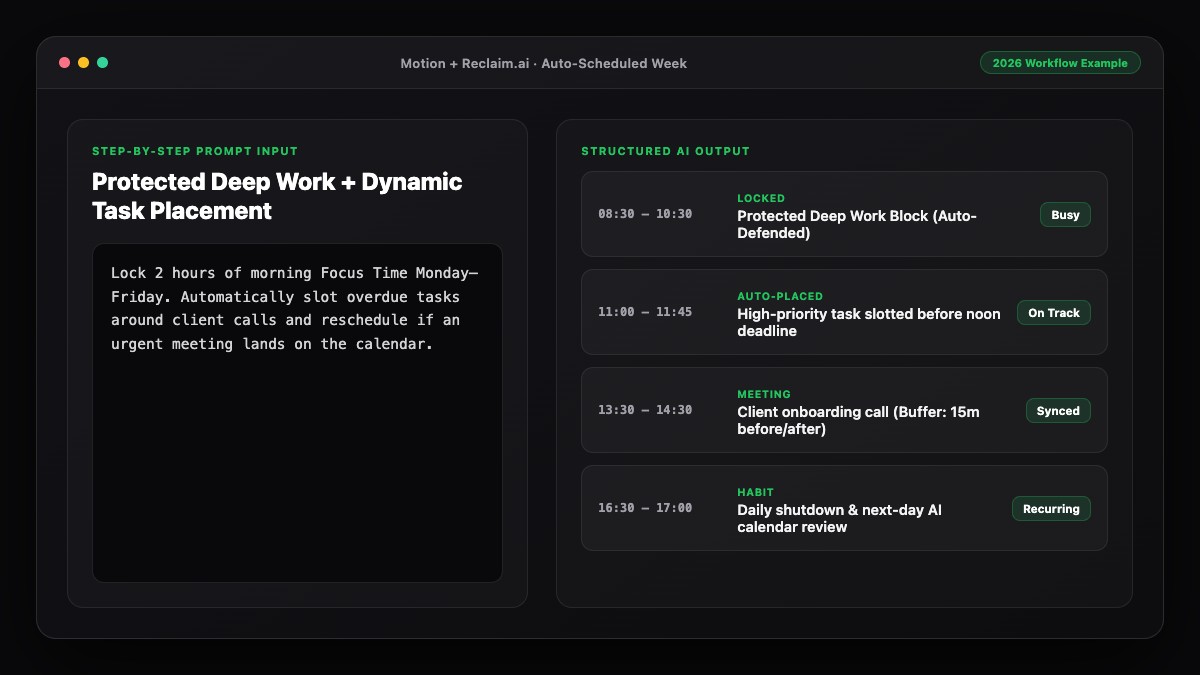
Use these prompts in ChatGPT or Gemini to break down large tasks for auto-scheduling or manually slot tasks between fixed meetings.
Prompt 1: Break a Large Project into AI-Schedulable Chunks
Break the following project into concrete, schedulable subtasks suitable for an AI calendar tool (like Motion or Reclaim.ai).

Project: [Describe your project, e.g., Launch Q4 product landing page and email sequence]
Target deadline: [Date]

For each subtask, provide:
1. Action-oriented task name
2. Estimated duration (30, 45, 60, or 90 minutes)
3. Schedule type (Deep Work vs. Admin/Light)
4. Priority (High, Medium, Low)
5. Dependencies (which task must happen first)
Prompt 2: Fit Tasks Into Awkward Gaps Between Meetings
Here are my fixed meetings for tomorrow (workday 9:00 AM–5:30 PM):
- 9:30 AM–10:15 AM: Standup & Sprint Sync
- 11:30 AM–12:30 PM: Client Discovery Call
- 2:00 PM–3:00 PM: Team Workshop
- 4:00 PM–4:30 PM: 1:1 Check-in

Here are my open tasks:
- Draft proposal (90 mins, Deep Work, High)
- Review 2 design mockups (30 mins, Light, Medium)
- Send 5 follow-up emails (25 mins, Admin, High)
- Research competitor pricing (60 mins, Deep Work, Medium)

Match each task to the best gap based on cognitive load and gap length, include a 45-minute lunch break, and tell me what won't fit.
Common Mistakes to Avoid
- Refusing to allow task splitting: If you forbid chunking on 3-hour tasks, the AI will keep pushing them days or weeks into the future waiting for a rare 3-hour blank spot.
- Forgetting to mark tasks complete: Leaving finished tasks open tricks the AI into thinking your day is still overloaded, causing it to defer tomorrow's work unnecessarily.
- Scheduling 15-minute tasks individually: Tiny tasks create visual clutter. Group them into one 30-minute daily "Admin Batch" task.
- Overstuffing every gap: Back-to-back tasks and meetings with zero breathing room lead to burnout. Keep 10-minute buffers around meetings and review your load with our 15-minute weekly AI planning routine.
References & Official Sources
All workflows, pricing tiers, and feature capabilities in this guide were verified against the official platform documentation:
- Motion AI Calendar & Task Scheduler (www.usemotion.com)
- Reclaim.ai Smart Calendar Defense (reclaim.ai)
- Google Workspace Calendar & AI (workspace.google.com)
- OpenAI ChatGPT Official Platform (chatgpt.com)
- Google Gemini Official Assistant (gemini.google.com)
- KwiqRank AI Workflow Integration Guide — Internal methodology for combining AI tools into repeatable business processes.
Final Thoughts
An AI auto schedule tasks workflow removes the mental tax of constantly re-planning your day every time someone sends a calendar invite. By centralizing your tasks, sizing them accurately, and letting an engine like Motion or Reclaim.ai fit them around your meetings, you always know what to work on next—and whether your deadlines are realistic. To build a complete daily rhythm around this setup, explore our guide on how to use AI to plan your entire day, or contact us for tailored AI workflow consulting.
Your questions, answered in plain English
Yes. Both Motion and Reclaim.ai monitor your calendar in real time and automatically move lower-priority tasks to future open slots whenever a new meeting creates a conflict.
Reclaim.ai integrates natively with Todoist, Asana, ClickUp, Linear, Jira, and Google Tasks. Motion includes its own built-in project and task manager.
Turn on task splitting (chunking) and set a minimum session length of 60 or 90 minutes so the AI can schedule the project across multiple open blocks instead of waiting for one giant empty afternoon.
Mark the task as complete in Motion or Reclaim.ai. The AI will either pull your next priority task forward or leave the newly opened time as buffer space.
ChatGPT does not continuously sync and reshuffle live calendar events on its own, but you can paste your meetings and task list into ChatGPT to generate an optimal time-blocked plan in seconds.
Set minimum duration thresholds (at least 60 minutes for Deep Work tasks) and assign separate schedule profiles for Deep Work versus Admin tasks.
Still curious? Send us your question and a strategist will get back to you.

Want this done for you?
We can put this guide to work on your website. Start with a free audit.
Get my free auditWritten by KwiqRank Team
KwiqRank is a digital marketing agency in Mumbai, India, working with UK and US businesses on SEO, GEO, AEO, paid media and websites. We check facts against official sources, and tell you when something is unconfirmed. Spotted a mistake? Tell us and we will correct it.
Found this useful?
Talk to us about your site
Tell us what you are working on and we will say plainly what we would do first.