
How to Create a Smart Productivity Schedule Using AI
Build an energy-aligned smart productivity schedule using AI tools like Motion, Reclaim.ai, ChatGPT, and Google Calendar.

- Read time
- 6 min read
- Sections
- 11
- FAQs answered
- 6
- Topic
- Time Management
To create a smart productivity schedule using AI, map your daily biological energy peaks, configure custom schedule profiles in an AI calendar tool like Motion or Reclaim.ai, and automate recurring habits, task batching, and recovery buffers around your fixed commitments. Unlike rigid static timetables that collapse by noon, an AI-driven schedule adapts continuously to your real-time energy, deadlines, and unexpected interruptions.
Most productivity schedules fail because they treat every hour of the day as identical. In reality, one hour of focused analytical work at 9:00 AM produces better results than three exhausted hours at 4:30 PM. Building a smart productivity schedule AI system means teaching your calendar software when you do your best thinking, how to batch low-energy admin work, and when to protect recovery breaks automatically.
What You'll Need
You can build a smart, energy-aligned schedule using dedicated AI calendar engines or by designing your daily blueprint with ChatGPT and Gemini.
| Tool | Free Tier | Paid Tier | Smart Scheduling Role |
|---|---|---|---|
| Motion | 7-day free trial | Starts around $19–$34/month | Custom schedule profiles (Deep Work vs. Admin) with real-time task auto-placement |
| Reclaim.ai | Free Lite plan (habits, basic focus & tasks) | Starter from ~$8–$10/user/month | Smart Habits, energy-aware Focus Time defense, and automated decompression buffers |
| ChatGPT | Free tier with daily usage limits | ChatGPT Plus at $20/month | Designs personalized chronotype schedules and optimizes task batching |
| Google Calendar + Gemini | Free Google Calendar; basic Gemini | Google Workspace Business / AI Premium (~$20/month) | Color-coded time blocking, Focus Time DND, and Gemini schedule reviews |
Step 1: Map Your Energy Chronotype Before Touching Tools
Before configuring any software, track your natural focus levels for three days and divide your workday into three energy zones:
- Peak Zone (typically 8:30 AM–12:00 PM): Highest analytical and creative bandwidth. Reserve this for strategy, writing, coding, and complex problem-solving.
- Trough Zone (typically 1:00 PM–2:30 PM): Post-lunch dip. Ideal for lunch, a short walk, and low-cognitive admin like expense approvals or inbox sorting.
- Rebound Zone (typically 2:30 PM–5:00 PM): Good for collaborative meetings, 1:1s, brainstorming, and light reviews.
If you are a night owl whose Peak Zone starts at 11:00 AM or 2:00 PM, shift these windows to match your real biology—never copy someone else's 5:00 AM routine.
Step 2: Build Energy-Based Schedule Profiles in AI Tools
Translate your three energy zones directly into your AI calendar settings:
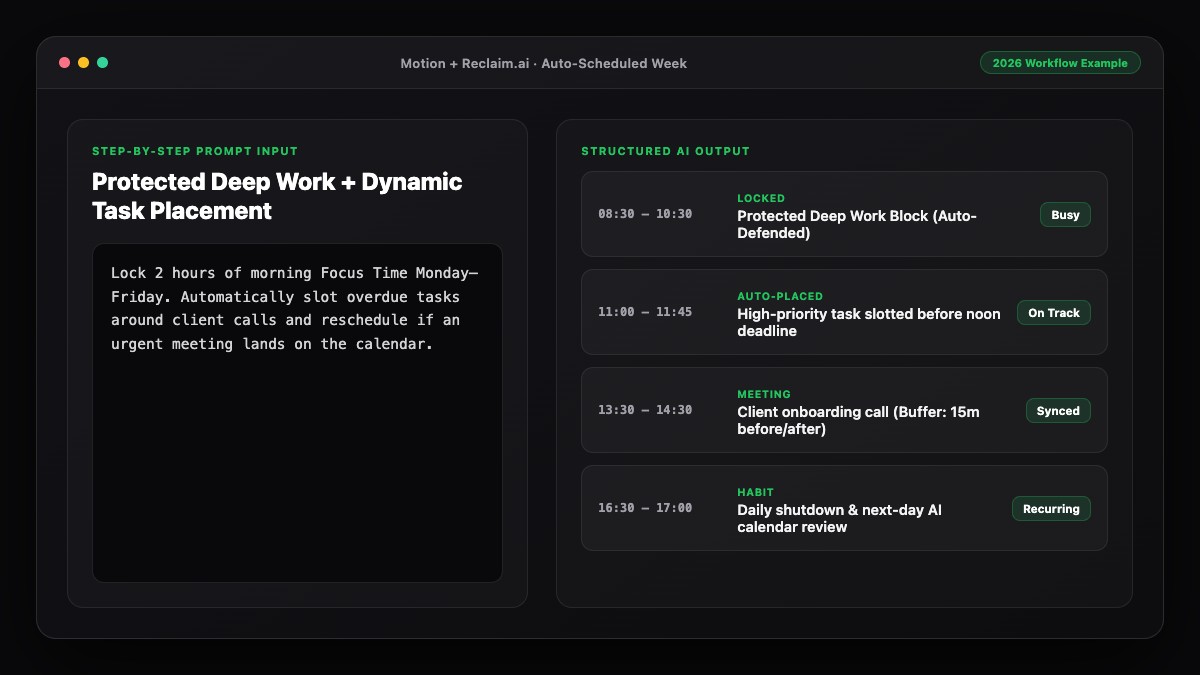
- In Motion, create custom Schedules—one called Peak Deep Work (8:30 AM–12:00 PM) and another called Admin & Comms (1:30 PM–5:00 PM). When adding tasks, assign each task to the matching schedule profile.
- In Reclaim.ai, set your Focus Time preference to Morning First so the AI defends your Peak Zone before falling back to afternoon slots.
For a deeper look at defending those Peak Zone hours, read how to protect your focus time using AI scheduling tools.
Step 3: Automate Smart Habits for Health and Admin
A smart productivity schedule protects the habits that keep you sharp—lunch, exercise, inbox triage, and end-of-day shutdowns—without turning your calendar into a rigid prison.
In Reclaim.ai, set up Smart Habits with flexible time windows:
- Lunch Break: 45 minutes anytime between 12:00 PM and 2:00 PM.
- Inbox & Slack Batch: 30 minutes at 1:30 PM and 20 minutes at 4:40 PM (instead of checking messages every 6 minutes).
- Daily Shutdown & Tomorrow Prep: 15 minutes between 5:00 PM and 5:30 PM.
If you are new to setting up automated calendar rules, see our foundational guide on how to use AI to automatically plan your calendar.
Step 4: Pair Task Batching with Meeting Clusters
Switching between a 30-minute call and a complex spreadsheet costs 15 to 20 minutes of mental warm-up every single time. Use AI to cluster similar work together:
- Cluster meetings: Group 1:1s and external calls into afternoon blocks or dedicated "Meeting Days" (like Tuesdays and Thursdays).
- Batch shallow tasks: Combine all 10-minute admin errands (invoices, approvals, quick replies) into one 45-minute afternoon block.
To learn how to keep calls and deliverables in sync without double-booking, check out how to use AI to manage meetings and tasks together.
Step 5: Calibrate Weekly Using AI Analytics
Treat your schedule like a living experiment. Every Friday, spend 10 minutes reviewing your AI productivity stats in Motion or Reclaim.ai (or paste your completed week into ChatGPT or Gemini). Look at two numbers: Focus Hours Protected and Tasks Rescheduled. If tasks keep getting pushed past Friday, your time estimates are too optimistic—increase task durations by 25% and trim low-impact commitments during your 15-minute AI weekly plan.
Best Prompts to Copy and Paste
Use these prompts in ChatGPT or Gemini to design an energy-matched daily template and batch your messy to-do list.
Prompt 1: Design an Energy-Aligned Daily Schedule Template
Act as a productivity and chronotype specialist. Design a smart daily productivity schedule template for my workday (8:30 AM to 5:30 PM).

My energy profile:
- Peak focus: 8:30 AM–12:00 PM
- Post-lunch dip: 1:00 PM–2:30 PM
- Afternoon rebound: 2:30 PM–5:00 PM

Include:
1. A dedicated morning deep-work block (minimum 90 minutes)
2. Two batched email/Slack windows (no constant checking)
3. A 45-minute lunch and two 10-minute movement breaks
4. A preferred window for meetings and 1:1s
5. A 15-minute end-of-day shutdown ritual

Present the template as a clean time-blocked table with rules for what types of tasks belong in each zone.
Prompt 2: Batch a Messy Task List by Cognitive Load
Sort the following tasks into three batches—High Cognitive Load (Peak Zone), Collaborative / Calls (Rebound Zone), and Low-Energy Admin (Trough Zone)—and estimate realistic durations for each:

[Paste your messy list of 10–15 tasks]
Common Mistakes to Avoid
- Building a schedule for an imaginary superhuman: Scheduling 10 hours of non-stop deep work with no lunch or breaks guarantees burnout by Wednesday.
- Checking Slack and email continuously: Even the smartest AI schedule fails if you let real-time notifications interrupt your Peak Zone blocks.
- Scheduling deep work right after lunch: Save your post-lunch dip for routine admin, walks, or light reviews, not strategic thinking.
- Never updating task time estimates: If a "30-minute" report consistently takes 60 minutes, update your defaults so the AI plans realistically.
References & Official Sources
All workflows, pricing tiers, and feature capabilities in this guide were verified against the official platform documentation:
- Motion AI Calendar & Task Scheduler (www.usemotion.com)
- Reclaim.ai Smart Calendar Defense (reclaim.ai)
- Google Workspace Calendar & AI (workspace.google.com)
- OpenAI ChatGPT Official Platform (chatgpt.com)
- Google Gemini Official Assistant (gemini.google.com)
- KwiqRank AI Workflow Integration Guide — Internal methodology for combining AI tools into repeatable business processes.
Final Thoughts
Creating a smart productivity schedule using AI is about aligning your calendar with how human energy actually works—protecting peak morning hours for high-leverage deliverables, batching shallow admin, and letting automation handle rescheduling when life happens. To put this into action every morning, read our guide on how to use AI to plan your entire day, or contact our team if you want help rolling out AI productivity systems across your organization.
Your questions, answered in plain English
A smart AI schedule adapts automatically when meetings shift, matches difficult tasks to your peak energy hours, protects breaks and habits dynamically, and prevents overbooking.
Motion lets you create custom schedule profiles (e.g., Peak Deep Work vs. Admin) and assign tasks to each profile, while Reclaim.ai lets you prioritize morning-first Focus Time and flexible Smart Habits.
Schedule two or three dedicated 20- to 30-minute "Inbox & Slack Batch" Smart Habits on your calendar, and sync your Focus Time blocks with Slack Do Not Disturb.
Yes. You can use ChatGPT or Gemini for free to design an energy-aligned daily template and batch your tasks, then block those zones in Google Calendar or Reclaim.ai's free Lite plan.
Leave 15% to 20% of your workday unscheduled (around 60 to 90 minutes total across the day) plus 10-minute buffers around external meetings.
Adjust your AI schedule profiles to match your real chronotype. Set your Deep Work hours to your actual peak window and move meetings or admin to your lower-energy hours.
Still curious? Send us your question and a strategist will get back to you.

Want this done for you?
We can put this guide to work on your website. Start with a free audit.
Get my free auditWritten by KwiqRank Team
KwiqRank is a digital marketing agency in Mumbai, India, working with UK and US businesses on SEO, GEO, AEO, paid media and websites. We check facts against official sources, and tell you when something is unconfirmed. Spotted a mistake? Tell us and we will correct it.
Found this useful?
Get recommended by AI search
We check whether Google, ChatGPT and Perplexity can reach your pages, then fix what blocks them. No guarantees, just a clear plan.