
How to Use AI as Your Personal Assistant Every Day
Configure ChatGPT, Claude, or Gemini as a daily executive assistant for morning briefings, inbox triage, meeting prep, and follow-up tracking.

- Read time
- 6 min read
- Sections
- 11
- FAQs answered
- 6
- Topic
- Everyday Productivity
To use AI as your personal assistant every day, give an AI model a permanent brief about your role, preferences, and tone, then delegate five recurring daily jobs: morning schedule planning, email and message drafting, meeting prep and summarization, research synthesis, and end-of-day follow-up tracking. Most people get mediocre results because they treat every chat like a blank slate. When you configure AI with clear context and standard operating procedures, it works like a reliable chief of staff available 24/7.
You do not need custom code or enterprise software to get executive-assistant leverage. By building a small set of reusable instructions inside your favorite AI tool, you can shave 60 to 90 minutes off your daily administrative workload.
What You'll Need
Choose an AI assistant that supports persistent instructions or Projects so you never have to re-explain who you are and how you write.
| Tool | Free Tier Capabilities | Paid Tier Capabilities | Best Personal Assistant Role |
|---|---|---|---|
| ChatGPT | Custom Instructions, voice mode, fast email drafting | Memory across chats, Custom GPTs, Projects for ongoing work | All-around daily assistant and voice brainstorming |
| Claude | Natural human-sounding writing, strong document analysis | Projects with style guides, SOPs, and higher message caps | Executive writing, nuance-heavy replies, and meeting briefs |
| Gemini | Fast research, summarizing web info, draft generation | Native side-panel inside Gmail, Docs, and Google Calendar | Inbox triage and pulling context from Google Workspace |
| Notion | Stores your personal SOPs, meeting notes, and contact CRM | Notion AI to draft updates and find answers across your notes | Shared memory bank for projects and meeting logs |
| Todoist | Quick capture for "waiting on" and follow-up reminders | Calendar view, reminders, AI Filter Assistant | Tracking delegated tasks and follow-up deadlines |
| Motion | 7-day trial only | Auto-schedules tasks and protects focus blocks like a human EA | Automated calendar defense and rescheduling |
| ClickUp | Task tracking, docs, and status boards | ClickUp Brain for automated standups and project updates | Coordinating assistant workflows across a team |
Step 1: Write Your "Chief of Staff" Context Brief
A human assistant needs onboarding before they can make good judgment calls. Write a 150-word profile covering your job title, key priorities, typical workday hours, and communication style (for example: "direct, warm, zero corporate jargon, under 120 words per email").
Paste this brief into Custom Instructions in ChatGPT or into a dedicated Project in Claude. From now on, every draft, summary, and schedule will match your standards automatically.
Step 2: Hand Off Morning Briefings and Calendar Prep
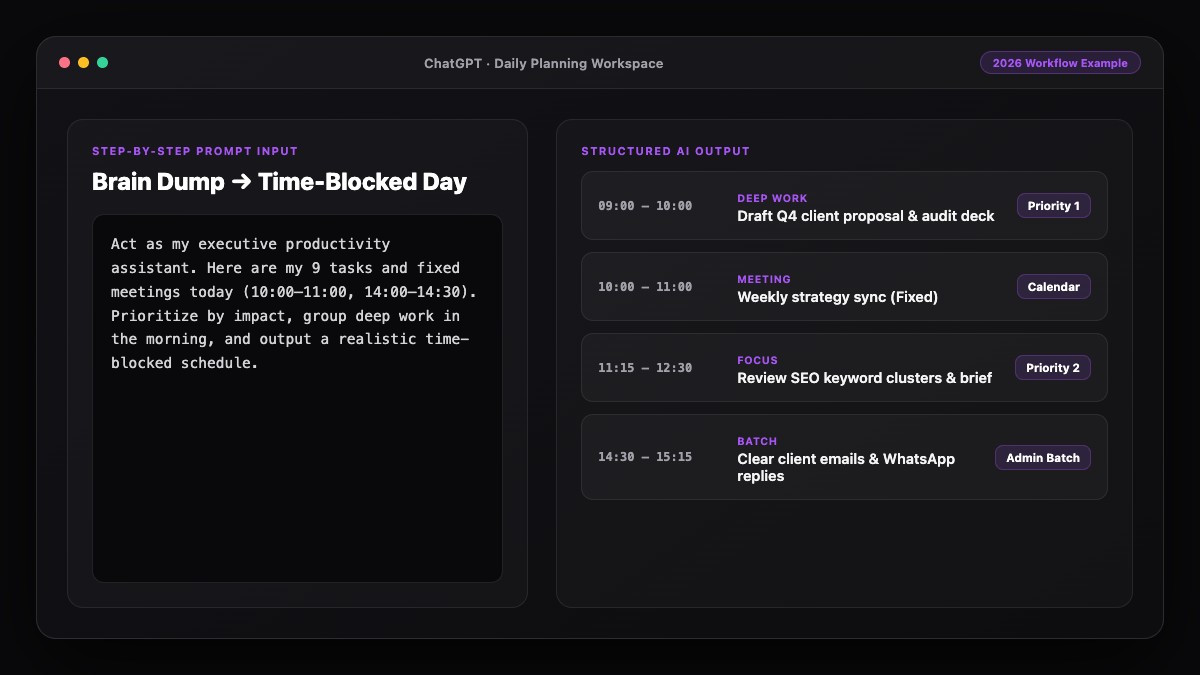
Start your morning with a 3-minute check-in. Paste your day's meetings and open tasks into your assistant chat and ask for a daily briefing: top three outcomes, potential schedule conflicts, and which meetings need 10 minutes of prep. For a complete scheduling workflow, pair this with our guide on how to use AI to plan your entire day.
Step 3: Triage Your Inbox and Draft Replies in Batches
Instead of answering emails one by one all day, batch them into two 20-minute windows. Copy tricky or lengthy emails into your AI assistant and dictate a one-line instruction: "Decline politely, suggest next Tuesday at 2 PM instead, keep it under 4 sentences."
If you use Gemini inside Gmail, you can summarize 20-message threads in one click before drafting your response. Always read and personalize the final draft before hitting send—AI handles the blank-page friction, while you own the relationship.
Step 4: Use AI for Pre-Meeting Prep and Post-Meeting Follow-Ups
Before an important call, paste the attendee's LinkedIn bio, company overview, or past email thread into your assistant and ask for five sharp questions and three potential objections. Immediately after the call, paste your rough bullet notes or transcript and ask AI to extract:
- Key decisions made
- Action items with owners and due dates
- A ready-to-send recap email for the client or team
Step 5: Track "Waiting On" Items and Stop Dropping Balls
Great assistants remember who owes you a reply. Whenever you send a proposal or ask a colleague for a deliverable, log it in a simple "Waiting On" list inside Todoist or Notion. Every Friday morning, paste that list into your AI assistant and ask it to draft polite, non-pushy nudge messages for anything overdue by more than three days. To automate even more of this routine work, see our guide on how to stop wasting time on repetitive tasks using AI.
Best Prompts to Copy and Paste
Keep these three assistant prompts pinned for daily use.
1. The Personal Assistant System Instruction
You are my personal executive assistant.
My role: [Your Role & Industry].
My top 3 goals this quarter: [Goal 1, Goal 2, Goal 3].
My writing style: Clear, concise, warm, no fluff, no buzzwords ("delve", "synergy", "circle back").
When I paste an email or note, default to giving me:
1. A 2-sentence summary of what they actually want.
2. Any hidden risks or missing details.
3. A ready-to-send reply under 100 words.
2. 60-Second Meeting Prep Brief
I have a 30-minute meeting with [Name / Role / Company] about [Topic].
Here is our past context: [paste email or notes].
Give me:
- A 3-bullet summary of what matters most to them.
- 5 high-value questions I should ask.
- 1 clear desired outcome I should propose before the call ends.
3. Post-Meeting Notes to Recap Email
Turn these rough meeting notes into:
1. A clean internal bullet list of Decisions and Action Items (Owner | Task | Due Date).
2. A friendly, concise recap email I can send to the attendees.

Raw notes:
[PASTE NOTES]
Common Mistakes to Avoid
- Sending AI-written emails unedited: Unedited AI drafts often sound stiff or overly polite. Spend 15 seconds tweaking the opening and closing lines so it sounds unmistakably like you.
- Starting a brand-new chat for every tiny task: Keep one ongoing "Daily Assistant" thread per week or use a dedicated Project so the AI remembers your current priorities.
- Pasting confidential client data into unapproved tools: Follow your company's data policy, turn off training on your inputs, or anonymize client names before pasting sensitive briefs.
- Expecting AI to read your mind: Always specify the desired length, audience, and outcome (e.g., "get them to confirm Tuesday at 3 PM").
References & Official Sources
All workflows, pricing tiers, and feature capabilities in this guide were verified against the official platform documentation:
- OpenAI ChatGPT Official Platform (chatgpt.com)
- Anthropic Claude Official Workspace (claude.ai)
- Google Gemini Official Assistant (gemini.google.com)
- Notion AI Official Documentation (www.notion.so)
- Todoist Official Task Manager (todoist.com)
- KwiqRank AI Workflow Integration Guide — Internal methodology for combining AI tools into repeatable business processes.
Final Thoughts
When you use AI as your personal assistant every day, you stop drowning in small administrative loops and regain focus for high-leverage thinking. Start by onboarding your AI with a 150-word context brief today, then delegate your inbox drafting and meeting recaps for one full week. Ready to connect your assistant to automated workflows? Explore our personal AI automation system guide or contact our team to build custom AI workflows for your business.
Your questions, answered in plain English
AI handles drafting, summarizing, scheduling logic, and research in seconds, though it cannot make phone calls for you, physically run errands, or exercise human judgment on sensitive relationships without your review.
Claude excels at natural-sounding email and executive writing, ChatGPT is great for voice mode and persistent memory, and Gemini is strongest if you live inside Gmail and Google Calendar.
Give the AI 2–3 examples of real emails you wrote, ban buzzwords in your system instructions, cap replies under 100 words, and quickly edit the first and last sentence.
Most knowledge workers save 45 to 90 minutes daily across email drafting, meeting recaps, and schedule planning once they build a consistent routine.
Use one dedicated Project or weekly "Daily Assistant" thread for ongoing context, and open separate chats only for heavy one-off research so your main thread stays uncluttered.
Yes, if you use business-tier accounts with data training disabled or anonymize sensitive client names, financial figures, and passwords before pasting.
Still curious? Send us your question and a strategist will get back to you.

Want this done for you?
We can put this guide to work on your website. Start with a free audit.
Get my free auditWritten by KwiqRank Team
KwiqRank is a digital marketing agency in Mumbai, India, working with UK and US businesses on SEO, GEO, AEO, paid media and websites. We check facts against official sources, and tell you when something is unconfirmed. Spotted a mistake? Tell us and we will correct it.
Found this useful?
Turn this into a plan
We help teams pick the channels worth doing and measure them against enquiries and sales.