
How to Summarize Long PDFs Using AI Without Missing Key Details
Learn a 5-step multi-pass workflow to summarize long PDFs using AI—keeping exact numbers, exceptions, tables, and footnotes intact.

- Read time
- 7 min read
- Sections
- 11
- FAQs answered
- 6
- Topic
- Research & Learning
To summarize long PDFs using AI without missing key details, never ask for a single "summarize this PDF" output; instead, extract the document's structure first, summarize section by section with explicit preservation rules (numbers, caveats, exceptions), and run a final omission check against the original headings.
Most people upload an 80-page report, type "Summarize this in 5 bullet points," and assume they got the whole picture. In reality, one-shot summaries compress away the exact details that matter most—sample sizes, eligibility exceptions, dissenting footnotes, pricing caveats, and edge cases. Whether you are reviewing a legal contract, an academic paper, or an annual financial report, a structured multi-pass workflow lets you research faster using AI while keeping critical nuance intact.
What You'll Need
Long-PDF summarization depends heavily on context window size and citation grounding. Here is how the top AI tools compare on free and paid plans.
| Tool | Free Tier | Paid Tier | Best Strength for Long PDFs |
|---|---|---|---|
| Google NotebookLM | Up to 50 sources per notebook, passage-level citations, Study Guides | NotebookLM Plus (via Google One AI Premium / Workspace) with higher limits | Pinning every summary point to the exact page or passage |
| Claude | Free daily messages with PDF upload support | Claude Pro ($20/mo) with large context window and Projects | Nuanced section-by-section reading of dense, technical, or policy PDFs |
| ChatGPT | Limited file uploads and web/vision support | ChatGPT Plus ($20/mo) with higher file limits and data analysis | Extracting tables, running calculations on PDF data, and formatting briefs |
| Perplexity AI | Basic file uploads with web comparison | Perplexity Pro ($20/mo) with expanded file analysis | Checking whether a PDF's claims match newer external sources |
Step 1: Check PDF Readability and Choose the Right Tool
Before uploading, open the PDF and try highlighting a sentence. If you can select text cleanly, any AI tool can parse it. If the PDF is a flat scan (common with older textbooks, signed contracts, or archived forms), run OCR first or use a tool with strong vision-based PDF reading so charts and tables are not skipped.
Next, pick your tool by document length and goal: use Google NotebookLM when you need clickable passage citations across multiple PDFs, or Claude when you want a deep, structured breakdown of one long 50-to-150-page report.
Step 2: Extract the Skeleton Before Summarizing a Word
Do not ask for a summary on your first prompt. Ask the AI to map the document's exact table of contents, major sections, appendices, and data tables first. This forces the model to register the entire architecture of the PDF before compressing anything.
Review that skeleton yourself. Often you will realize that 40 pages are boilerplate background and only Sections 3, 5, and Appendix B actually matter for your decision. Skipping irrelevant sections frees up the model's attention for the parts that carry real weight.
Step 3: Summarize in Chunks With Preservation Rules
When a PDF exceeds 25–30 pages, asking for one global summary causes "middle-document amnesia," where early and late sections get detailed coverage while middle chapters get reduced to vague filler. Instead, summarize section by section—or in 10-to-15-page chunks—and give the AI explicit must-keep rules:
- Preserve all exact numbers, dates, dollar amounts, percentages, and sample sizes.
- Preserve every condition, exception, and "unless / except when" clause.
- Separate author claims from empirical evidence or quoted third-party data.
- Flag any charts, diagrams, or footnotes that contain critical qualifiers.
If you want to turn those chunked outputs into clean, reusable revision sheets, pair this step with our guide to turn a long document into easy notes using AI.
Step 4: Extract Tables, Edge Cases, and Hidden Caveats
A summary tells you the main thesis; a detail-safe summary also tells you what could break your plan. Run a dedicated second pass specifically hunting for exceptions, limitations, and small print that normal summaries drop.
For research papers, ask for methodology flaws, funding sources, and confidence intervals. For contracts or policy PDFs, ask for termination clauses, liability caps, deadlines, and non-standard definitions. For financial or market reports, ask for assumptions behind forecasts and excluded segments.
Step 5: Run an Omission Audit and Verify Key Passages
Finish with a quick verification loop. Paste your compiled summary back into the chat alongside the PDF (or use NotebookLM's citation badges) and ask: "Compare this summary against the original document. What major arguments, numbers, caveats, or sections were left out or oversimplified?"
Finally, spot-check the 3 to 5 most consequential numbers or clauses directly in the original PDF using Cmd+F / Ctrl+F. This 60-second check guarantees that no unit conversion, "not" vs. "now," or footnote qualifier slipped past you. If you are studying multiple PDFs for an exam, see our walkthrough on how to use NotebookLM to study PDFs and documents.
Best Prompts to Copy and Paste
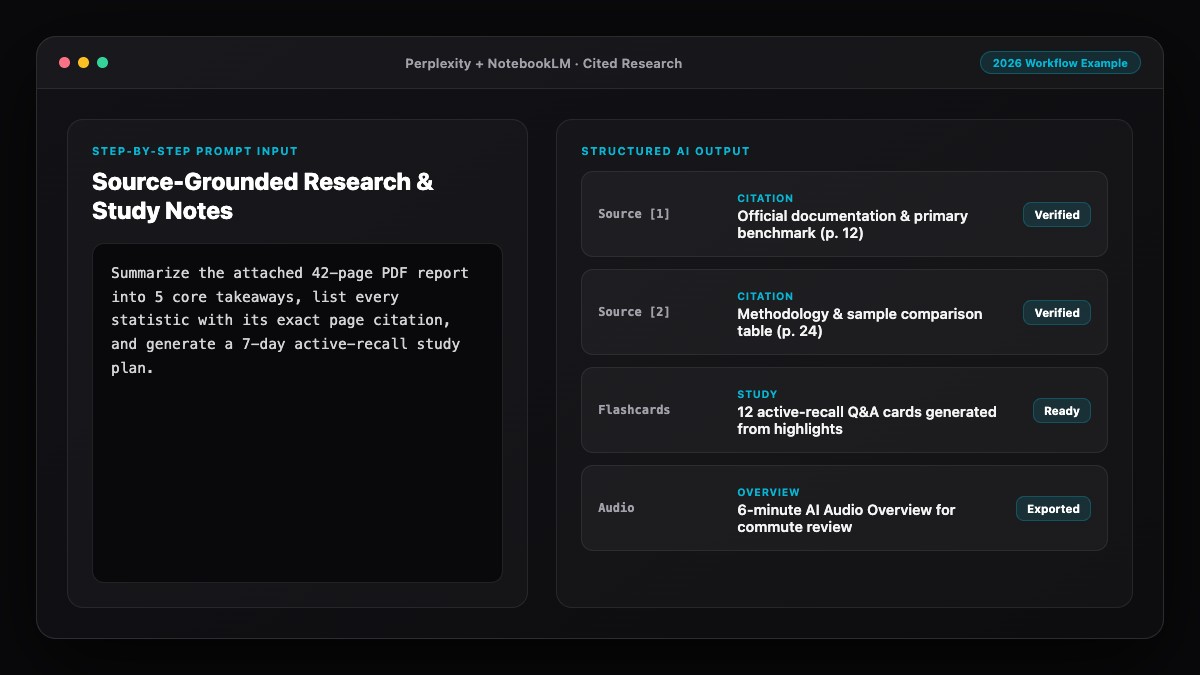
Use these three prompts in sequence on any long PDF to keep both speed and precision.
1. Document Skeleton Prompt (Run First):
Read the attached PDF and output ONLY its structural map before summarizing:
1. Full section and subsection headings with approximate page numbers
2. Any data tables, charts, or appendices included
3. A 1-sentence description of what each major section covers.
Do not summarize the conclusions yet.
2. Detail-Preserving Section Summary Prompt:
Summarize [SECTION NAME / PAGES X-Y] using these strict preservation rules:
- Keep all exact numbers, dates, thresholds, and sample sizes
- Keep all exceptions, conditions, and edge cases ("unless", "except", "only if")
- List key definitions exactly as the author defines them
- Flag any claims that rely on assumptions or external citations.
Format with clear subheadings and concise bullets.
3. Omission & Caveat Audit Prompt (Run Last):
Compare the summary below against the full attached PDF.
List:
1. Any important numbers, exceptions, or arguments from the PDF that are missing
2. Any statement in the summary that sounds more certain or broader than what the PDF actually says
3. The top 5 footnotes, limitations, or caveats a careful reader should not miss.

[PASTE YOUR SUMMARY]
Common Mistakes to Avoid
- Asking for a 5-bullet summary of a 100-page file: Extreme compression forces the AI to drop specifics and substitute generic filler. Summarize by section first, then create an executive brief on top.
- Ignoring tables and charts: Many PDFs store their most important numbers inside embedded tables or graphics. Explicitly ask the AI to transcribe or check tables separately.
- Assuming "no mention" means "doesn't exist": Sometimes a model misses a sentence on page 64 because of context limits. Verify negative claims ("the contract has no penalty clause") with a keyword search in the PDF.
- Forgetting to ask for exceptions and qualifiers: Summaries naturally gravitate toward main rules and drop "except when" clauses, which is where real-world mistakes happen.
- Uploading confidential PDFs to unapproved accounts: Always check your organization's data policy and disable model training in settings before uploading private client or legal PDFs.
References & Official Sources
All workflows, pricing tiers, and feature capabilities in this guide were verified against the official platform documentation:
- Perplexity AI Official Search Engine (www.perplexity.ai)
- Google NotebookLM Official App (notebooklm.google.com)
- OpenAI ChatGPT Official Platform (chatgpt.com)
- Anthropic Claude Official Workspace (claude.ai)
- Google Gemini Official Assistant (gemini.google.com)
- KwiqRank AI Workflow Integration Guide — Internal methodology for combining AI tools into repeatable business processes.
Final Thoughts
Knowing how to summarize long PDFs using AI without missing key details comes down to one habit: replace single-prompt compression with a structured three-pass workflow—map the skeleton, summarize in chunks with preservation rules, and run an omission audit. You still read in a fraction of the time, but you keep the exact numbers, caveats, and context that make your work reliable. For more on how modern AI engines extract and rank structured information from long-form sources, explore our Answer Engine Optimization guide.
Your questions, answered in plain English
Claude and Google NotebookLM are the top choices. Claude excels at deep, nuanced section-by-section reading of single long reports, while NotebookLM is ideal when you need clickable passage citations across multiple PDFs.
Asking for one short summary of a 50+ page PDF forces extreme compression, which causes models to drop middle-section specifics, footnotes, sample sizes, and "except when" clauses.
Modern vision-capable models can read clear scans, but accuracy drops on dense multi-column pages or small footnotes. Running OCR on scanned PDFs first produces much cleaner results.
For high-stakes technical, legal, or academic PDFs, summarize 10 to 15 pages—or one logical chapter—per prompt, then synthesize those summaries into an executive brief.
Use NotebookLM citation badges to jump straight to source passages, or run an omission-audit prompt and Ctrl+F check the 3 to 5 most important numbers and clauses in your PDF viewer.
Yes, especially when you ask for tables in a dedicated prompt rather than inside a general summary. Always double-check column headers, units, and row totals against the original page.
Still curious? Send us your question and a strategist will get back to you.

Want this done for you?
We can put this guide to work on your website. Start with a free audit.
Get my free auditWritten by KwiqRank Team
KwiqRank is a digital marketing agency in Mumbai, India, working with UK and US businesses on SEO, GEO, AEO, paid media and websites. We check facts against official sources, and tell you when something is unconfirmed. Spotted a mistake? Tell us and we will correct it.
Found this useful?
Talk to us about your site
Tell us what you are working on and we will say plainly what we would do first.