
How to Use NotebookLM to Study PDFs and Documents
Step-by-step guide to using Google NotebookLM to study PDFs, lecture slides, and documents with passage-level citations, custom quizzes, and Audio Overviews.

- Read time
- 7 min read
- Sections
- 11
- FAQs answered
- 6
- Topic
- Research & Learning
To use NotebookLM to study PDFs and documents, create a dedicated notebook for one subject, upload your primary PDFs, slides, or web links, ask targeted questions that return clickable passage citations, and generate custom study guides, quizzes, and Audio Overviews grounded strictly in your files.
Studying from a stack of 60-page PDFs, lecture slides, and dense manuals is slow because most AI chatbots drift outside your syllabus—pulling in random web facts or inventing examples your professor or exam never covered. Google NotebookLM solves this by acting as a closed-book research assistant: it answers only from the sources you upload and pins every claim to the exact passage it came from. If you are building a complete AI workflow, NotebookLM pairs naturally with live discovery tools—see our guide on how to research any topic faster using AI.
What You'll Need
NotebookLM is free with a standard Google account, making it one of the most accessible tools for students, analysts, and self-learners. Here is how it compares to other leading AI study tools.
| Tool | Free Tier | Paid Tier | Best Role When Studying PDFs |
|---|---|---|---|
| Google NotebookLM | Up to 50 sources per notebook, inline passage citations, Study Guides, Audio Overviews | NotebookLM Plus (via Google One AI Premium / Workspace) with 5x higher source, notebook, and audio limits | Source-grounded Q&A, cross-PDF synthesis, flashcards, and audio review |
| Perplexity AI | Unlimited quick searches, limited Pro searches, basic file uploads | Perplexity Pro ($20/mo) with expanded file analysis and Deep Research | Finding external studies or clarifying background terms outside your PDFs |
| ChatGPT | Limited file uploads and GPT-4o access | ChatGPT Plus ($20/mo) with Projects and higher upload limits | Running interactive practice drills and step-by-step problem solving |
| Claude | Free daily messages with PDF upload support | Claude Pro ($20/mo) with Projects and large context windows | Deep line-by-line analysis of single complex papers or legal/technical texts |
Step 1: Create a Focused Notebook and Upload Clean Sources
Go to notebooklm.google.com, sign in with your Google account, and click Create new. Name the notebook after a single course, exam module, or project (for example, "Macroeconomics Midterm — Monetary Policy") rather than dumping an entire semester into one place.
Upload your materials using the source panel on the left. NotebookLM accepts PDFs, Google Docs, Google Slides, pasted text, website URLs, and YouTube video links (it reads the transcript). Keep two rules in mind:
- Use selectable-text PDFs: If a scanned textbook PDF has no embedded text layer, run OCR on it first so NotebookLM can read every page accurately.
- Curate ruthlessly: Uploading 8 high-value chapters and lecture decks gives much sharper answers than uploading 40 redundant handouts.
Step 2: Orient Yourself With a Source Overview and Key Concepts
Before diving into detailed questions, use NotebookLM's built-in Notebook Guide or a high-level orientation prompt to map the territory. Ask it to list the main themes, recurring terminology, and how the uploaded documents relate to one another.
Notice the numbered citation badges next to every bullet point. Click any badge and NotebookLM opens the exact source excerpt in the left panel, highlighted in context. This instant jump makes it effortless to verify definitions without scrolling through 100 pages manually. For single-document deep dives, you can also apply our method to summarize long PDFs using AI without missing key details.
Step 3: Interrogate the Text Using Selective Source Toggles
One of NotebookLM's most underrated features is the checkbox next to each uploaded source. You do not have to query all files at once. Uncheck everything except two specific papers or chapters when you want to:
- Compare how Chapter 3 and Lecture 4 define the same concept.
- Find contradictions between an older guideline PDF and a 2026 update.
- Extract only the formulas, case studies, or dates from one assigned reading.
Checking and unchecking sources turns NotebookLM into a precision comparison engine rather than a blurry summary generator. If you want to convert those answers into clean revision sheets, follow our document-to-notes workflow.
Step 4: Generate Study Guides, Practice Quizzes, and Audio Overviews
Passive reading creates the illusion of competence. Once you understand the core ideas, switch NotebookLM from explanation mode to active-recall mode:
- Study Guide & Briefing Doc: Generate a structured glossary, timeline, or key-question list directly from the Studio panel.
- Custom Practice Quizzes: Prompt NotebookLM to write 10 multiple-choice or short-answer questions based strictly on your uploaded PDFs—and tell it not to reveal the answers until you reply.
- Audio Overviews: Generate a two-host podcast-style discussion of your sources to review tough concepts while walking or commuting. Use the Customize option to tell the hosts which chapter or exam topic to focus on.
If you are preparing for a multi-week exam or certification, combine these outputs with a structured schedule from our guide on how to create a personalized study plan using AI.
Step 5: Save Verified Answers as Pinned Notes
Chat history in NotebookLM is ephemeral unless you save what matters. Whenever a response gives you a crystal-clear comparison table, a tough formula breakdown, or a list of likely exam traps, click Save to note.
Saved notes appear in the Studio panel on the right, where you can combine multiple notes into a single master study sheet or convert your own curated notes back into a new source for final-week review.
Best Prompts to Copy and Paste
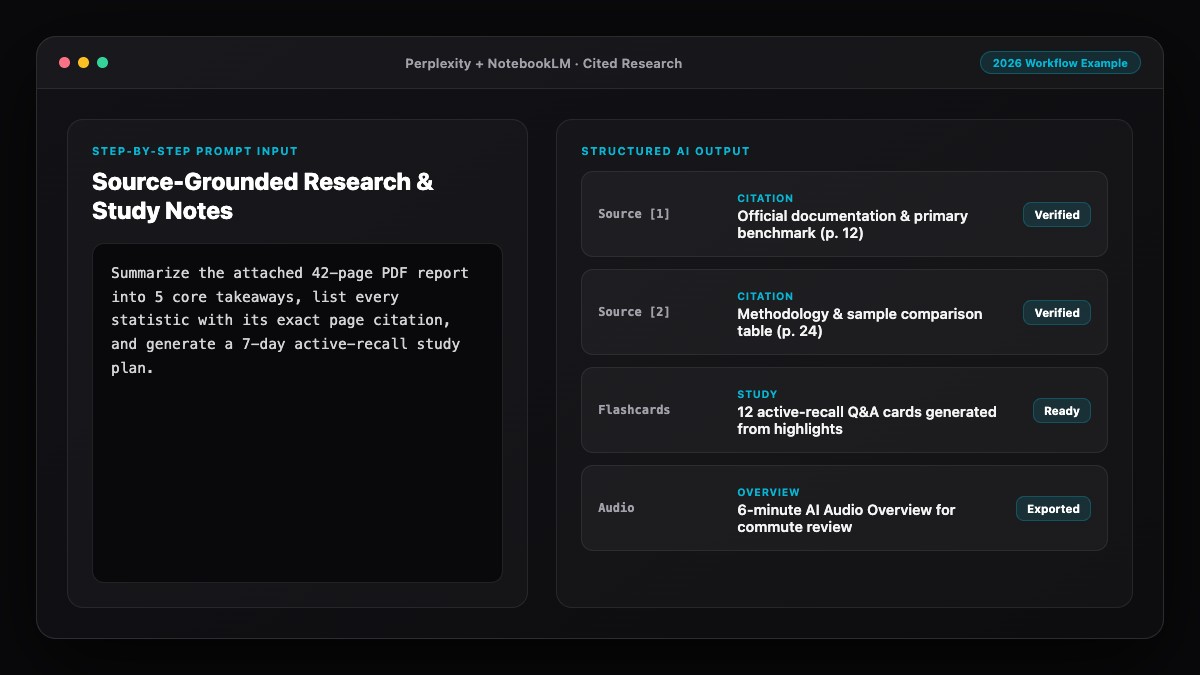
Use these prompts inside your NotebookLM chat panel to turn raw PDFs into active study sessions.
1. Exam-Focused Concept Extractor:
Based ONLY on the selected sources, list the 10 most important concepts, frameworks, or definitions I must know for an exam.
For each item, provide:
- A plain-English explanation (2-3 sentences)
- One concrete example mentioned in the text
- The exact source citation.
Do not bring in outside information.
2. Active-Recall Practice Quiz Prompt:
Create a 10-question practice quiz from the selected PDFs (6 conceptual short-answer questions and 4 scenario-based application questions).
Ask me Question 1 first and wait for my answer before showing the next question.
After I answer each question, grade me strictly against the uploaded sources, cite the exact passage, and explain anything I missed.
3. Cross-Source Comparison Table Prompt:
Compare how the selected sources approach [TOPIC OR METHOD].
Build a markdown table with columns for:
- Source Name
- Core Argument / Model
- Supporting Evidence Used
- Key Limitations or Caveats Noted.
Highlight any direct disagreements between the documents.
Common Mistakes to Avoid
- Uploading scanned image PDFs without OCR: If NotebookLM cannot select text inside a scanned PDF, it will miss pages or fail to upload properly. Run OCR first.
- Dumping unrelated subjects into one notebook: Mixing biology, history, and economics in one notebook pollutes retrieval and makes Audio Overviews unfocused. Keep one notebook per course or topic.
- Listening to Audio Overviews without active recall: Audio Overviews are great for initial intuition or review, but they do not replace testing yourself with questions and solving problems.
- Ignoring citation badges: Even source-grounded models can occasionally conflate two adjacent paragraphs. Always click the citation number for definitions or formulas you plan to memorize.
- Forgetting to save key chat outputs as Notes: Pin your best tables and explanations to the Studio Notes panel before closing the session so you do not lose them.
References & Official Sources
All workflows, pricing tiers, and feature capabilities in this guide were verified against the official platform documentation:
- Perplexity AI Official Search Engine (www.perplexity.ai)
- Google NotebookLM Official App (notebooklm.google.com)
- OpenAI ChatGPT Official Platform (chatgpt.com)
- Anthropic Claude Official Workspace (claude.ai)
- Google Gemini Official Assistant (gemini.google.com)
- KwiqRank AI Workflow Integration Guide — Internal methodology for combining AI tools into repeatable business processes.
Final Thoughts
Learning how to use NotebookLM to study PDFs and documents transforms dense reading lists into an interactive, verifiable workspace. By keeping each notebook focused, toggling sources selectively, pinning key explanations to Notes, and testing yourself with source-grounded quizzes, you retain far more in half the study time. If you want to explore how AI answer engines evaluate and surface structured knowledge across the web as well, check out our Answer Engine Optimization guide.
Your questions, answered in plain English
Yes. The standard version of NotebookLM is free with a Google account and allows up to 50 sources per notebook, which covers most courses and research projects.
You can upload PDFs, Google Docs, Google Slides, plain text files, copied text, public website URLs, and YouTube video links.
NotebookLM is specifically designed to ground its answers in your uploaded sources and attach clickable passage citations. If something is missing from your files, it will normally state that the sources do not cover it.
It works reliably on digital PDFs with selectable text. For scanned image-only PDFs, run an OCR tool first so the text layer is readable.
They are great for building big-picture understanding and reviewing concepts on the go, especially when you customize the prompt to focus on specific chapters—but pair them with practice quizzes for real retention.
Under Google Workspace and standard NotebookLM privacy policies, your uploaded sources and conversations are not used to train public models without permission, though you should always check your organization data rules for confidential files.
Still curious? Send us your question and a strategist will get back to you.

Want this done for you?
We can put this guide to work on your website. Start with a free audit.
Get my free auditWritten by KwiqRank Team
KwiqRank is a digital marketing agency in Mumbai, India, working with UK and US businesses on SEO, GEO, AEO, paid media and websites. We check facts against official sources, and tell you when something is unconfirmed. Spotted a mistake? Tell us and we will correct it.
Found this useful?
Talk to us about your site
Tell us what you are working on and we will say plainly what we would do first.