
How to Build a Complete Weekly Plan Using AI
Use a 15-minute Sunday AI workflow to calculate real calendar capacity, lock your Top 3 weekly goals, and map deep-work blocks across Monday to Friday.

- Read time
- 6 min read
- Sections
- 11
- FAQs answered
- 6
- Topic
- Everyday Productivity
To build a weekly plan using AI, spend 15 minutes every Sunday or Monday morning feeding your AI assistant three inputs: your fixed calendar commitments for the next five days, your active project backlog, and your realistic weekly focus capacity. The AI then calculates your true available hours, allocates your top three weekly goals to dedicated deep-work blocks, and warns you before you overcommit. Most weekly plans collapse by Tuesday because people plan wishlists instead of matching tasks to actual open calendar hours. AI solves this by doing the capacity math honestly.
When you plan one week at a time with AI, Monday morning stops feeling like a scramble. You enter the week knowing exactly which days are heavy on meetings, which mornings are protected for deep creation, and what can safely wait until next week.
What You'll Need
Any conversational AI paired with your calendar and task list works great for a 15-minute weekly reset.
| Tool | Free Tier Capabilities | Paid Tier Capabilities | Best Role in Weekly Planning |
|---|---|---|---|
| ChatGPT | Weekly capacity math, goal breakdown, table-formatted 5-day plans | Projects to track weekly goals across the entire quarter | Fast Sunday weekly blueprint and capacity check |
| Claude | Thoughtful weekly retrospectives, realistic milestone pacing | Projects holding quarterly OKRs and recurring weekly checklists | Turning big goals into balanced 5-day milestones |
| Gemini | Checklist generation, quick summaries of weekly notes | Reads Google Calendar and Gmail directly to spot busy days | Auto-scanning next week's Google Calendar load |
| Notion | Weekly review templates, linked goal and task databases | Notion AI to summarize last week's completed pages | Storing your weekly goals and Sunday review log |
| Todoist | Upcoming 7-day view, project-level task filtering | Calendar layout for dragging tasks onto specific days | Assigning weekly deliverables to Mon–Fri dates |
| Motion | 7-day trial only | Automatically spreads weekly tasks across open calendar gaps | Zero-effort weekly auto-scheduling around meetings |
| ClickUp | Weekly workload views, sprint lists, goal tracking | ClickUp Brain for weekly progress summaries and capacity alerts | Managing team-wide weekly deliverables |
Step 1: Run a 3-Minute Review of Last Week
Before planning ahead, close the loop on what just happened. Paste your completed tasks and any unfinished carryovers into Claude or ChatGPT. Ask it to spot one bottleneck—for example, "You had 14 hours of meetings on Wednesday and Thursday, so deep work slipped."
Recognizing why a plan slipped prevents you from making the exact same scheduling mistake two weeks in a row.
Step 2: Calculate Your Real Open Hours for the Week
Look at your calendar for Monday through Friday and copy every existing meeting, appointment, and travel block into your prompt. Ask the AI to subtract those commitments—plus 60 minutes per day for email, Slack, and lunch—from a standard 40-hour week.
Seeing that you actually only have 16 hours of unscheduled maker time forces instant realism. You stop pretending you can finish 35 hours of project work in a 16-hour gap.
Step 3: Lock In Your "Big Three" Weekly Outcomes
Ask the AI to help you choose at most three major outcomes that would make the entire week a win. Everything else on your backlog—minor admin, nice-to-have tweaks, and future ideas—gets sorted into a secondary list or deferred. If you need help deciding which items deserve those top three slots, use our AI task prioritization framework.
Step 4: Assign Themes and Deep-Work Blocks to Mon–Fri
Instruct the AI to distribute your Big Three outcomes across the specific days where you have the largest uninterrupted blocks. For example:
- Monday (Light meetings): 2-hour morning block for Outcome #1
- Tuesday (Heavy calls): Batch admin and short follow-ups between calls
- Wednesday morning: 2-hour block for Outcome #2
- Friday afternoon: Weekly wrap-up, invoicing, and overflow buffer
Once your week has structure, you can use AI to plan each day in just two minutes each morning, or let Motion place the blocks automatically. You can also explore our guide on how to use AI to plan your calendar automatically.
Step 5: Protect a Friday Buffer and Personal Recharge
Never schedule major deliverables on Friday afternoon if you can avoid it. Tell your AI planner to keep Friday from 2:00 PM onward as an overflow buffer for tasks that slipped earlier in the week, plus a quick weekly cleanup. Also include workouts, errands, and family commitments in the same weekly view so work never crowds out your health.
Best Prompts to Copy and Paste
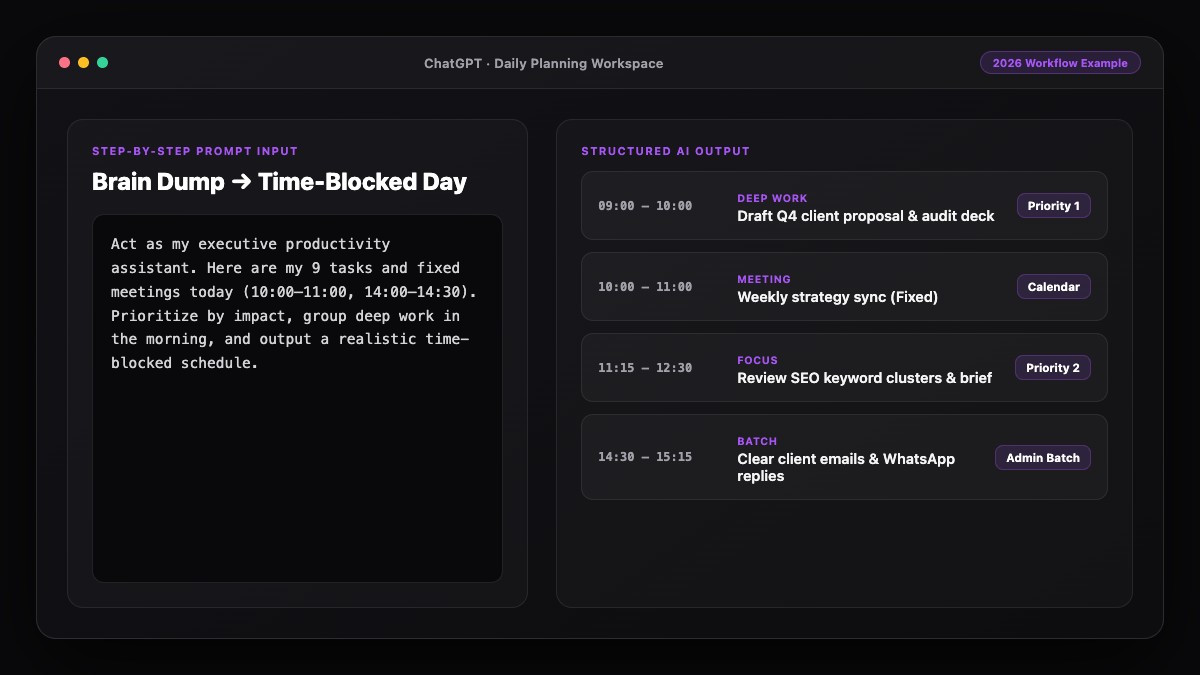
Run this Sunday reset prompt every week in 15 minutes.
1. The 15-Minute Sunday Weekly Planner Prompt
Act as my strategic weekly planner. Build my plan for the upcoming week (Monday–Friday).

1. Last week's carryovers: [list unfinished items]
2. My fixed calendar meetings this week:
   - Mon: [meetings]
   - Tue: [meetings]
   - Wed: [meetings]
   - Thu: [meetings]
   - Fri: [meetings]
3. My backlog of tasks & projects: [paste list]
4. Constraints: Reserve 60 min/day for email/Slack, keep Friday 2-5 PM as overflow buffer, and include [personal workouts/errands].

Output:
- Total real maker hours available this week.
- Recommended Top 3 Weekly Outcomes (and what to defer to next week).
- A day-by-day focus table (Day | Deep Work Block | Admin/Meetings | Goal).
2. Mid-Week Wednesday Course-Correction Prompt
It is Wednesday morning. Here is what I finished Mon–Tue: [list]. Here is what slipped or got added: [list].
Rebalance my Thursday and Friday schedule so I still hit my Top 2 weekly outcomes without working late.
Common Mistakes to Avoid
- Ignoring meeting density: A day with four 30-minute calls scattered between 10 AM and 4 PM has almost zero deep-work capacity. Tell AI to treat fragmented hours as admin-only.
- Setting 10 "top goals" for the week: Three major outcomes is the realistic ceiling for most people alongside routine responsibilities.
- Forgetting personal appointments: Doctor visits, school pickups, and workouts take real time. Put them in your weekly capacity math.
- Waiting until Monday at 10 AM to plan: Planning on Sunday afternoon or Friday at 4 PM lets you start Monday morning in execution mode.
References & Official Sources
All workflows, pricing tiers, and feature capabilities in this guide were verified against the official platform documentation:
- OpenAI ChatGPT Official Platform (chatgpt.com)
- Anthropic Claude Official Workspace (claude.ai)
- Google Gemini Official Assistant (gemini.google.com)
- Notion AI Official Documentation (www.notion.so)
- Todoist Official Task Manager (todoist.com)
- KwiqRank AI Workflow Integration Guide — Internal methodology for combining AI tools into repeatable business processes.
Final Thoughts
When you build a weekly plan using AI, you trade reactive firefighting for calm, intentional progress. Fifteen minutes of honest capacity math on Sunday protects 40 hours of your week. Ready to tie your weekly plan into an end-to-end routine? Read our guide on how to create your personal AI productivity system or contact our team for help streamlining team workflows.
Your questions, answered in plain English
Sunday afternoon (15 minutes) or Friday at 4:00 PM works best, because you enter Monday morning knowing your exact priorities without wasting peak morning energy on planning.
Limit your major weekly outcomes to three. Anything beyond three almost always leads to half-finished projects by Friday.
Claude and ChatGPT are great for capacity math and 5-day breakdowns, Gemini is handy for reading Google Calendar load, and Motion automates placing weekly tasks onto open slots.
Run a 2-minute Wednesday course-correction prompt: tell the AI what finished, what slipped, and ask it to rebalance Thursday and Friday around your top two outcomes.
Yes. Including workouts, groceries, and family appointments ensures your work schedule stays realistic and prevents burnout.
Once you save a reusable Sunday prompt template, reviewing last week and generating your next 5-day blueprint takes 10 to 15 minutes.
Still curious? Send us your question and a strategist will get back to you.

Want this done for you?
We can put this guide to work on your website. Start with a free audit.
Get my free auditWritten by KwiqRank Team
KwiqRank is a digital marketing agency in Mumbai, India, working with UK and US businesses on SEO, GEO, AEO, paid media and websites. We check facts against official sources, and tell you when something is unconfirmed. Spotted a mistake? Tell us and we will correct it.
Found this useful?
Talk to us about your site
Tell us what you are working on and we will say plainly what we would do first.