
How to Create Your Personal AI Productivity System in 2026
Connect Capture, AI Prioritization, Time-Blocked Calendar, and Weekly Reviews into one simple, low-maintenance personal AI productivity system.

- Read time
- 6 min read
- Sections
- 11
- FAQs answered
- 6
- Topic
- Everyday Productivity
To create a personal AI productivity system in 2026, connect four lightweight layers into one daily loop: a single Capture Inbox for raw thoughts, an AI Triage & Prioritization layer that turns clutter into ranked actions, a Time-Blocked Calendar that protects deep work, and a 15-minute Weekly Review that keeps everything calibrated. Most people fail at AI productivity because they collect 20 disconnected prompts and apps instead of one simple operating loop. When those four layers talk to each other smoothly, you spend less time managing your tools and more time doing meaningful work.
Think of this guide as the blueprint that ties together daily planning, task prioritization, automation, and life organization into one cohesive, low-maintenance personal operating system.
What You'll Need
Choose one tool for each layer—AI Brain, Task Manager, Knowledge Base, and Calendar. Avoid duplicating tools in the same role.
| Tool | Free Tier Capabilities | Paid Tier Capabilities | System Layer Role |
|---|---|---|---|
| ChatGPT | Voice capture, daily triage, prompt templates | Persistent Memory, Projects, Custom GPTs for your system rules | AI Triage & Assistant Layer |
| Claude | Structured prioritization, weekly reviews, clean SOP writing | Projects storing your quarterly goals and personal constraints | AI Strategy & Planning Layer |
| Gemini | Quick summaries, checklist creation, Google search grounding | Native Gmail, Docs, and Google Calendar context | Google Workspace Capture Layer |
| Todoist | Fast mobile Capture Inbox, Today view, recurring reminders | Calendar layout, AI Filter Assistant, unlimited projects | Capture & Action Layer |
| Notion | Second Brain notes, weekly review logs, project hubs | Notion AI Q&A across notes and automated table summaries | Knowledge & Review Layer |
| Motion | 7-day trial only | Dynamic AI calendar blocking and automatic rescheduling | Automated Calendar Execution Layer |
| ClickUp | Structured project lists, docs, and goal tracking | ClickUp Brain for automated standups and priority sorting | All-in-One Work & Team Layer |
Step 1: Design Your Four-Layer Architecture
Before installing anything new, map your four layers on paper:
- Capture (10 seconds): Where every task, idea, or email action lands (Todoist Inbox or ChatGPT Voice).
- Triage & Prioritize (3 minutes/day): Your AI Project (Claude or ChatGPT) that converts raw items into ranked actions.
- Schedule & Execute (Calendar): Google Calendar or Motion holding protected deep-work blocks.
- Store & Review (15 minutes/week): Notion for reference notes, SOPs, and your Sunday reset.
If an app does not clearly serve one of these four layers, remove it from your workflow.
Step 2: Build Your Master AI Context Project
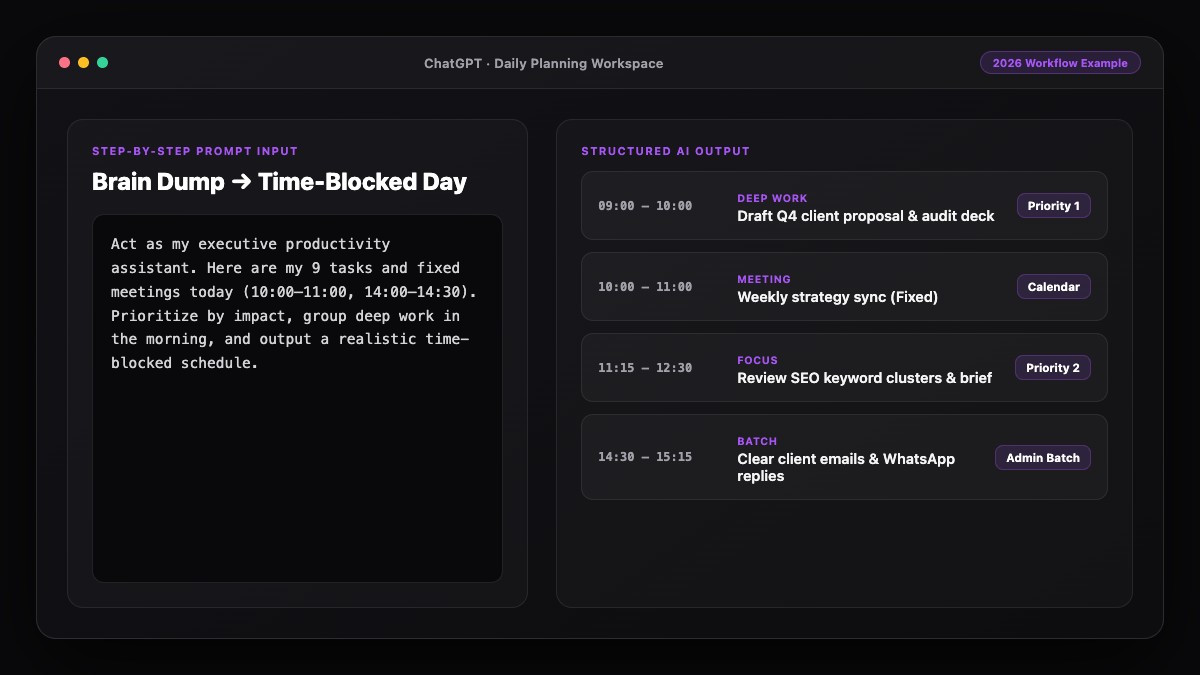
Create one dedicated Project in Claude or ChatGPT named "Personal OS." Upload or paste a single 1-page Context Doc containing your role, your top three quarterly goals, your peak energy hours, your hard stop time, and your preferred scheduling rules (such as 20% daily buffer and batching admin).
Because this context lives permanently inside the Project, every daily plan, priority check, and weekly review you run inside it stays automatically aligned with your real life.
Step 3: Lock In Your Daily 10-Minute Operating Cadence
A system only works if the daily habit is effortless. Follow a three-touch rhythm:
- Morning (3 minutes): Run your AI morning briefing and lock your time-blocked daily plan.
- Midday (1 minute): If meetings derail your morning, ask your Personal OS Project to rebalance the afternoon.
- Shutdown (3 minutes): Log completed wins, capture lingering thoughts into your inbox, and draft tomorrow's Top 3.
Throughout the day, use saved prompt templates to automate repetitive tasks with AI instead of doing manual formatting or drafting.
Step 4: Connect Lightweight Automations Where Friction Persists
Once your manual loop feels natural for two weeks, automate the most annoying handoffs. For example, set up Notion AI autofill on meeting notes, use Motion to auto-place tasks onto open calendar slots, or follow our dedicated guide to build a personal AI automation system and use AI to plan your calendar automatically.
Step 5: Maintain Clarity With a 15-Minute Weekly Reset
Every Sunday, open your Personal OS Project and run your weekly AI planning review. Clear your Capture Inbox to zero, archive finished notes in Notion, check next week's meeting density, and update your Context Doc if your quarterly goals shift. This 15-minute reset keeps your entire system sharp year-round.
Best Prompts to Copy and Paste
Use these two foundational prompts to initialize your Personal OS Project.
1. The Personal OS System Instruction (Paste Into Project Instructions)
You are my Personal AI Productivity System assistant.
Always apply these permanent rules to every schedule, priority list, or review I ask for:
- My Role & Context: [Insert role, work hours, key responsibilities]
- Top 3 Quarterly Goals: [Goal 1, Goal 2, Goal 3]
- Peak Focus Window: [e.g., 8:30 AM - 11:30 AM]
- Low-Energy Admin Window: [e.g., 2:00 PM - 3:30 PM]
- Hard Rules: Cap daily Must-Dos at 3 items, keep 20% daily capacity as unscheduled buffer, batch sub-15-minute tasks together, and proactively tell me what to defer or drop when I overcommit.
2. Monthly System Tune-Up Prompt
Review my last 4 weekly summaries below and act as a systems designer:
1. Where am I consistently overestimating my time or getting bottlenecked?
2. Which recurring task should I automate, template, or drop next month?
3. Suggest one small tweak to simplify my daily workflow.

Weekly summaries:
[PASTE NOTES]
Common Mistakes to Avoid
- Tool-hopping every month: Switching between Notion, ClickUp, and Todoist every few weeks destroys momentum. Pick one stack and commit for 90 days.
- Over-automating before the habit exists: Master the 10-minute daily cadence manually with simple prompts before wiring up complex app integrations.
- Never updating your Context Doc: If your goals or schedule change, update your Personal OS Project brief so AI does not optimize for last quarter's priorities.
- Treating productivity as cramming more work in: The goal of a personal AI system is finishing what matters calmly and protecting your evenings.
References & Official Sources
All workflows, pricing tiers, and feature capabilities in this guide were verified against the official platform documentation:
- OpenAI ChatGPT Official Platform (chatgpt.com)
- Anthropic Claude Official Workspace (claude.ai)
- Google Gemini Official Assistant (gemini.google.com)
- Notion AI Official Documentation (www.notion.so)
- Todoist Official Task Manager (todoist.com)
- KwiqRank AI Workflow Integration Guide — Internal methodology for combining AI tools into repeatable business processes.
Final Thoughts
Building a personal AI productivity system in 2026 does not require technical wizardry—it requires connecting four simple layers into one repeatable loop. Capture quickly, let AI triage and prioritize, protect your blocks on a calendar, and reset for 15 minutes every Sunday. If you want to bring this same structured AI clarity to your marketing or business operations, explore our AI marketing workflow integration guide or contact our team to design custom workflows.
Your questions, answered in plain English
It is a connected workflow where one capture inbox, an AI assistant for triage and prioritization, a time-blocked calendar, and a weekly review work together as a repeatable loop.
You only need one AI brain (ChatGPT, Claude, or Gemini), one capture/task app (Todoist or ClickUp), one calendar (Google Calendar or Motion), and one notes hub (Notion).
About 7 to 10 minutes per day for morning planning and evening shutdown, plus 15 minutes every Sunday for a weekly reset.
Yes. Free tiers of ChatGPT or Claude, Todoist, Notion, and Google Calendar cover everything required to run the full four-layer loop.
They collect too many apps and complex templates instead of starting with one simple daily loop, or they never save their personal goals and constraints in one persistent AI Project.
Wait until you have followed the manual 10-minute daily cadence for at least two weeks, then automate only the repetitive handoffs that still cause friction.
Still curious? Send us your question and a strategist will get back to you.

Want this done for you?
We can put this guide to work on your website. Start with a free audit.
Get my free auditWritten by KwiqRank Team
KwiqRank is a digital marketing agency in Mumbai, India, working with UK and US businesses on SEO, GEO, AEO, paid media and websites. We check facts against official sources, and tell you when something is unconfirmed. Spotted a mistake? Tell us and we will correct it.
Found this useful?
Talk to us about your site
Tell us what you are working on and we will say plainly what we would do first.