
How to Summarize Zoom Meetings Using AI (Step-by-Step)
Step-by-step instructions to enable Zoom AI Companion, save Zoom transcripts, and generate custom team or client summaries with Otter.ai, Fireflies.ai, and ChatGPT.

- Read time
- 7 min read
- Sections
- 11
- FAQs answered
- 6
- Topic
- Meetings & Notes
To summarize Zoom meetings using AI, turn on Zoom AI Companion in your Zoom web settings for zero-bot native recaps—or connect Otter.ai or Fireflies.ai to capture transcripts you can format into tailored summaries with ChatGPT, Claude, or Notion AI.
Zoom calls pack a lot of information into 30 or 60 minutes, especially when screen-sharing slides, debating product specs, or jumping between breakout rooms. Relying on memory—or asking one person on the call to act as designated scribe—slows the team down and leaves crucial details out of the recap.
With AI summarization turned on, Zoom can generate a clean meeting overview, topic breakdown, and "Next Steps" list minutes after the host ends the call. Even better, if you need a client-facing email, an executive brief, or a technical spec summary, you can pair Zoom's transcript with a custom AI prompt in seconds.
What You'll Need
Zoom users have two main paths: Zoom's built-in AI Companion (no extra participant bot in the room) or a third-party AI assistant that works across Zoom, Google Meet, and Microsoft Teams. Compare the options below:
| Tool | Free Tier | Paid Tier | Zoom Integration Style |
|---|---|---|---|
| Zoom AI Companion | Included at no extra cost with eligible paid Zoom Workplace accounts | Requires a qualifying paid Zoom Workplace plan | Native inside Zoom (no external bot joins the call) |
| Otter.ai | 300 monthly transcription minutes (30 min cap per call) | Pro/Business plans expand minutes, custom terms, and team sharing | OtterPilot bot joins Zoom calls + live shared transcript |
| Fireflies.ai | Free transcription credits and basic AI summaries | Paid plans add unlimited transcription, CRM sync, and topic trackers | Fred bot joins Zoom calls or processes uploaded Zoom recordings |
| Notion AI | Limited trial AI responses on free Notion plans | Paid AI add-on / Business & Enterprise plans | Summarizes pasted Zoom transcripts directly inside Notion docs |
| ChatGPT | Free access with daily usage caps | Plus/Team plans support longer transcripts and custom GPTs | Rewrites Zoom VTT/TXT transcripts into any custom summary format |
Step 1: Enable Zoom AI Companion (or Connect a Note-Taker)
If you host meetings on a qualifying paid Zoom Workplace plan, enabling Zoom AI Companion takes less than two minutes:
- Sign in to the Zoom web portal and navigate to Settings > AI Companion.
- Toggle on Meeting Summary with AI Companion.
- Optionally enable Automatically start Meeting Summary for all meetings I host if you want summaries without clicking a button each time (you can still pause or stop it per call).
- Under sharing settings, choose whether summaries are sent only to the host, to all internal participants, or to everyone invited—starting with "Only me (host)" is safest for client-facing accounts.
On a free Zoom Basic plan? Connect Otter.ai or Fireflies.ai to your calendar instead so the assistant joins your Zoom link automatically. For broader cross-platform setup tips, see our guide on how to take meeting notes automatically using AI.
Step 2: Start Summarization and Save the Full Transcript
A summary alone is helpful, but keeping the underlying transcript lets you verify exact quotes and run deeper follow-up prompts later.
- In Zoom AI Companion: Click the AI Companion sparkle icon in your bottom Zoom toolbar and select Start Summary (if auto-start is off). Attendees see a subtle indicator that AI Companion is active.
- Save the transcript too: In Zoom Settings > Recording, enable Audio transcript for cloud recordings, or enable Automated captions / Save captions so you can download a
.vttor.txttranscript file. - In Otter.ai or Fireflies.ai: Confirm the assistant appears in the participant waiting room and admit it at the start of the call.
Step 3: Use In-Meeting "Catch Me Up" Questions
One of the most underrated features of Zoom AI Companion is real-time catch-up. If you join a Zoom call 15 minutes late—or step away briefly—you do not have to interrupt the speaker to ask what you missed.
- Click the AI Companion button in the Zoom meeting controls to open the side panel.
- Click "Catch me up" or type a specific question such as "Was my name mentioned?" or "What did the team decide about the Q3 launch date?"
- AI Companion answers privately in your side panel using only the conversation so far.
Step 4: Review and Customize the Post-Meeting Summary
Shortly after the host ends the Zoom call, Zoom emails the summary and stores it under Summaries in the Zoom web portal and desktop app.
Before forwarding it to attendees, run a quick 60-second check:
- Verify numbers and dates: Confirm pricing figures, KPIs, and target deadlines against what was actually agreed.
- Fix speaker attribution: If two people shared a conference room microphone, clarify who owns which next step.
- Extract clean tasks: If the call produced multiple deliverables, run the transcript through our workflow to convert meeting conversations into action items using AI.
Step 5: Transform Long Zoom Transcripts Into Custom Formats
Zoom's default summary gives you a general recap, but different audiences need different views. Download the Zoom transcript (.vtt or .txt) or copy it from Otter/Fireflies and paste it into ChatGPT, Claude, or Notion AI.
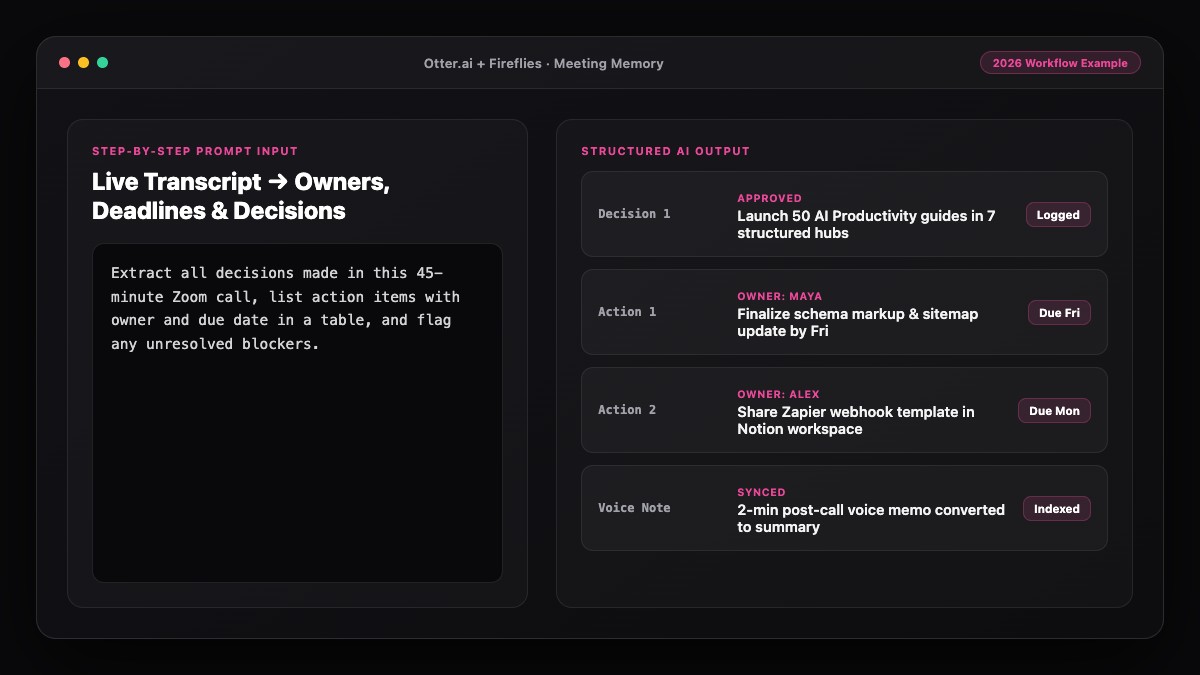
For example, from one 45-minute Zoom call you can generate:
- A 4-bullet Slack update for your engineering channel.
- A polished client recap email ready to send in Gmail or Outlook.
- A structured project brief stored in your searchable AI meeting memory.
Best Prompts to Copy and Paste
Paste your exported Zoom transcript (even raw .vtt files with timestamps) into ChatGPT, Claude, or Notion AI with these prompts.
Prompt 1: Clean Summary From a Raw Zoom .VTT Transcript
Ignore the timestamps and WebVTT formatting in the Zoom transcript below.
Create a clean, well-structured summary with:
1. Executive Summary (3 sentences max)
2. Key Topics Discussed (grouped logically with 2-3 bullets each)
3. Decisions Agreed Upon
4. Next Steps (Owner | Action | Deadline; write "TBD" if no date was mentioned)

Do not invent details not present in the transcript.

Zoom Transcript:
[PASTE VTT OR TXT TRANSCRIPT HERE]
Prompt 2: Stakeholder-Specific Zoom Recap
Read the Zoom meeting transcript below and write two versions of the summary:
Version A (Internal Team - Slack): Under 120 words, bulleted, focused on blockers, decisions, and owners.
Version B (Client / Executive - Email): Polite, concise, under 160 words, highlighting agreed milestones and what we need from them next.

Transcript:
[PASTE TRANSCRIPT HERE]
Common Mistakes to Avoid
- Auto-emailing summaries to external guests unreviewed: Keep Zoom AI Companion set to send summaries to the host first so you can catch any awkward phrasing or misheard client names before sharing.
- Forgetting to enable cloud transcripts: If you only save the AI summary without saving the transcript, you lose the ability to check exact wording or ask follow-up questions later.
- Assuming AI Companion works on free Zoom Basic accounts: Zoom AI Companion requires an eligible paid Zoom Workplace plan; free users should pair Zoom with Otter.ai or Fireflies.ai instead.
- Leaving the summary inside Zoom's portal: Copy finished recaps into Notion, Slack, or email where your team actually looks for decisions.
References & Official Sources
All workflows, pricing tiers, and feature capabilities in this guide were verified against the official platform documentation:
- Otter.ai Official Meeting Assistant (otter.ai)
- Fireflies.ai Official Meeting Notetaker (fireflies.ai)
- Zoom AI Companion Official Platform (zoom.us)
- Notion AI Official Documentation (www.notion.so)
- OpenAI ChatGPT Official Platform (chatgpt.com)
- KwiqRank AI Workflow Integration Guide — Internal methodology for combining AI tools into repeatable business processes.
Final Thoughts
Once you set up your workflow to summarize Zoom meetings using AI, you never have to choose between participating in a call and documenting it. Start by enabling Zoom AI Companion (or connecting Otter.ai/Fireflies.ai) on your next three calls, and use a reusable prompt whenever you need a client-ready recap.
Want to go further? Learn how to use AI to remember everything from meetings across months of calls, or see how to turn long documents into easy notes with AI before your next Zoom review.
Your questions, answered in plain English
Zoom AI Companion is included at no additional cost with eligible paid Zoom Workplace accounts. Free Zoom Basic accounts do not include AI Companion, so free users typically connect Otter.ai or Fireflies.ai instead.
No. Zoom AI Companion runs natively inside Zoom without joining as a separate participant, though attendees do see a notice that AI Companion is active.
Yes. If you recorded the call to the cloud or saved the audio/video file, you can download the transcript or upload the recording to Otter.ai or Fireflies.ai, then summarize it with ChatGPT, Claude, or Notion AI.
By default, you can configure Zoom settings so summaries are sent only to the host, to all internal company attendees, or to all invited participants. Setting it to host-only lets you review before sharing.
Yes. You can paste the contents of a .vtt file or upload the file directly into ChatGPT or Claude and ask it to ignore timestamps while generating a clean summary.
Review the Next Steps section, confirm one owner and due date per item, and paste them into Notion, Slack, or your project tracker.
Still curious? Send us your question and a strategist will get back to you.

Want this done for you?
We can put this guide to work on your website. Start with a free audit.
Get my free auditWritten by KwiqRank Team
KwiqRank is a digital marketing agency in Mumbai, India, working with UK and US businesses on SEO, GEO, AEO, paid media and websites. We check facts against official sources, and tell you when something is unconfirmed. Spotted a mistake? Tell us and we will correct it.
Found this useful?
Get recommended by AI search
We check whether Google, ChatGPT and Perplexity can reach your pages, then fix what blocks them. No guarantees, just a clear plan.