
How to Use AI to Remember Everything From Meetings
Build a searchable AI meeting memory across Zoom, Google Meet, and voice memos using Fireflies.ai, Otter.ai, Notion AI, and ChatGPT Projects.

- Read time
- 7 min read
- Sections
- 11
- FAQs answered
- 6
- Topic
- Meetings & Notes
To build an AI meeting memory and search system, record and transcribe every call with a consistent assistant like Fireflies.ai or Otter.ai, centralize the summaries and transcripts in a tagged knowledge base like Notion AI, and use natural-language AI search to recall exact decisions, quotes, and deadlines across months of meetings in seconds.
Everyone knows the frustration of remembering that a client approved a specific scope change—or that an engineer flagged a risk two months ago—without remembering which meeting it happened in. Traditional folder structures fail because you cannot Ctrl+F across forty scattered Google Docs and forgotten video recordings.
AI changes meeting notes from disposable scratchpads into a living, searchable second brain. Instead of hunting through calendars and email threads, you can ask a question in plain English—like "What pricing objections did Acme Corp raise in Q3?"—and get the exact answer linked back to the timestamped quote.
What You'll Need
A reliable meeting memory requires two things: consistent capture and cross-meeting search. You can search directly inside tools like Fireflies.ai or Otter.ai, or centralize everything inside Notion AI or a ChatGPT/Claude project workspace.
| Tool | Free Tier | Paid Tier | Meeting Memory & Search Feature |
|---|---|---|---|
| Fireflies.ai | Limited storage and basic transcript search | Paid tiers unlock unlimited storage, AskFred AI search, and topic trackers | AskFred answers questions across your entire meeting history |
| Otter.ai | 300 monthly minutes with keyword search across saved notes | Pro/Business plans expand history, folders, and Otter AI Chat | Otter AI Chat synthesizes answers across multiple conversations |
| Zoom AI Companion | Included with eligible paid Zoom Workplace plans | Included in qualifying paid Zoom Workplace plans | Stores searchable Zoom summaries inside the Zoom Workplace hub |
| Notion AI | Limited trial AI Q&A on free workspaces | Paid AI add-on / Business & Enterprise plans | Notion Q&A searches across every meeting doc and project page |
| ChatGPT | Free tier with daily limits | Plus/Team plans support Projects with uploaded transcript archives | Upload monthly transcript bundles into a Project for deep synthesis |
Step 1: Standardize Your Capture Across Every Call
An AI memory is only as complete as the meetings you feed into it. If half your calls are in Zoom, some are in Google Meet, and quick ideas happen as solo voice memos, fragmented tools create blind spots.
- Pick one primary capture assistant (Fireflies.ai or Otter.ai) that works across all your video platforms. (See our setup walkthrough on how to take meeting notes automatically using AI.)
- Include your voice notes in the same inbox so hallway decisions and post-call thoughts do not disappear.
- If you primarily use Zoom AI Companion, export weekly summaries into your central workspace so Zoom calls are searchable alongside everything else.
Step 2: Use Consistent Naming and Metadata Tags
AI search works best when you combine semantic search with clean metadata. Spending ten seconds on naming conventions prevents your archive from turning into 200 files called "Weekly Sync."
- Use a standard title format:
YYYY-MM-DD | Client/Project | Meeting Type(for example,2026-11-12 | Acme Corp | Q4 Pricing Review). - Tag by 3 core dimensions: Account/Client, Project/Initiative, and Meeting Type (Discovery, Sprint, Exec Sync, 1-on-1).
- Maintain a Decisions tag: Whenever a call finalizes a budget, launch date, or policy change, add a
#decisiontag so you can filter purely for commitments later.
Step 3: Centralize Notes in One Searchable Hub
Even if your transcription tool has built-in search, mirroring your summaries into a central workspace like Notion AI or a dedicated ChatGPT / Claude Project gives you superpowers: your meeting notes live right next to your project docs, PRDs, and client briefs.
- Create a single Meetings Database in Notion with properties for Date, Project, Attendees, and Status.
- Auto-sync or paste the structured summary (TL;DR, Decisions, Action Items, and Open Questions) into each new database entry, and attach or link the full transcript below a toggle block.
- Now when you open Notion AI Q&A, you can ask questions that span both your meeting history and your written documentation.
Step 4: Query Your Meeting History With Natural Language
Instead of searching for single keywords like "budget" and scrolling through 30 matches, ask specific synthesis questions:
- Decision recall: "When did we decide to delay the mobile redesign, and who approved it?"
- Cross-call pattern spotting: "Summarize the top 5 feature requests mentioned across all customer calls in October."
- Pre-meeting prep: "What open questions and action items were left unresolved from our last two calls with Northstar?"
- Quote verification: "Find the exact wording used when legal reviewed our data retention clause."
Tools like Fireflies AskFred, Otter AI Chat, and Notion Q&A all support multi-meeting queries with citations linking straight back to the source call.
Step 5: Run a Weekly 10-Minute Memory Rollup
To keep your meeting memory sharp without manual maintenance, run a quick Friday rollup:
- Filter your week's meeting notes by project or client.
- Ask your AI assistant to produce a one-paragraph Weekly State of Play covering decisions made, risks raised, and action items still open.
- Pin that weekly rollup at the top of the project page so anyone joining the project next month can get up to speed in two minutes instead of reading 20 transcripts.
Best Prompts to Copy and Paste
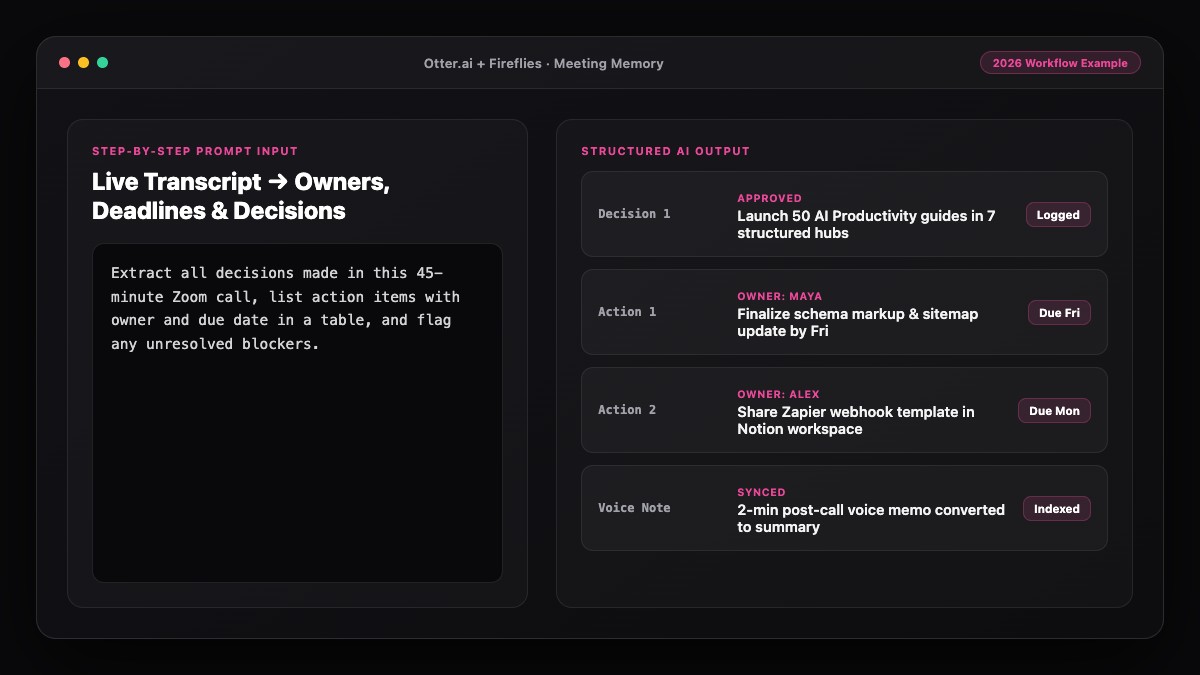
Use these prompts inside Notion Q&A, Fireflies AskFred, Otter AI Chat, or a ChatGPT/Claude Project loaded with your meeting transcripts.
Prompt 1: Pre-Meeting Context Brief (Cross-Meeting Recall)
Review our past meeting notes with [CLIENT OR PROJECT NAME] from the last 60 days.
Give me a 1-minute pre-call brief with:
1. Main goal and current status
2. Key decisions already locked in (with meeting dates)
3. Open action items and who owns them
4. Unresolved objections, risks, or sensitive topics to keep in mind

Cite the meeting date for every point. If something is missing from the notes, say "Not found in meeting history."
Prompt 2: Multi-Meeting Trend & Objection Finder
Scan all meeting transcripts from [TIMEFRAME OR FOLDER].
Identify the top recurring themes, customer objections, or bottlenecks mentioned more than once.
For each theme, list:
- Frequency (how many meetings mentioned it)
- Short summary of what people said
- 1-2 representative quotes with the meeting date and speaker name.
Common Mistakes to Avoid
- Leaving notes scattered across five apps: If Zoom summaries sit in Zoom, client calls sit in Otter, and 1-on-1s sit in Apple Notes, AI search can never see the full picture. Pick one central hub.
- Generic meeting titles: "Sync" or "Quick chat" makes chronological search painful. Always include the project or client name in the calendar invite title.
- Trusting AI memory without citations: Always verify high-stakes claims (pricing, legal terms, deadlines) by clicking the citation link back to the original transcript line.
- Ignoring access permissions: Never dump confidential executive or HR transcripts into a shared team-wide AI search index without proper folder permissions.
References & Official Sources
All workflows, pricing tiers, and feature capabilities in this guide were verified against the official platform documentation:
- Otter.ai Official Meeting Assistant (otter.ai)
- Fireflies.ai Official Meeting Notetaker (fireflies.ai)
- Zoom AI Companion Official Platform (zoom.us)
- Notion AI Official Documentation (www.notion.so)
- OpenAI ChatGPT Official Platform (chatgpt.com)
- KwiqRank AI Workflow Integration Guide — Internal methodology for combining AI tools into repeatable business processes.
Final Thoughts
Setting up an AI meeting memory and search workflow means you never have to say "I think we talked about that last month, let me dig through my notes" again. Standardize your capture, tag every call consistently, and let AI synthesize months of conversations on demand.
If you want to pair your searchable meeting archive with clean summaries of written specs, reports, and PDFs, read our guide on how to turn a long document into easy notes with AI—or reach out to our team if you are building AI-ready knowledge workflows for your organization.
Your questions, answered in plain English
AI meeting tools index your transcripts and summaries so you can ask natural-language questions across dozens or hundreds of calls, returning synthesized answers with citations to the exact meeting date and speaker quote.
Fireflies.ai (AskFred) and Otter.ai (Otter AI Chat) offer strong built-in cross-meeting search, while Notion AI Q&A is ideal if you want to search meeting notes alongside project docs and wikis.
Yes. On paid plans, you can upload exported transcripts into a ChatGPT Project or Claude Project for a specific client or initiative, then ask questions across all uploaded files.
Use a consistent pattern in your calendar invites such as "YYYY-MM-DD | Client or Project | Meeting Purpose" rather than generic titles like "Weekly Sync" or "Catch up."
Keep both. Summaries are great for quick scanning and weekly rollups, while full transcripts let AI verify exact wording, pricing figures, and nuanced objections.
Disable auto-join for sensitive 1-on-1s or HR calls, and store private meeting notes in restricted folders or private Notion pages with limited workspace permissions.
Still curious? Send us your question and a strategist will get back to you.

Want this done for you?
We can put this guide to work on your website. Start with a free audit.
Get my free auditWritten by KwiqRank Team
KwiqRank is a digital marketing agency in Mumbai, India, working with UK and US businesses on SEO, GEO, AEO, paid media and websites. We check facts against official sources, and tell you when something is unconfirmed. Spotted a mistake? Tell us and we will correct it.
Found this useful?
Get recommended by AI search
We check whether Google, ChatGPT and Perplexity can reach your pages, then fix what blocks them. No guarantees, just a clear plan.