
How to Turn Voice Notes Into Organized Notes Using AI
Capture messy voice memos on the go and convert them into structured headings, bullet points, emails, and to-do lists using Otter.ai, Notion AI, and ChatGPT.

- Read time
- 7 min read
- Sections
- 11
- FAQs answered
- 6
- Topic
- Meetings & Notes
To turn voice notes into organized notes AI workflows make effortless, record your thoughts on your phone using an AI transcriber like Otter.ai or your device's voice memo app, and pass the raw transcript through ChatGPT, Claude, or Notion AI with a formatting prompt that groups rambling ideas into clean headings, bullet points, and tasks.
Your best ideas rarely arrive when you are sitting neatly in front of a keyboard. They hit while walking the dog, driving between client visits, or stepping out of an in-person meeting with five minutes to brain-dump before you forget. Recording a voice memo captures the raw thought fast—but listening back to a three-minute ramble full of "ums," false starts, and tangents is painful.
AI bridges the gap between speaking speed and reading clarity. People speak roughly three times faster than they type, and modern speech-to-text paired with an LLM strips away filler words, untangles out-of-order thoughts, and outputs a polished note, journal entry, email draft, or task checklist in under 30 seconds.
What You'll Need
You can build a voice-to-notes pipeline using tools you likely already have on your phone and laptop. Here is how the top options compare:
| Tool | Free Tier | Paid Tier | Voice Note Advantage |
|---|---|---|---|
| Otter.ai | 300 monthly transcription minutes via mobile app or web | Pro plans increase minute limits, custom vocabulary, and export options | One-tap mobile voice recording with instant live transcription |
| Fireflies.ai | Free transcription credits for uploaded audio files | Paid tiers add higher upload limits and automated workflow routing | Upload M4A/MP3 voice memos and push summaries to Notion or Slack |
| Zoom AI Companion | Included with eligible paid Zoom Workplace plans | Requires a qualifying paid Zoom Workplace plan | Best for solo or team video/audio recaps recorded inside Zoom |
| Notion AI | Limited trial AI usage on free Notion workspaces | Paid AI add-on / Business & Enterprise plans | Rewrites pasted voice transcripts straight into your Notion pages |
| ChatGPT | Free tier with mobile Voice Mode and transcript formatting | Plus/Team plans offer higher limits and custom GPTs | Mobile app transcribes speech natively and formats it in the same chat |
Step 1: Capture Clean Audio Without Overthinking
You do not need a studio mic, and you do not need to speak like you are reading a teleprompter. Just follow three quick recording habits:
- Open a one-tap recorder: Use the Otter.ai mobile app, the ChatGPT mobile app's dictation mic, or your phone's built-in Voice Memos app.
- State the topic in the first five seconds: Start every recording by saying something like "Post-meeting recap for the Acme proposal" or "Blog outline idea on local SEO." That gives the AI instant context for the title and structure.
- Talk freely, even out of order: If you remember something halfway through, just say "Oh, also add this to the budget section..."—the AI will reorganize it into the right place later.
Step 2: Transcribe the Recording Automatically
Once you stop recording, convert the audio into raw text:
- If you recorded in Otter.ai: Your transcript is ready immediately, complete with punctuation and mobile sync to your desktop.
- If you recorded in ChatGPT mobile: Tap the microphone icon to dictate directly into the chat box; ChatGPT's speech recognition handles natural pauses and accents remarkably well.
- If you used Apple Voice Memos or an Android recorder: Upload the
.m4aor.mp3file to Fireflies.ai or Otter.ai (or use built-in OS transcription) to grab the raw text.
Step 3: Pick Your Output Format Before Formatting
A messy voice note can become several different things depending on why you recorded it. Decide which output you want before pasting the transcript into ChatGPT, Claude, or Notion AI:
- Structured Reference Note: Headings + bullet points for ideas, research, or personal journaling.
- Action Checklist: Tasks, priorities, and deadlines (great for morning brain-dumps or post-call recaps—see our guide on how to convert meeting conversations into action items using AI).
- Ready-to-Send Email or Slack Message: Polished prose in your natural voice, minus the "ums" and repetition.
- Content Outline: Hook, sections, and talking points for a presentation, newsletter, or video.
Step 4: Clean Up Ramble Without Losing Your Voice
A common complaint about AI rewrites is that they make your personal notes sound like a corporate press release. Prevent that by instructing the AI to preserve your phrasing and examples while fixing only structure, grammar, and repetition.
Always include two guardrails in your prompt:
- "Remove filler words (um, uh, like, you know) and false starts, but keep my original vocabulary and tone."
- "Do not add new advice or external facts—only organize what I actually said."
Step 5: File the Finished Note Into Your System
Do not leave organized notes trapped inside a random chat thread. Move them into your permanent workspace right away:
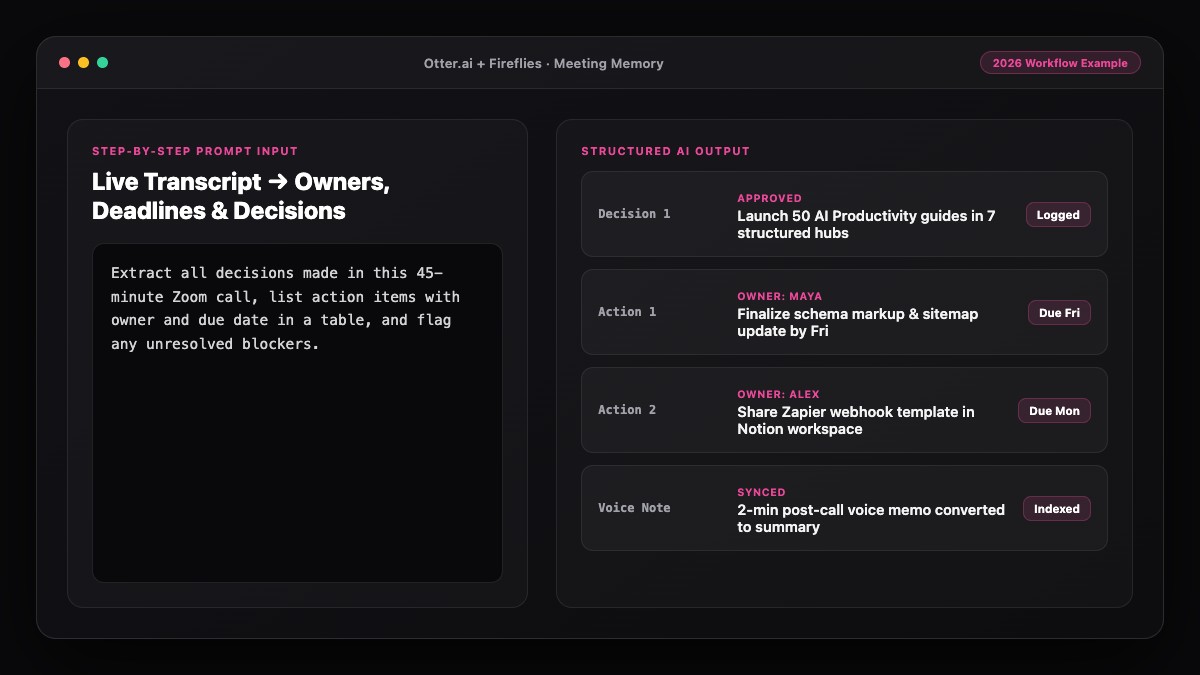
- Notion: Paste the formatted note into your Notion Inbox or link it to your searchable AI meeting memory so spoken post-meeting thoughts sit alongside call transcripts.
- Task Manager: Copy any extracted to-dos straight into Todoist, Things, Asana, or Notion Tasks.
- Weekly Review: If you record multiple quick voice notes throughout the week, batch-process them every Friday using a single ChatGPT or Claude prompt to merge related ideas.
Best Prompts to Copy and Paste
Save these two prompts in your notes app or as custom instructions so you can format any voice transcript in one tap.
Prompt 1: Voice Brain-Dump to Clean Organized Note
Turn the raw voice note transcript below into a clean, structured note.
Rules:
- Create a short, descriptive title at the top.
- Group related points under clear H2/H3 headings, even if I mentioned them out of order.
- Use concise bullet points.
- Pull any tasks or reminders into a separate "To-Do" checklist at the bottom.
- Remove filler words and repetition, but preserve my natural tone and specific examples. Do NOT invent new ideas.

Voice Transcript:
[PASTE TRANSCRIPT HERE]
Prompt 2: Post-Meeting Voice Recap to Client/Team Update
I just stepped out of a meeting and recorded this quick voice memo. Turn it into:
1. A 3-bullet summary for my personal project log
2. A polite, clear follow-up message (under 130 words) I can send via email or Slack.
Keep all numbers, names, and dates exact. Mark anything unclear with [VERIFY].

Voice Transcript:
[PASTE TRANSCRIPT HERE]
Common Mistakes to Avoid
- Recording in heavy wind or loud cafes without checking the mic: Background noise causes garbled words that force the AI to guess. Hold the phone slightly closer or wait until you are in a quieter spot.
- Forgetting to state context at the start: Saying who or what the note is about in the first sentence prevents confusing, untitled notes later.
- Letting AI over-polish personal thoughts: If you want a personal journal or creative draft, tell the AI not to make it overly formal.
- Never moving notes out of your voice app: Voice memos pile up fast. Process them the same day—or during a 10-minute Friday sweep—into Notion or your task manager.
References & Official Sources
All workflows, pricing tiers, and feature capabilities in this guide were verified against the official platform documentation:
- Otter.ai Official Meeting Assistant (otter.ai)
- Fireflies.ai Official Meeting Notetaker (fireflies.ai)
- Zoom AI Companion Official Platform (zoom.us)
- Notion AI Official Documentation (www.notion.so)
- OpenAI ChatGPT Official Platform (chatgpt.com)
- KwiqRank AI Workflow Integration Guide — Internal methodology for combining AI tools into repeatable business processes.
Final Thoughts
When you turn voice notes into organized notes using AI, speaking becomes the fastest way to capture ideas, plan your week, and document in-person conversations without staring at a blank page. Record freely, run one clean formatting prompt, and drop the result straight into your workspace.
Looking to automate live calls as well? Check out our step-by-step guide on how to take meeting notes automatically using AI, or learn how to turn a long document into easy notes with AI when you are working from written reports.
Your questions, answered in plain English
Use the ChatGPT mobile app dictation button or Otter.ai to capture speech, then apply a saved prompt that formats the transcript into headings, bullets, and a To-Do checklist.
Yes. You can upload .m4a or .mp3 voice recordings to Otter.ai or Fireflies.ai for transcription, then paste the text into ChatGPT, Claude, or Notion AI to organize it.
Add an instruction to your prompt such as: "Remove filler words and repetition, but keep my natural tone, phrasing, and specific examples. Do not add external ideas."
Yes. Large language models excel at clustering related thoughts under separate headings even if you mentioned them out of order while walking or driving.
Yes. Otter.ai offers 300 free monthly transcription minutes, and ChatGPT free tier supports voice dictation and text formatting within daily usage limits.
Record a 60-second voice recap immediately after leaving the room covering decisions, owners, and deadlines, then use an AI prompt to generate both a project log and a follow-up email.
Still curious? Send us your question and a strategist will get back to you.

Want this done for you?
We can put this guide to work on your website. Start with a free audit.
Get my free auditWritten by KwiqRank Team
KwiqRank is a digital marketing agency in Mumbai, India, working with UK and US businesses on SEO, GEO, AEO, paid media and websites. We check facts against official sources, and tell you when something is unconfirmed. Spotted a mistake? Tell us and we will correct it.
Found this useful?
Get recommended by AI search
We check whether Google, ChatGPT and Perplexity can reach your pages, then fix what blocks them. No guarantees, just a clear plan.