
How to Take Meeting Notes Automatically Using AI
A practical 5-step guide to automating meeting transcription, structured summaries, and team follow-ups using Otter.ai, Fireflies.ai, Zoom AI Companion, and ChatGPT.

- Read time
- 8 min read
- Sections
- 11
- FAQs answered
- 6
- Topic
- Meetings & Notes
To take meeting notes automatically using AI, connect an AI meeting assistant such as Otter.ai, Fireflies.ai, or Zoom AI Companion to your calendar so it joins calls, records and transcribes speakers in real time, and generates a structured summary with key decisions and next steps the moment the call ends.
Manual note-taking forces an impossible trade-off during live calls: either you type frantically and miss subtle cues in the conversation, or you stay fully present and forget half of what was agreed upon by the next morning. Even when teams record calls, nobody wants to scrub through a 45-minute video just to find one budget number or confirm who volunteered for a deliverable.
Modern AI note-takers solve this by separating listening from documentation. They capture multi-speaker audio, label who said what, strip out filler words, and organize the raw transcript into scannable bullets. Better still, you can feed that transcript into ChatGPT, Claude, or Notion AI to match your team's exact template—whether that is a client recap, a sprint standup log, or an executive brief.
What You'll Need
You do not need an enterprise software budget to automate your meeting notes. Most professionals start with a free tier from a dedicated transcription bot and pair it with a general-purpose AI assistant for formatting. Here is how the most reliable tools compare:
| Tool | Free Tier | Paid Tier | Best For |
|---|---|---|---|
| Otter.ai | 300 monthly transcription minutes (30 min per conversation) | Pro plans unlock higher minute caps, custom vocabulary, and advanced export | Live English transcription and real-time collaborative highlights |
| Fireflies.ai | Limited AI summaries and storage with free transcription credits | Pro/Business plans add unlimited transcription, CRM sync, and topic trackers | Cross-meeting search, analytics, and multi-language teams |
| Zoom AI Companion | Included at no extra cost with eligible paid Zoom Workplace accounts | Requires a qualifying paid Zoom Workplace plan (no standalone fee) | Zero-bot native summaries directly inside Zoom |
| Notion AI | Limited trial AI responses on free Notion workspaces | Paid AI add-on / Business & Enterprise plans include meeting notes & Q&A | Storing notes directly inside your team wiki and project tracker |
| ChatGPT | Free access to core models with daily usage limits | Plus/Team plans offer higher limits, Projects, and custom GPTs | Reformatting raw transcripts into custom templates and emails |
Choose one capture tool (Otter.ai, Fireflies.ai, or Zoom AI Companion) and optionally one workspace or formatting tool (Notion AI, ChatGPT, or Claude). Running two meeting bots on the same call creates clutter and confuses participants, so pick a single primary recorder.
Step 1: Connect Your Calendar and Set Auto-Join Rules
Automation begins before the meeting starts. Instead of remembering to hit "Record" at the top of every call, link your Google Calendar or Microsoft Outlook account to your chosen AI note-taker.
- Open your settings in Otter.ai or Fireflies.ai and authorize read access to your primary work calendar.
- Locate the Auto-Join rules. Avoid setting the bot to join "All meetings with a video link" on day one—that can accidentally send a recording bot into sensitive HR 1-on-1s or casual coffee chats.
- Instead, select "Only meetings I host" or "Ask before joining / Join only when invited". You can always toggle the bot on for individual calendar events with one click.
- If you use Zoom AI Companion, enable Meeting Summary in your Zoom web portal under Settings > AI Companion, and toggle on auto-start if you want every hosted Zoom call summarized without a visible third-party bot.
Step 2: Configure Speaker Labels and Custom Vocabulary
Raw AI transcripts often stumble over company acronyms, product names, and client surnames. Spending three minutes adding custom vocabulary dramatically improves accuracy—especially when you later search your past meetings with AI.
- Add 10–20 key terms: Include your company name, flagship products, internal project codenames, and unusual stakeholder names.
- Enable speaker diarization: Make sure speaker identification is turned on so the transcript separates "Speaker 1" and "Speaker 2" or pulls names directly from the video conference participant list.
- Set a clear disclosure habit: Even when laws only require one-party consent, announce at the start of the call: "I have an AI note-taker capturing our summary so we can all focus on the discussion—let me know if anyone prefers we pause it." Transparency builds trust.
Step 3: Mark Key Moments While Staying Present
You do not need to type full sentences during the meeting, but dropping lightweight signals helps the AI prioritize what actually mattered.
Use one of these low-effort habits during live calls:
- Verbal cues: Say phrases like "Decision: we are launching on Tuesday" or "Action item for Priya: send the updated deck by Thursday." AI summarizers weight explicit verbal markers heavily.
- One-click highlights: In Otter.ai or Fireflies.ai, click the highlight or bookmark button when a major number, objection, or commitment comes up.
- Quick chat tags: If you are using Zoom, dropping a short note in the meeting chat (for example,
[Decision] Approved $5k test budget) gives both you and the AI an unmistakable anchor point.
Step 4: Generate and Refine the Structured Summary
Within one to three minutes after the call ends, your capture tool will email or display a default summary. Default summaries are decent, but they are often generic. For client calls, leadership syncs, or discovery interviews, export or copy the transcript and run a quick formatting pass in ChatGPT, Claude, or Notion AI.
Look for four essential blocks in every finished note:
- TL;DR Overview: Two to three sentences explaining the meeting's purpose and outcome.
- Key Decisions Made: Bullet points of what was approved, rejected, or deferred.
- Action Items Table: Task, owner, and due date (if you want a deeper workflow for this, see our guide on how to convert meeting conversations into action items using AI).
- Open Questions: Unresolved topics that need follow-up before the next meeting.
Step 5: Route Notes to Your Team Automatically
Great meeting notes are useless if they sit trapped inside an app nobody checks. Close the loop by routing finished notes to where your team already works:
- Notion or Google Docs: Use native integrations in Fireflies.ai or Otter.ai to push every completed summary into a dedicated "Meeting Notes" database tagged by date and project.
- Slack or Microsoft Teams: Configure a channel rule that posts a compact recap (Summary + Action Items only, not the full transcript) into the relevant project channel.
- Email follow-up: For external client calls, review the AI draft for 60 seconds, fix any name spellings, and send it within 15 minutes of hanging up while context is fresh.
Best Prompts to Copy and Paste
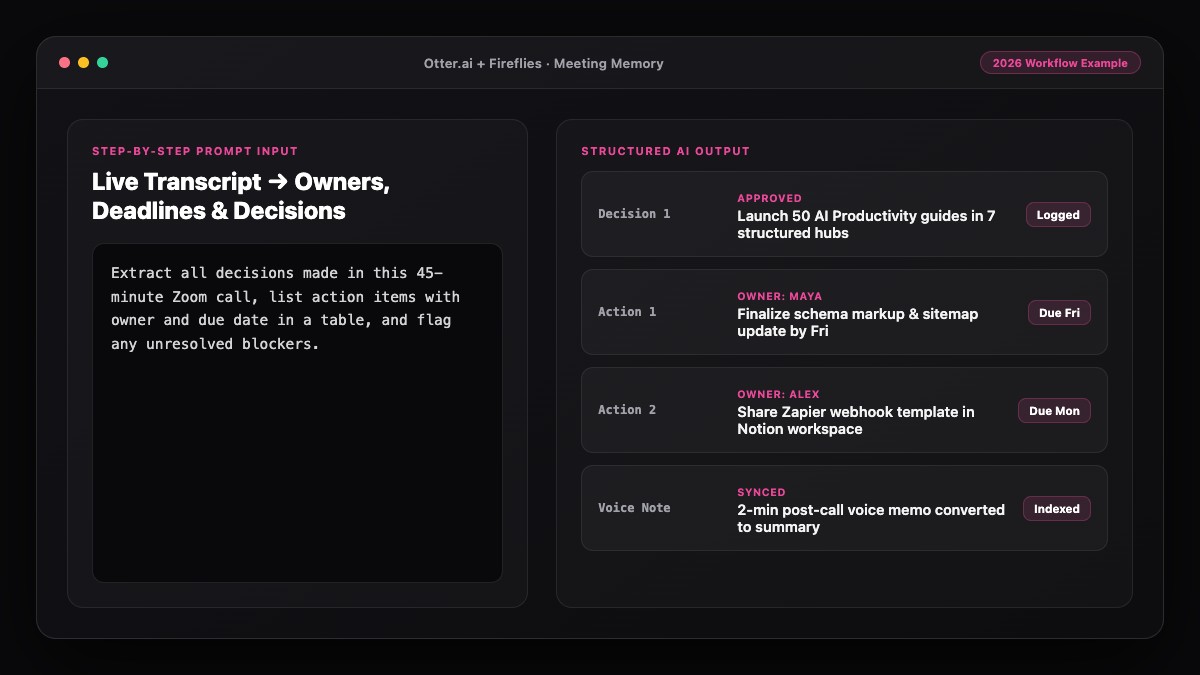
When your built-in meeting summary feels too vague, paste the raw transcript into ChatGPT, Claude, or Notion AI with one of these templates.
Prompt 1: Clean Executive Meeting Summary
You are an executive assistant. Turn the meeting transcript below into a concise, scannable note using these exact sections:
1. Meeting Purpose & TL;DR (2-3 sentences max)
2. Key Decisions Made (bullet points; if none were finalized, state "No final decisions recorded")
3. Discussion Highlights (grouped by topic, max 5 bullets)
4. Open Questions & Risks
5. Next Steps (Owner | Task | Deadline — write "TBD" if no deadline was mentioned)

Rules: Do not invent facts or deadlines. Stick strictly to what is in the transcript.

Transcript:
[PASTE TRANSCRIPT HERE]
Prompt 2: Client Follow-Up Email Draft
Based on the call transcript below, write a polite, clear follow-up email to the client.
- Keep it under 180 words.
- Thank them for their time and state the main takeaway in sentence one.
- List what our team will deliver next and what we need from their side, with target dates.
- End with a single proposed time or next check-in step.
- Tone: warm, professional, zero fluff.

Transcript:
[PASTE TRANSCRIPT HERE]
Common Mistakes to Avoid
- Sending unedited AI notes to clients: AI still occasionally mishears numbers, pricing tiers, or industry jargon. Always do a 60-second human sanity check before sharing externally.
- Letting bots join confidential calls automatically: Never leave unrestricted auto-join enabled for HR reviews, legal discussions, or sensitive salary conversations.
- Sharing the full transcript instead of a summary: Nobody reads a 6,000-word transcript wall. Share the structured summary and keep the raw transcript linked for reference.
- Skipping verbal ownership: If nobody says a name and a date out loud during the call, the AI cannot reliably assign accountability afterward.
References & Official Sources
All workflows, pricing tiers, and feature capabilities in this guide were verified against the official platform documentation:
- Otter.ai Official Meeting Assistant (otter.ai)
- Fireflies.ai Official Meeting Notetaker (fireflies.ai)
- Zoom AI Companion Official Platform (zoom.us)
- Notion AI Official Documentation (www.notion.so)
- OpenAI ChatGPT Official Platform (chatgpt.com)
- KwiqRank AI Workflow Integration Guide — Internal methodology for combining AI tools into repeatable business processes.
Final Thoughts
Learning how to take meeting notes automatically using AI frees you to listen actively, ask better follow-up questions, and finish every workday without a backlog of half-written recaps. Start with one capture tool on your recurring team syncs this week, pair it with a clean prompt template, and expand from there.
If you also deal with dense pre-reads, PDFs, or long reference docs before those calls, check out our guide on how to turn a long document into easy notes with AI—or explore how to summarize Zoom meetings using AI for a Zoom-specific setup.
Your questions, answered in plain English
Yes. Otter.ai offers a free tier with 300 monthly transcription minutes, and Fireflies.ai includes free transcription credits to test automated summaries. If you already pay for Zoom Workplace, Zoom AI Companion is included at no additional cost.
Zoom AI Companion summarizes Zoom meetings natively without joining as a separate participant. Some desktop-audio tools also record locally on your device, though you should always inform participants before recording.
Choose Otter.ai if you want fast live English transcription and collaborative in-meeting highlighting. Choose Fireflies.ai if you need broader multi-language support, CRM integrations, or cross-meeting topic tracking.
Modern transcription models are highly accurate in quiet environments, but industry acronyms and unfamiliar names can still trip them up. Adding 10 to 20 custom vocabulary terms in your tool settings significantly reduces errors.
Always check your organization policy and disable auto-join for sensitive HR, legal, or financial calls. Review each vendor privacy policy, turn off AI model training on your data where available, and disclose recording to attendees.
Copy the finished transcript into ChatGPT, Claude, or Notion AI using a structured prompt that specifies exact headings such as TL;DR, Key Decisions, Action Items, and Open Questions.
Still curious? Send us your question and a strategist will get back to you.

Want this done for you?
We can put this guide to work on your website. Start with a free audit.
Get my free auditWritten by KwiqRank Team
KwiqRank is a digital marketing agency in Mumbai, India, working with UK and US businesses on SEO, GEO, AEO, paid media and websites. We check facts against official sources, and tell you when something is unconfirmed. Spotted a mistake? Tell us and we will correct it.
Found this useful?
Talk to us about your site
Tell us what you are working on and we will say plainly what we would do first.