
How to Use AI to Manage Multiple Tasks Without Getting Overwhelmed
Stop context-switching and beat task paralysis. Use AI to batch similar work, spot hidden dependencies, and build a calm Now/Next/Later queue.

- Read time
- 6 min read
- Sections
- 11
- FAQs answered
- 6
- Topic
- Everyday Productivity
To manage multiple tasks with AI without getting overwhelmed, stop trying to hold five competing projects in your head at once and instead use an AI assistant as an external working memory that clusters related work into batches, sequences dependencies, and hides everything except your current 60-minute focus block. Overwhelm rarely comes from having too much work—it comes from seeing 20 unorganized obligations simultaneously and switching context every 12 minutes. AI restores calm by turning a noisy pile of responsibilities into a single-file queue.
When you juggle multiple clients, deadlines, and personal errands, each context switch costs up to 20 minutes of lost attention. By letting AI group, sequence, and stage your workload, you can move through heavy days steadily without mental burnout.
What You'll Need
Pair one AI model for rapid sorting and sequencing with one visual task board that hides non-urgent noise.
| Tool | Free Tier Capabilities | Paid Tier Capabilities | Best Role for Managing Multiple Tasks |
|---|---|---|---|
| ChatGPT | Task clustering, dependency mapping, quick calm-down triage | Projects for separating Client A, Client B, and Admin contexts | Turning 20 competing tasks into clean focus batches |
| Claude | Clear step-by-step sequencing, calm prioritization rationale | Projects with full project briefs and deadline constraints | Sequencing complex multi-project dependencies |
| Gemini | Fast categorization and checklist exports | Cross-checking multiple Gmail threads and Calendar deadlines | Consolidating scattered requests from Google Workspace |
| Todoist | Labels by energy/tool (@calls, @deep-work), Today focus view | AI Filter Assistant to show only one context at a time | Hiding tomorrow's noise so you only see the current batch |
| Notion | Kanban boards grouped by project, status, or energy level | Notion AI summaries across crowded project databases | Visualizing multiple workstreams without clutter |
| Motion | 7-day trial only | Auto-sequences tasks across multiple projects onto one timeline | Preventing double-booking across competing deadlines |
| ClickUp | Multiple views (List, Board, Calendar), dependency links | ClickUp Brain to summarize overdue tasks and spot bottlenecks | Coordinating multi-step deliverables across teams |
Step 1: Externalize Every Open Loop Into One Place
Mental overwhelm spikes when tasks live across sticky notes, Slack stars, unread emails, and your head. Spend two minutes dumping every single open loop—work and personal—into Claude or ChatGPT. Do not filter or judge yet; getting it all onto one screen immediately lowers cognitive load.
Step 2: Cluster Tasks by Cognitive Mode, Not Just Project
Jumping from writing a proposal, to answering five Slack pings, to reconciling an invoice, back to writing is exhausting. Instruct the AI to group your tasks into four "cognitive modes" so you stay in one mental gear at a time:
- Maker / Deep Creation: Writing, designing, coding, strategy
- Communications & Calls: Emails, Slack replies, client check-ins
- Admin & Logistics: Invoicing, bookings, file cleanup
- Quick 5-Minute Errands: One-line messages and approvals
Doing four similar emails in one 20-minute batch takes half the energy of doing them one by one across the afternoon.
Step 3: Use the "Now, Next, Later" Tunnel Method
Looking at a 22-item list all day triggers paralysis. Ask AI to convert your clustered list into a strict Now / Next / Later queue:
- NOW (1 batch or 1 deep task): The single block you are doing for the next 45–60 minutes.
- NEXT (2 items): Queued for right after your break.
- LATER (Everything else): Parked out of sight until Next is done.
In Todoist or Notion, collapse or filter out the "Later" column so your eyes only see one active target. For ranking which item earns the NOW slot, check our guide on AI task prioritization.
Step 4: Let AI Detect Hidden Dependencies and Blockers
Multi-task stress often comes from realizing at 4:00 PM that you cannot finish Task C because you forgot to ask a teammate for a file at 9:00 AM. Ask AI to scan your task list and flag any item that depends on someone else's input, so you send those requests first thing in the morning before starting your own deep work.
Step 5: Run a 60-Second "Overwhelm Reset" When Chaos Hits
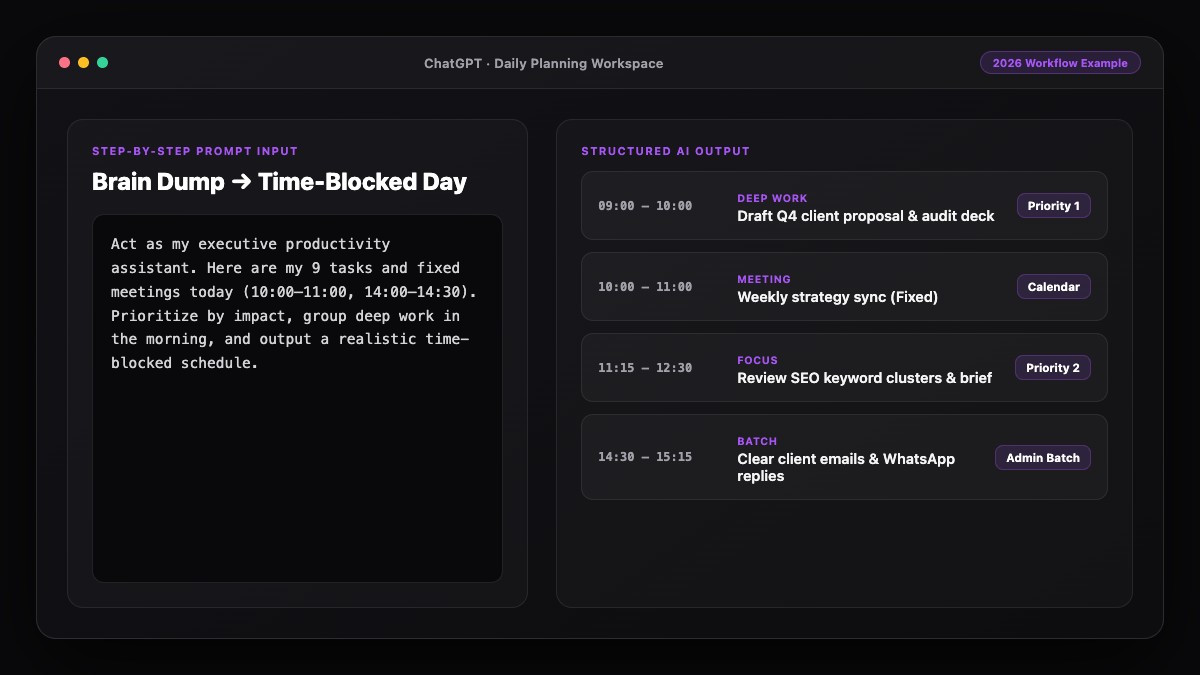
Whenever your chest tightens and you feel pulled in six directions at once, stop for 60 seconds. Paste everything currently nagging at you into AI and ask: "I feel overwhelmed. Pick the single smallest 15-minute win I can finish right now to regain momentum, and tell me what I can safely ignore until tomorrow." Pairing this with a clean daily AI schedule or a complete weekly plan keeps busy weeks manageable.
Best Prompts to Copy and Paste
Keep these two anti-overwhelm prompts ready for high-pressure days.
1. Multi-Task Batching & "Now / Next / Later" Prompt
I am juggling too many tasks right now. Organize the list below to eliminate context switching.

Instructions:
1. Group similar tasks into batches by mental mode (Deep Work, Comms/Replies, Admin, Quick Wins).
2. Flag any task where I am waiting on someone else so I can send that nudge first.
3. Build a strict "NOW / NEXT / LATER" queue:
   - NOW: One 45-minute focus block or batch to start immediately.
   - NEXT: The next two blocks after a short break.
   - LATER: Everything else (hidden from my immediate view).

My current pile of tasks:
[PASTE EVERYTHING HERE]
2. The 60-Second Overwhelm Rescue Prompt
I am feeling overwhelmed with [X] competing deadlines today: [list them briefly].
Act as a calm coach:
1. Tell me what 2 items actually matter today and what can wait 24 hours without disaster.
2. Give me one concrete 15-minute starter step to break my paralysis right now.
Common Mistakes to Avoid
- Keeping all 20 tasks visible on your screen: Visibility creates anxiety. Hide "Later" items until your current block is complete.
- Multitasking across open browser tabs: Close unrelated tabs before starting your NOW block—use one tab or one window per cognitive mode.
- Saying yes to new tasks without checking capacity: Before accepting a mid-day favor, check what gets pushed to tomorrow.
- Skipping short recovery breaks between batches: A 5-minute walk or stretch between cognitive modes prevents afternoon brain fog.
References & Official Sources
All workflows, pricing tiers, and feature capabilities in this guide were verified against the official platform documentation:
- OpenAI ChatGPT Official Platform (chatgpt.com)
- Anthropic Claude Official Workspace (claude.ai)
- Google Gemini Official Assistant (gemini.google.com)
- Notion AI Official Documentation (www.notion.so)
- Todoist Official Task Manager (todoist.com)
- KwiqRank AI Workflow Integration Guide — Internal methodology for combining AI tools into repeatable business processes.
Final Thoughts
Learning how to manage multiple tasks with AI without getting overwhelmed comes down to batching similar work, sequencing dependencies early, and hiding everything except what is right in front of you. When you treat AI as your calm triage partner, even the busiest weeks feel structured and finishable. Ready to connect all your daily habits into one cohesive setup? Read our guide on how to create your personal AI productivity system or contact our team for workflow guidance.
Your questions, answered in plain English
AI reduces overwhelm by clustering scattered tasks into similar mental batches, spotting dependencies early, and creating a focused Now/Next/Later queue so you only look at one block at a time.
Task batching means grouping similar work—like answering all emails or paying all bills—into one window. AI can sort a messy 20-item list into batches in five seconds.
It limits your active view to one immediate 45-minute task (Now) and two upcoming items (Next), while hiding everything else (Later) to prevent visual paralysis.
ChatGPT or Claude for rapid batching and triage, paired with Todoist filters, Notion boards, or Motion for hiding future noise and scheduling around deadlines.
Run a 60-second Overwhelm Rescue prompt: paste your competing tasks into AI and ask it to pick one 15-minute starter win and name what can safely wait 24 hours.
No. Even with AI, switching between unrelated deep tasks hurts focus. Use AI to batch similar tasks together so you stay in one mental mode.
Still curious? Send us your question and a strategist will get back to you.

Want this done for you?
We can put this guide to work on your website. Start with a free audit.
Get my free auditWritten by KwiqRank Team
KwiqRank is a digital marketing agency in Mumbai, India, working with UK and US businesses on SEO, GEO, AEO, paid media and websites. We check facts against official sources, and tell you when something is unconfirmed. Spotted a mistake? Tell us and we will correct it.
Found this useful?
Talk to us about your site
Tell us what you are working on and we will say plainly what we would do first.